Understood In — User Tutorial
Last updated · Reflects app version 1.4.0
The complete guide to the Understood In apps for iOS and Android. The screenshots show Understood In Spanish in English; every Understood In app works exactly the same way, whichever language it teaches and whichever language you learn it through.
Getting Started
Understood In is a language course that actually teaches: real grammar explanations, speaking practice that listens to you, typed answers instead of tile-matching, and spaced repetition that brings every word back right before you would forget it. The whole course is free — all 280 lessons from A1 to C2 — and it works entirely offline. There is no account and nothing to sign up for.
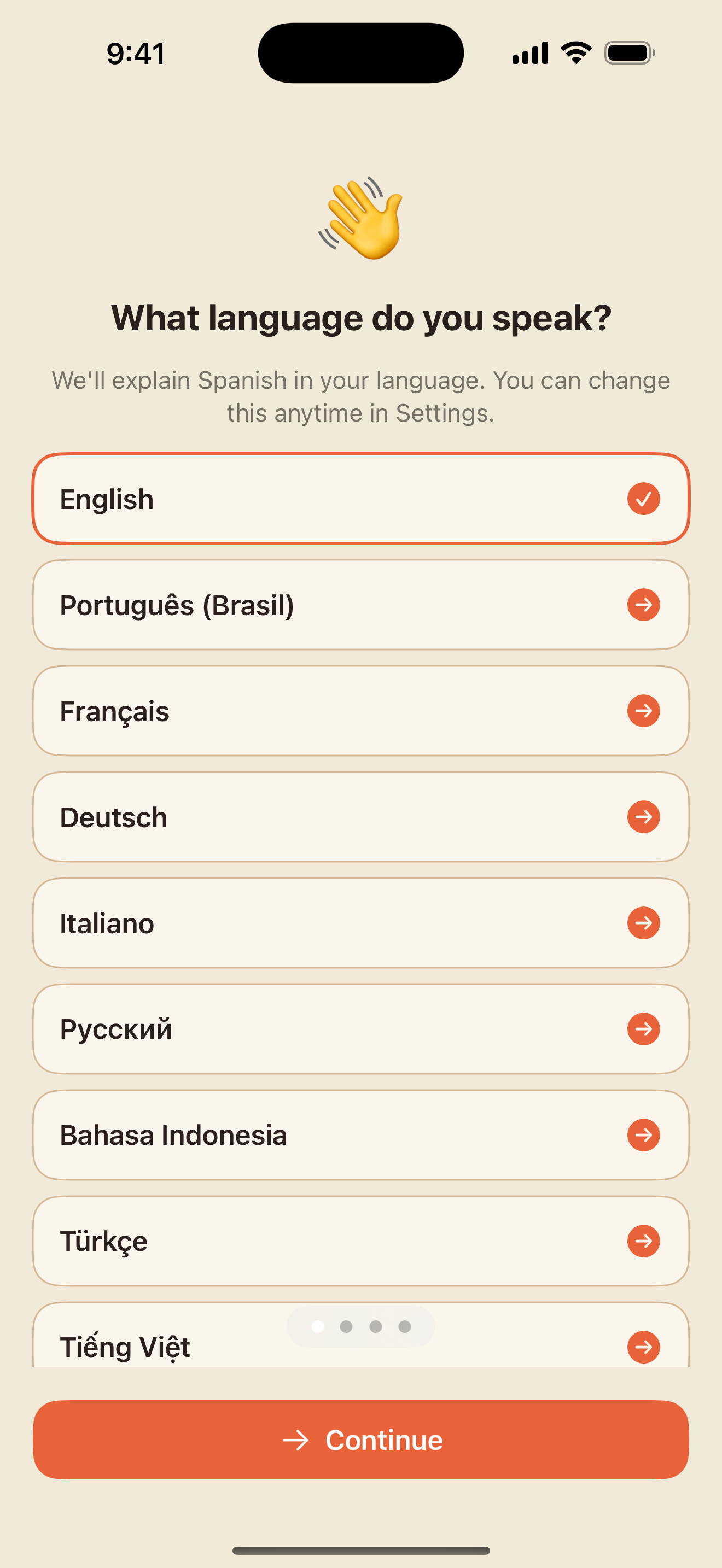
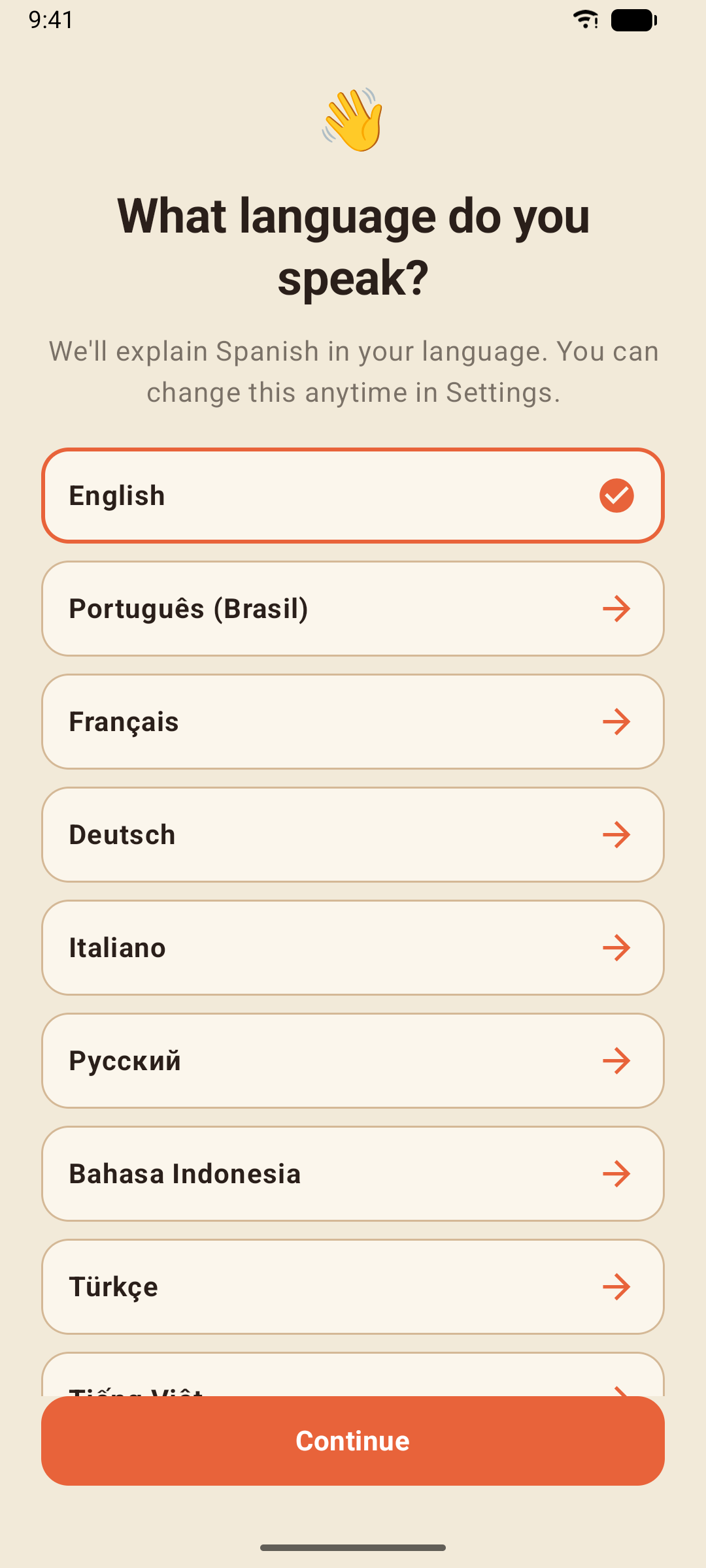
The first time you open the app it asks three things: the language you speak (33 to choose from — lessons are explained in it), a quick look at how the course works, and how much of the language you already know, so it can suggest a starting level. Nothing is locked; you can change any of this later.
The app has four tabs along the bottom of the screen:
- Learn — the course: your level, its units and lessons, and today's Daily Workout
- Review — Smart Review, Fix Your Misses, stories, conversations, flashcards, quizzes, the Conjugation Gym, the Grammar Library and the Phrasebook
- Profile — XP, streak, words learned, progress per level, and Stats & Achievements
- Settings — the language you speak, the voice, reminders, backups, Pro and privacy
Free vs Pro
- Free: everything in this tutorial. The free version shows a small banner on the Learn and Review tabs and, now and then, a full-screen ad after a result screen — never inside a lesson.
- Pro: exactly the same course with every ad removed. See Understood In Spanish Pro.
The Course Map
The Learn tab is your course. The pill at the top left shows your level — tap it to switch between A1 and C2 at any time. Your streak (the flame) and total XP sit at the top right.
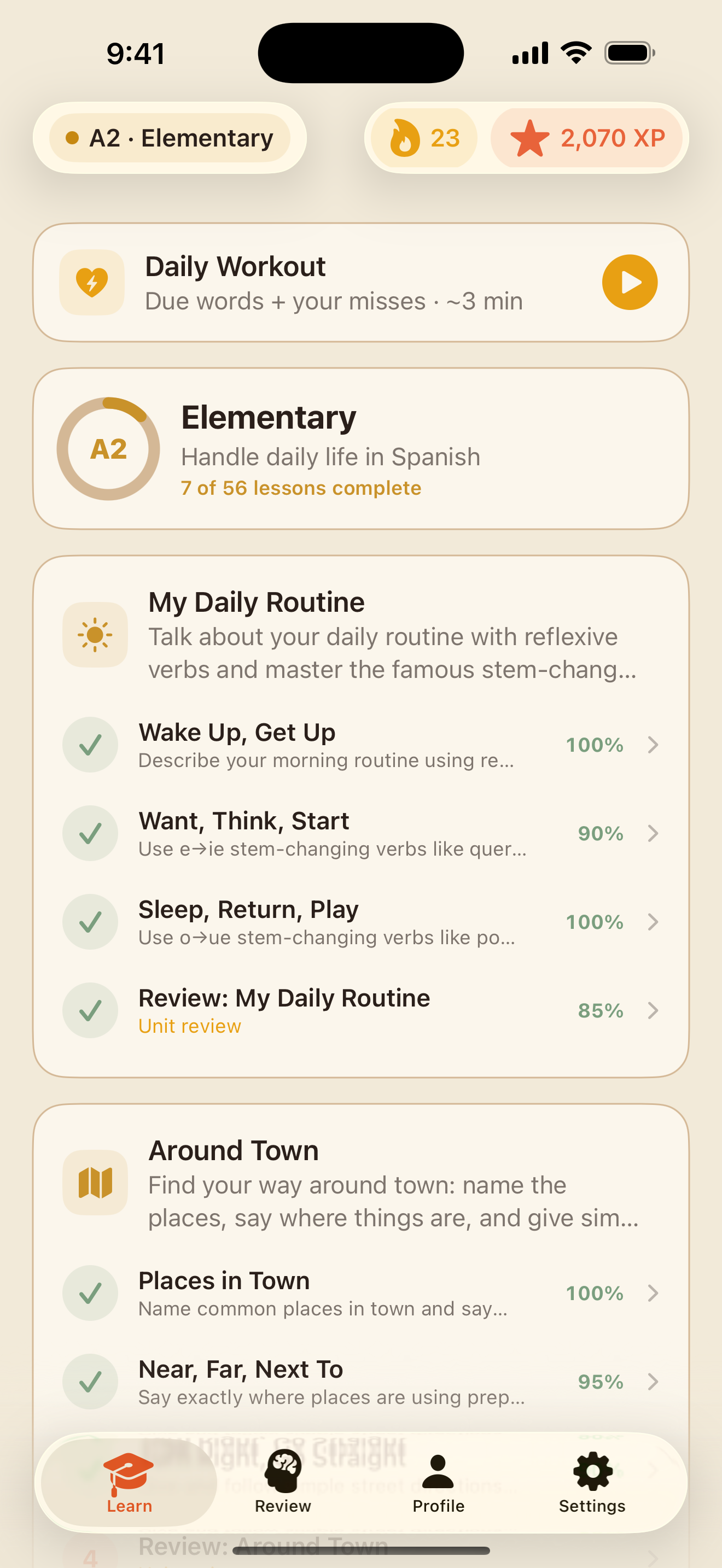
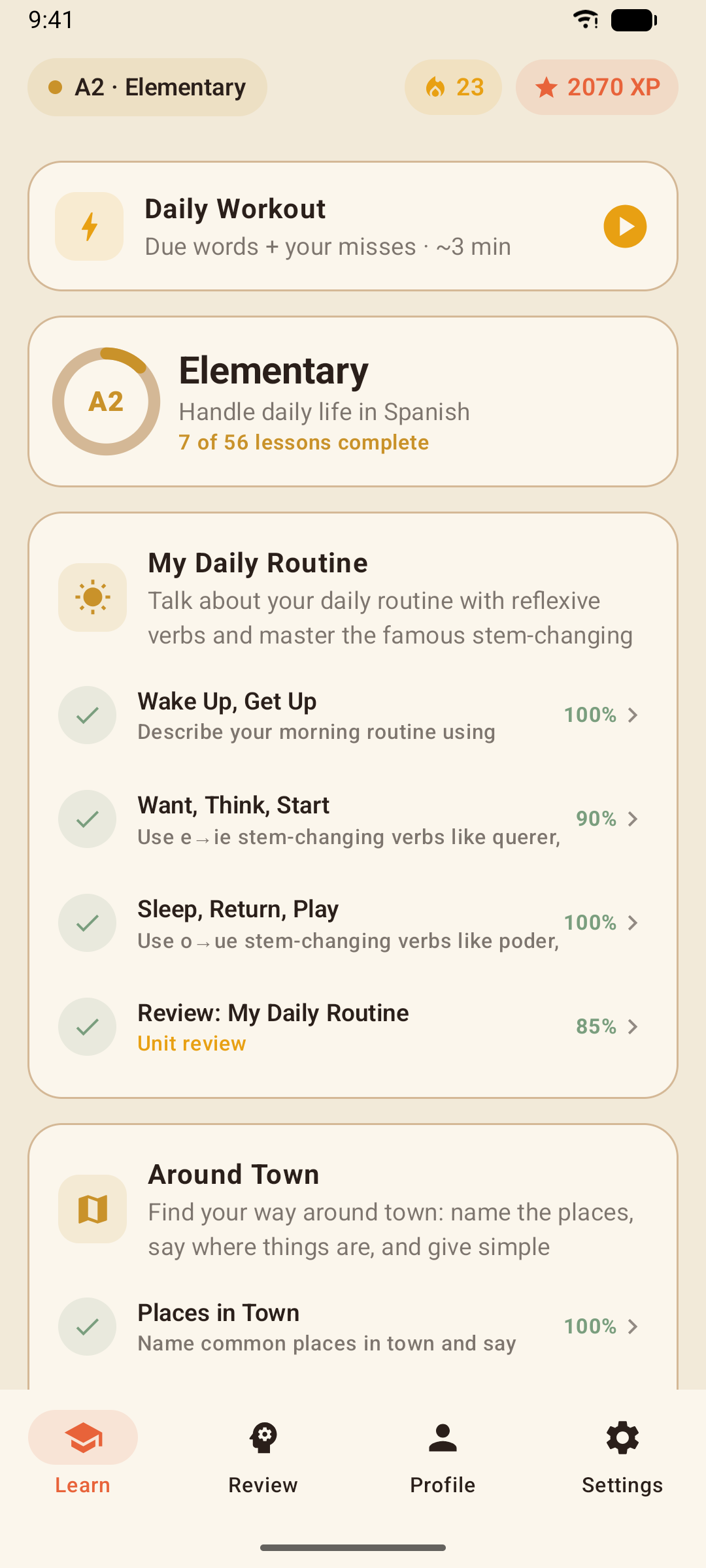
- Levels: A1 Beginner, A2 Elementary, B1 Intermediate, B2 Upper Intermediate, C1 Advanced and C2 Mastery — 70 units and 280 lessons in all. The ring in the level card shows how many of the level's lessons you have completed.
- Units group three or four lessons around one theme ("My Daily Routine", "Around Town"), and each unit ends with a Unit review that mixes everything the unit taught.
- Lessons show a tick and your score once you have passed them. The next lesson is highlighted; lessons further along show a lock.
The lock only means the lesson before it isn't finished yet. Tap a locked lesson anyway and choose Jump in anyway — nothing in the course is ever locked for real.
Inside a Lesson
Every lesson follows the same three steps, and the progress bar at the top tracks where you are.
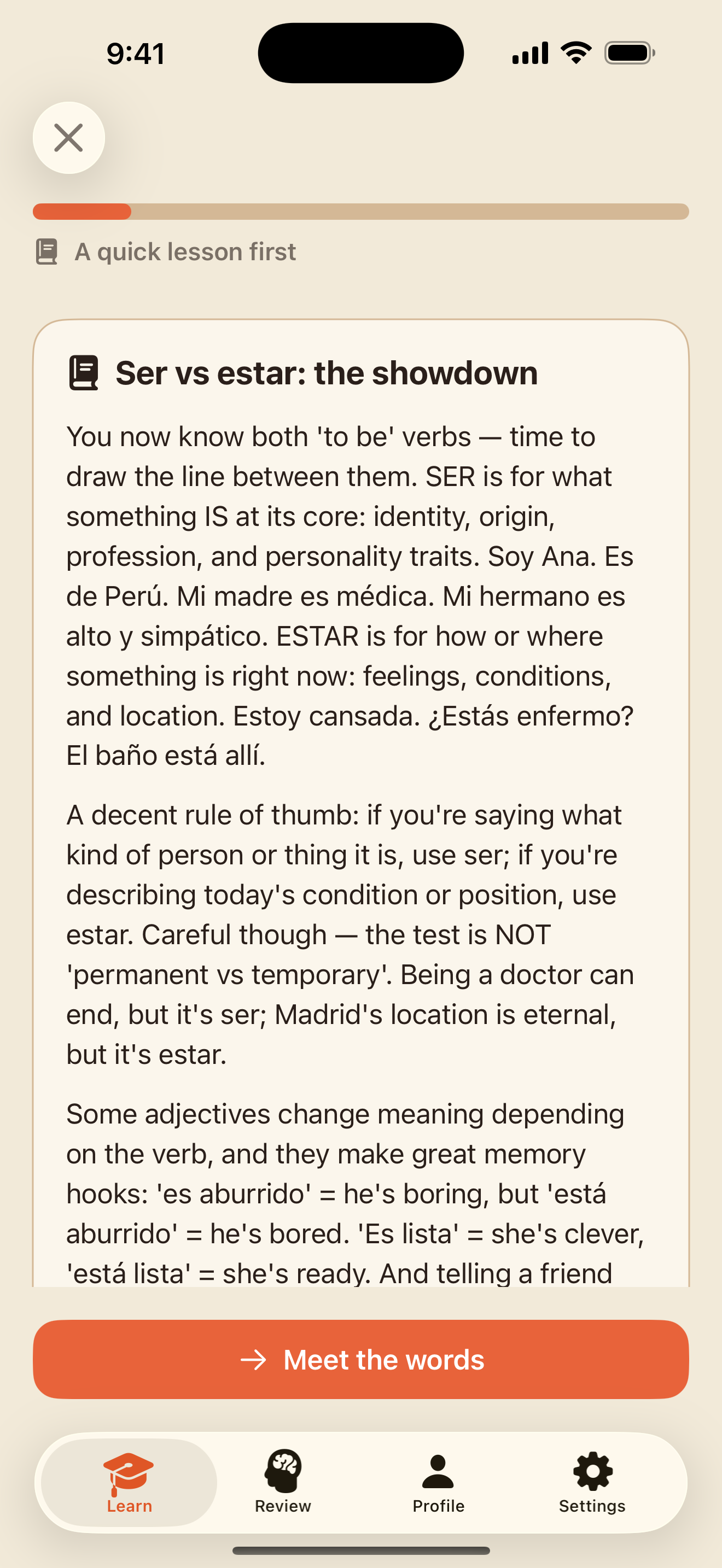
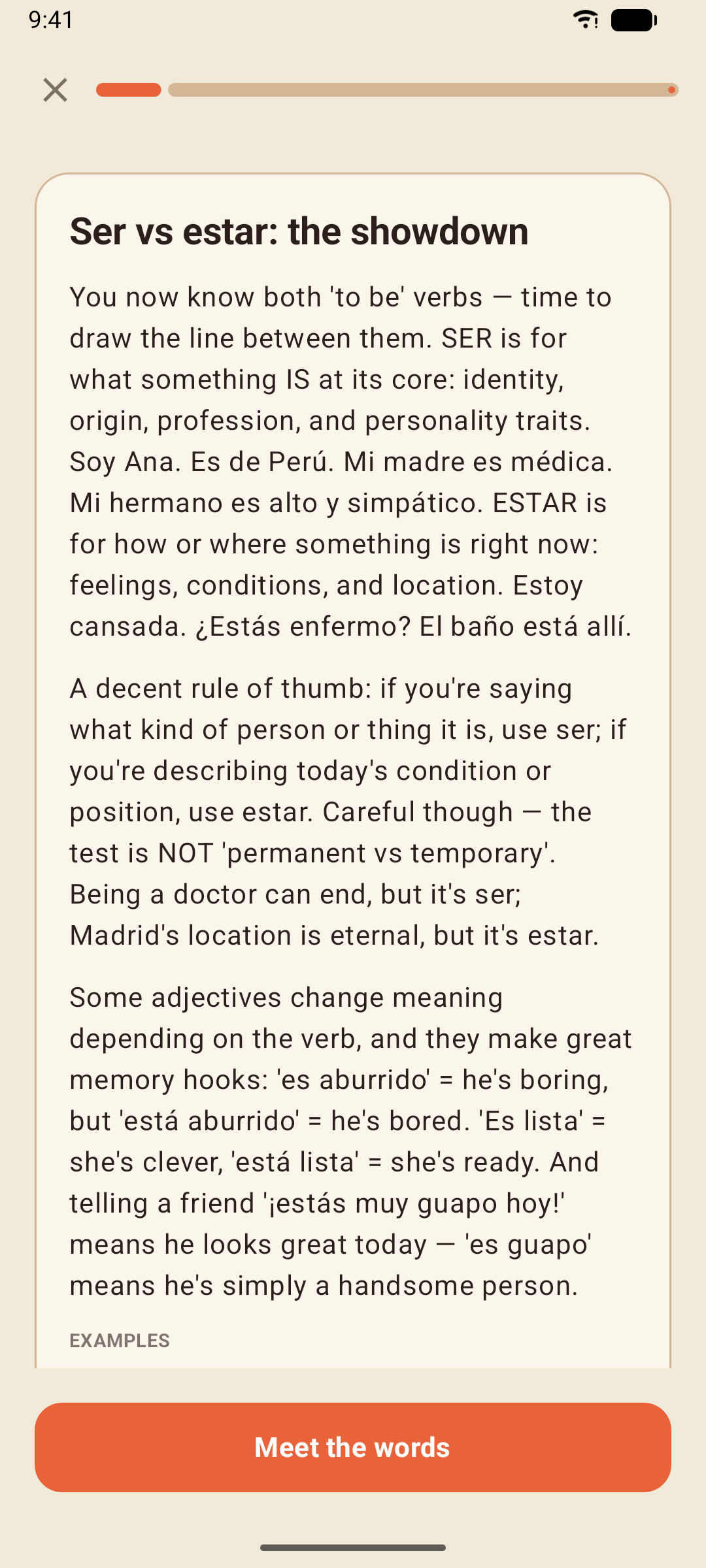
1. The grammar note
A short, honest explanation of the one thing the lesson teaches — the why, not just the what — with Spanish examples you can play with the speaker button. Read it once; the exercises will make it stick. Prefer to listen? Tap Read aloud and the app reads the explanation to you in your own language; Stop reading stops it.
2. The words
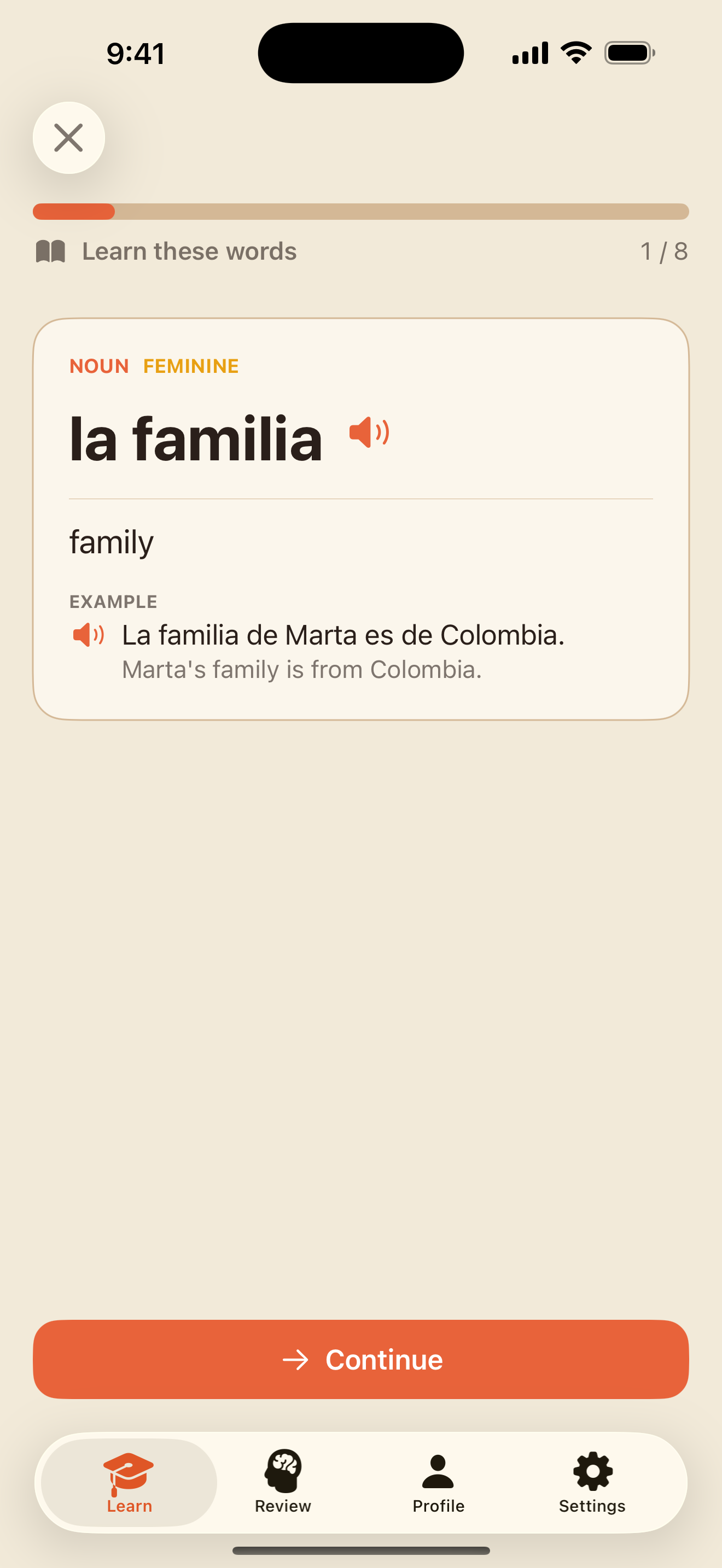
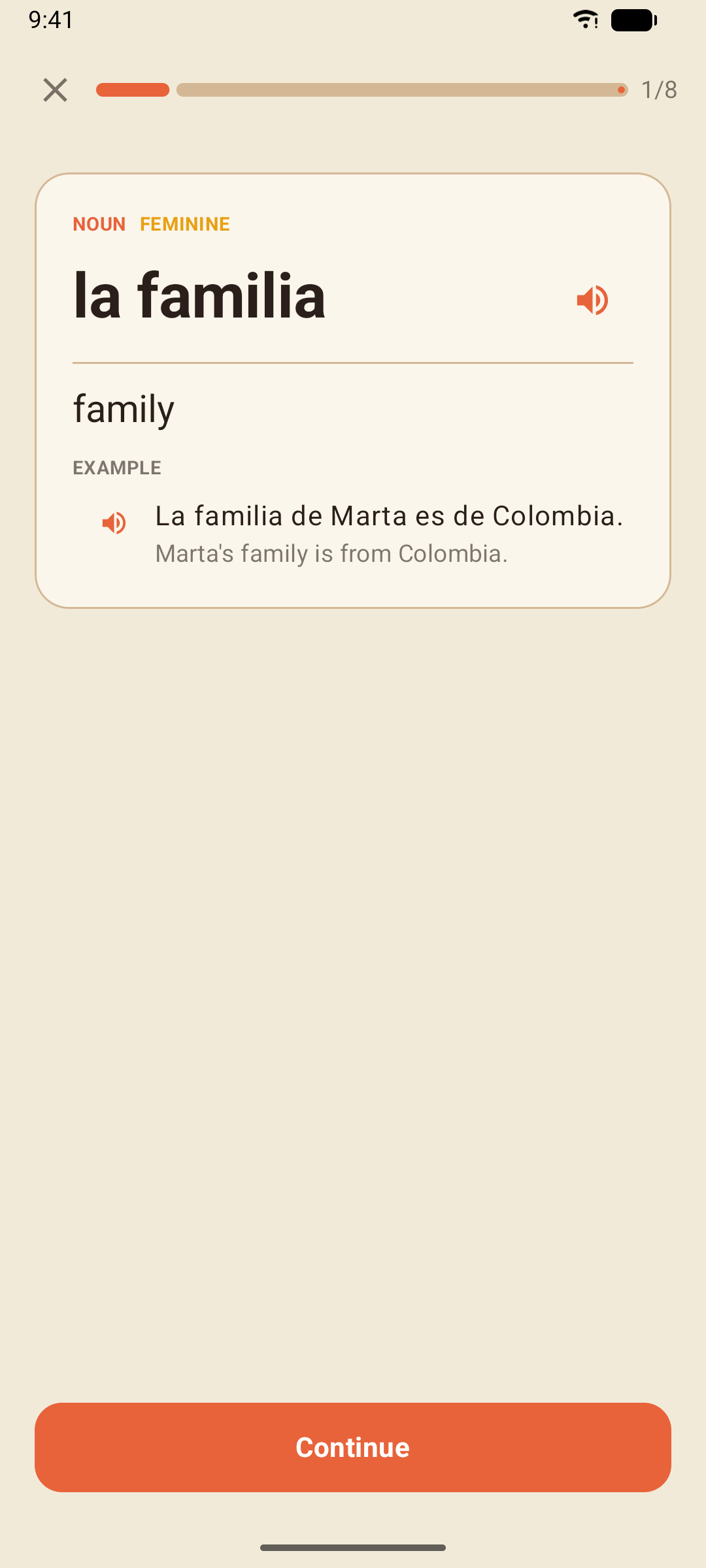
The lesson's new vocabulary, one card at a time. Each card is spoken aloud as it appears (tap the speaker to hear it again) and shows the word, its meaning, its part of speech and a note where one helps. Tap Continue through the cards and Start practice when you reach the last one.
3. The exercises
Ten or so exercises that mix the new words and the grammar point — the types are described in the next section. Tap Check to check an answer and Continue to move on.
The result
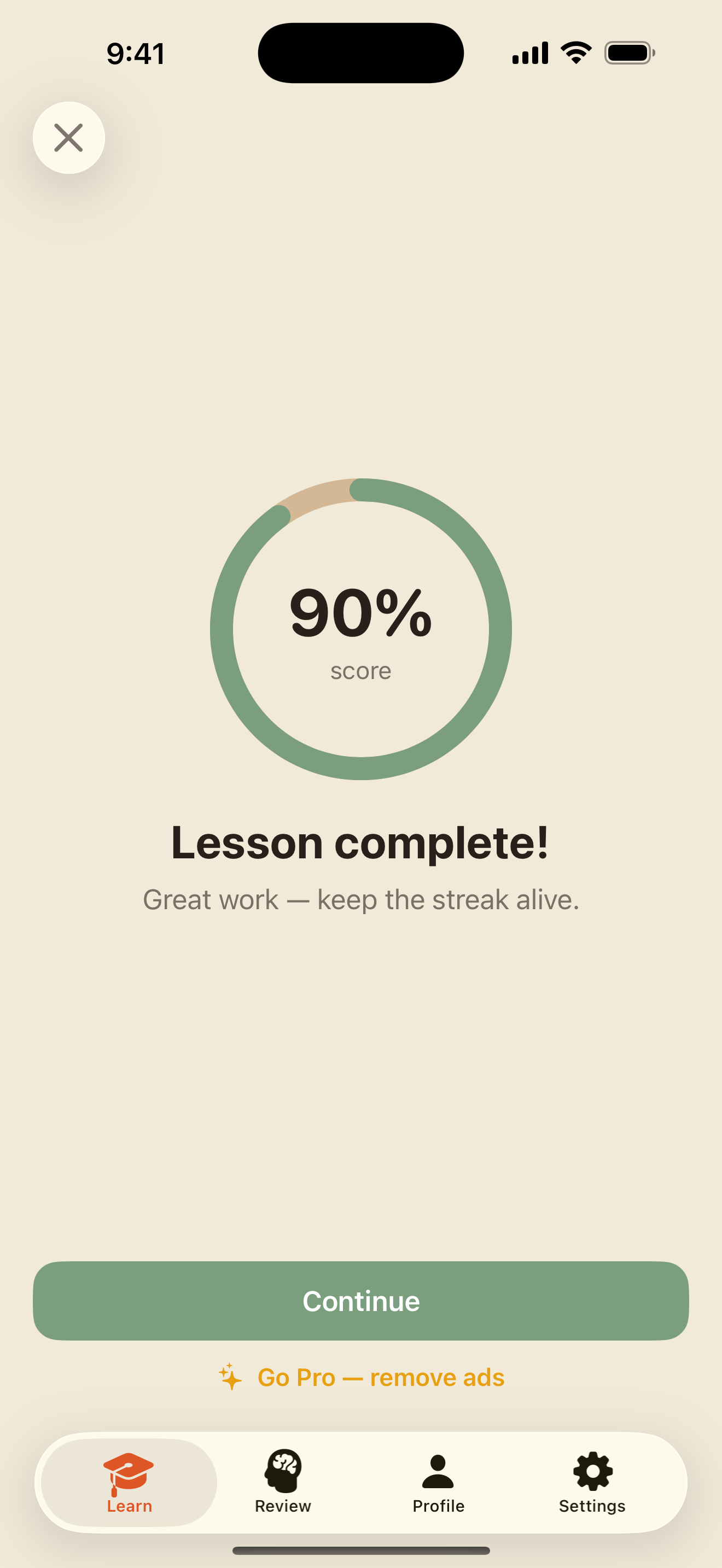
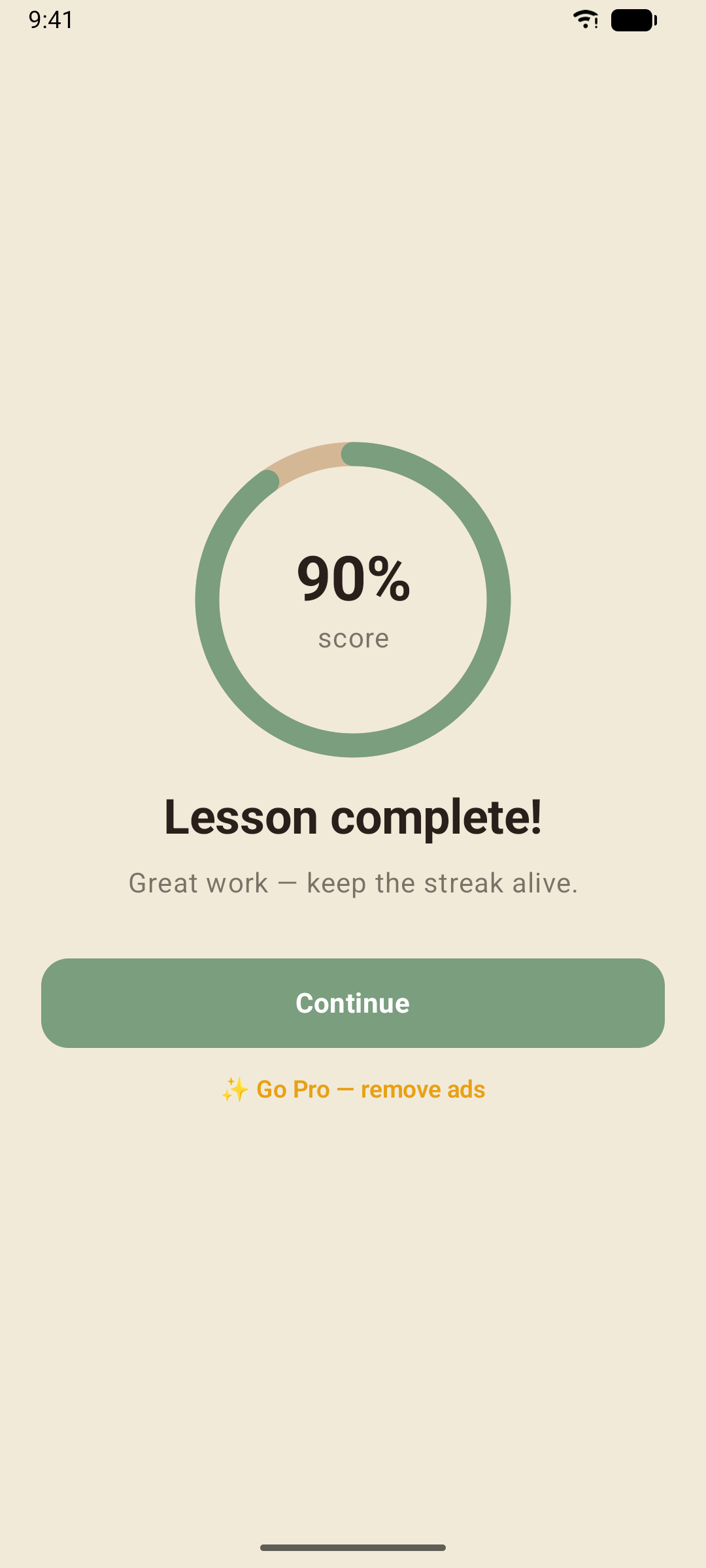
When the queue is empty you get your result: your score, the XP you earned, and the new words that joined your Smart Review deck.
A few rules worth knowing:
- No hearts, no energy. A wrong answer is not the end of anything — the exercise comes back at the end of the lesson until you get it right, marked Let's fix this one. A ↻ 2 to retry tag at the top counts the misses waiting to come back, and the progress bar only ever moves forward: it counts the exercises you have solved.
- Leaving asks first. A lesson isn't saved partway through, so once you have started, closing it asks Leave this lesson? — Keep learning takes you back, Leave ends it.
- Your score is your first attempt. Retries don't lower it; they just make sure you leave the lesson knowing the answer.
- 80% passes. Pass a lesson once and it is complete. Play it again whenever you like — XP is awarded when you beat your previous score, so replaying cannot be farmed.
- New words go into Smart Review the first time you complete a lesson, due right away.
The Exercise Types
The course uses eight kinds of exercise, so you read, write, listen and speak every language point rather than tapping the same tiles.
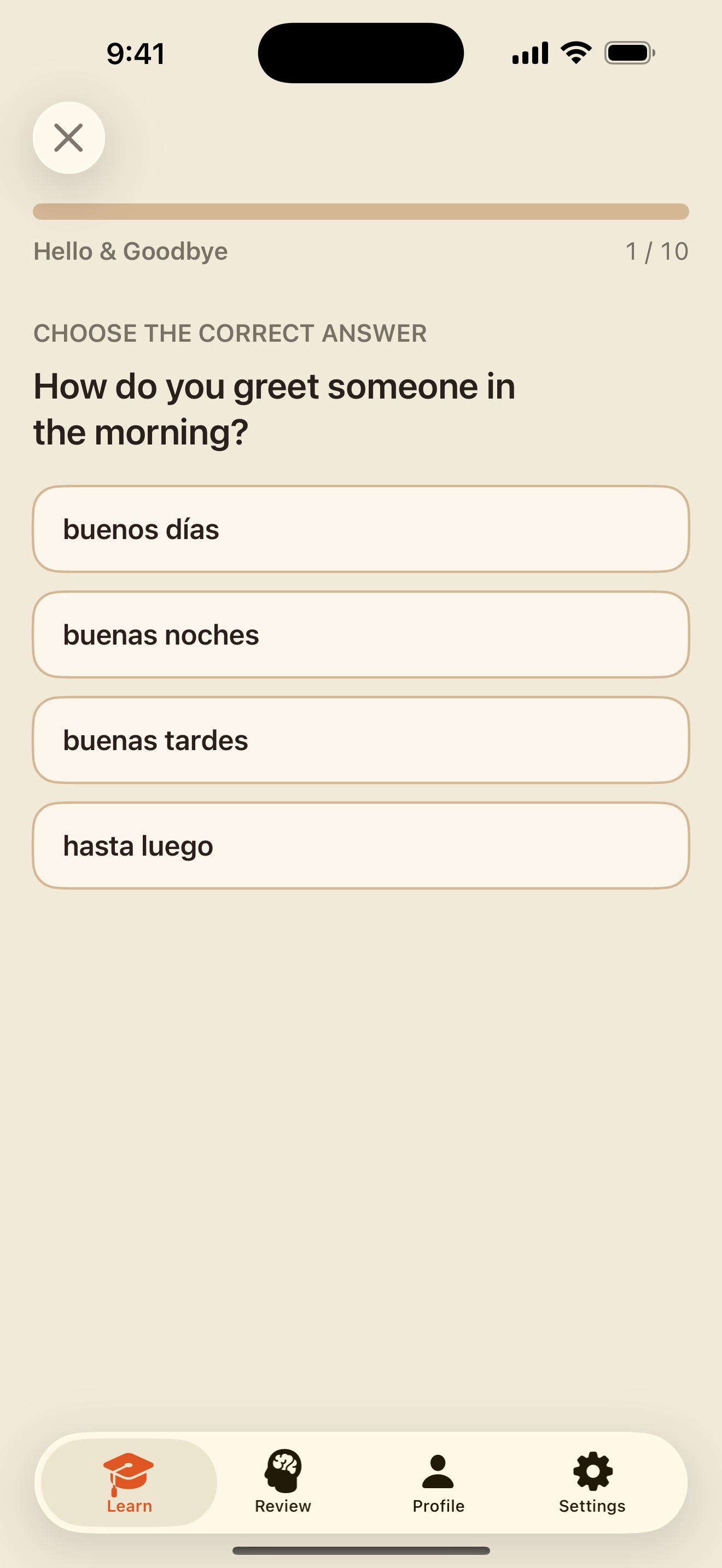
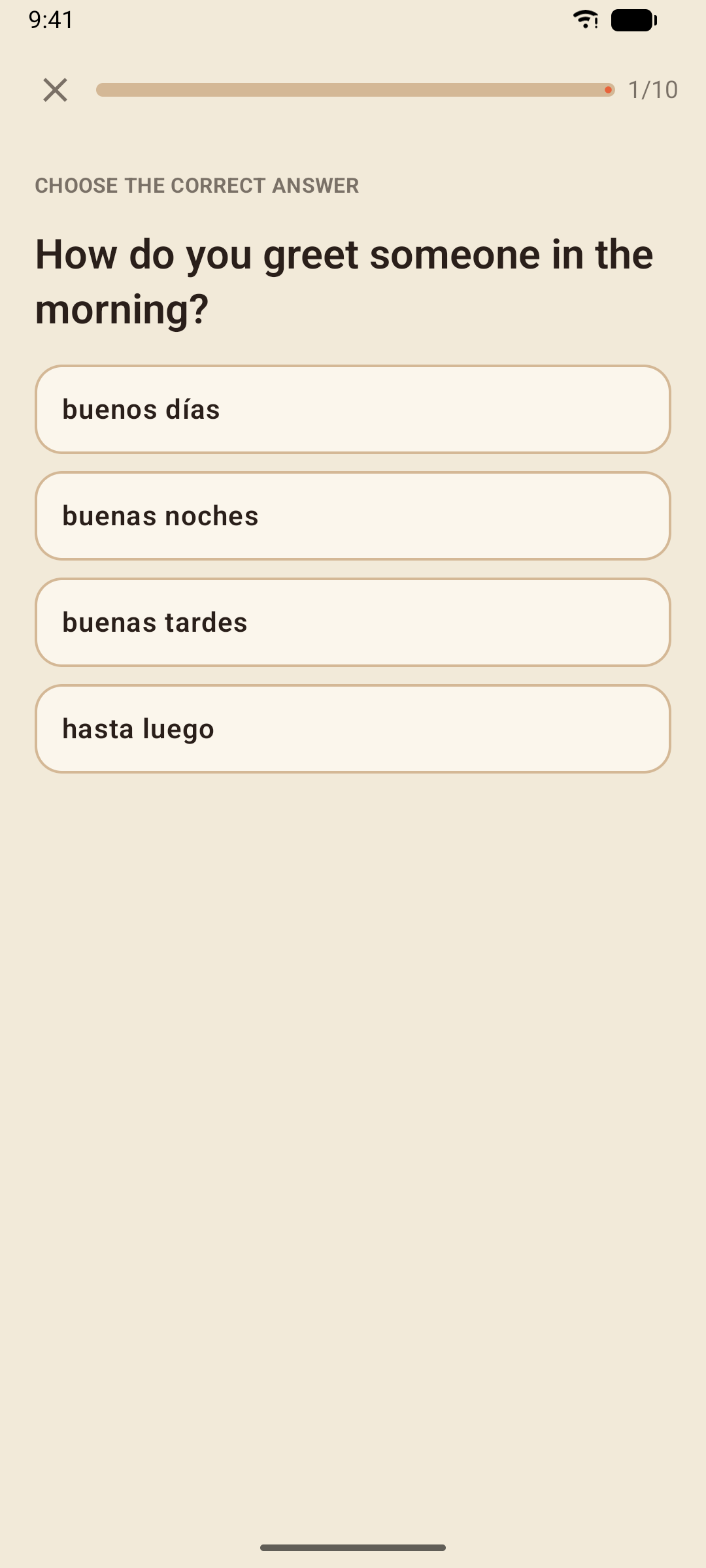
Multiple choice
Pick the right answer. Some ask about meaning, some about grammar; the note under a wrong pick tells you why.
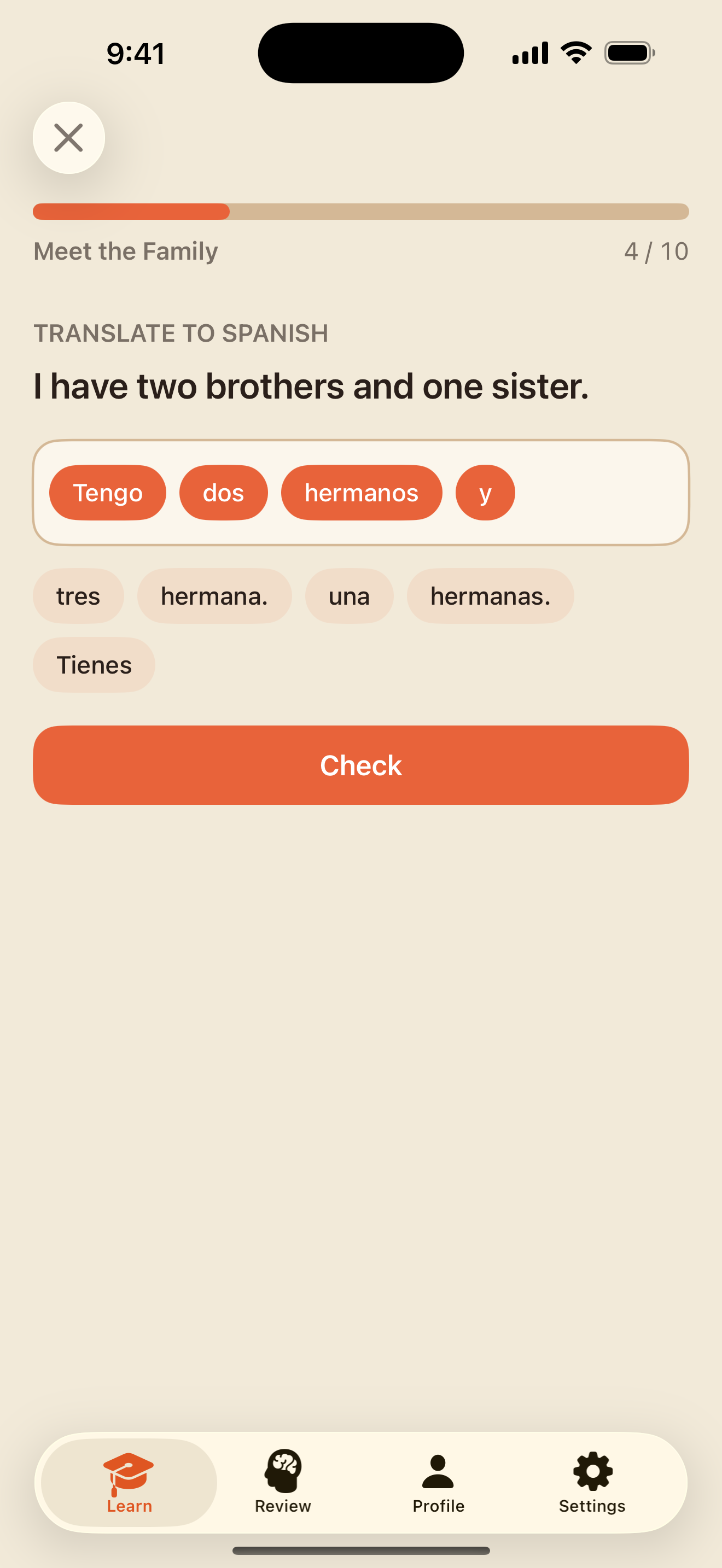
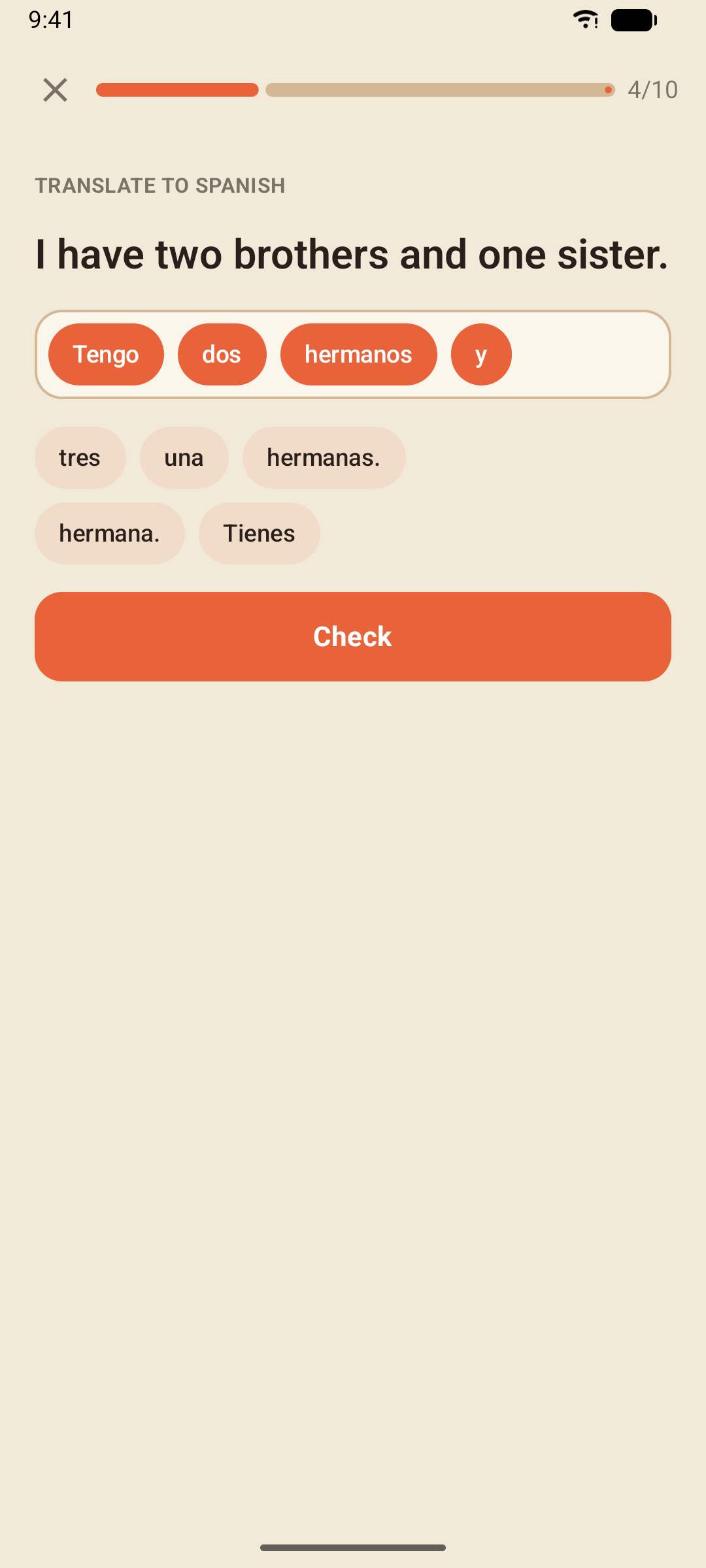
Translate with a word bank
Build the sentence from the tiles, in order. Tap a tile in the answer to send it back to the bank.
Translate by typing
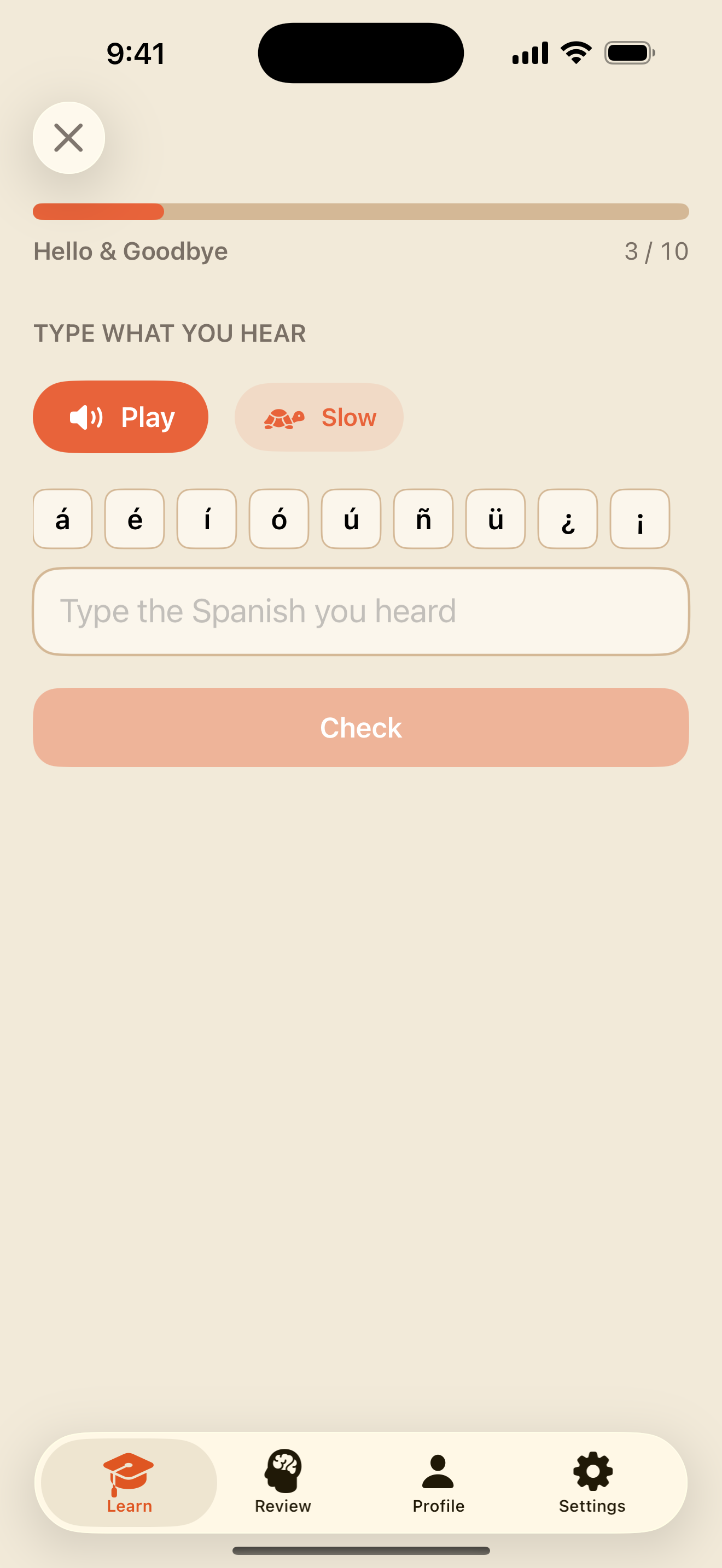
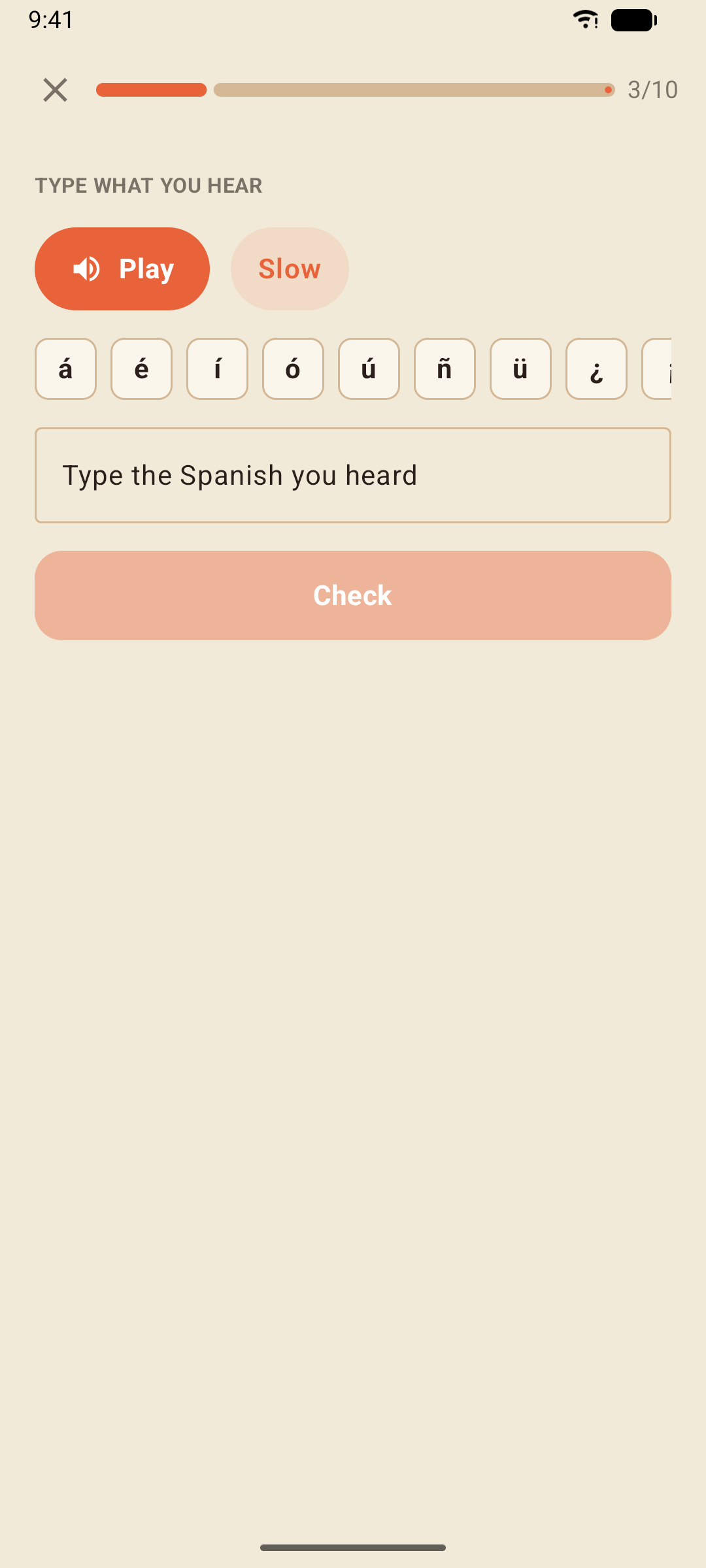
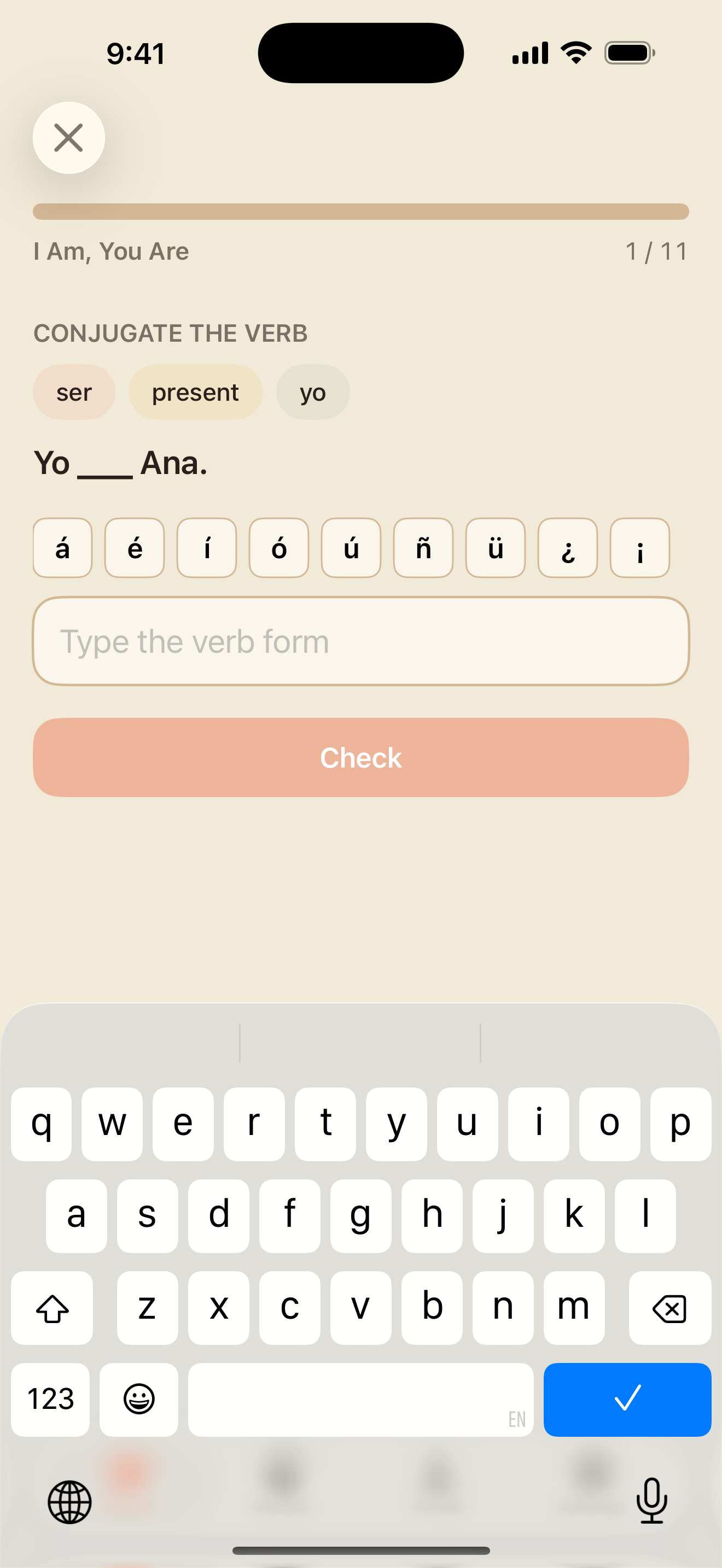
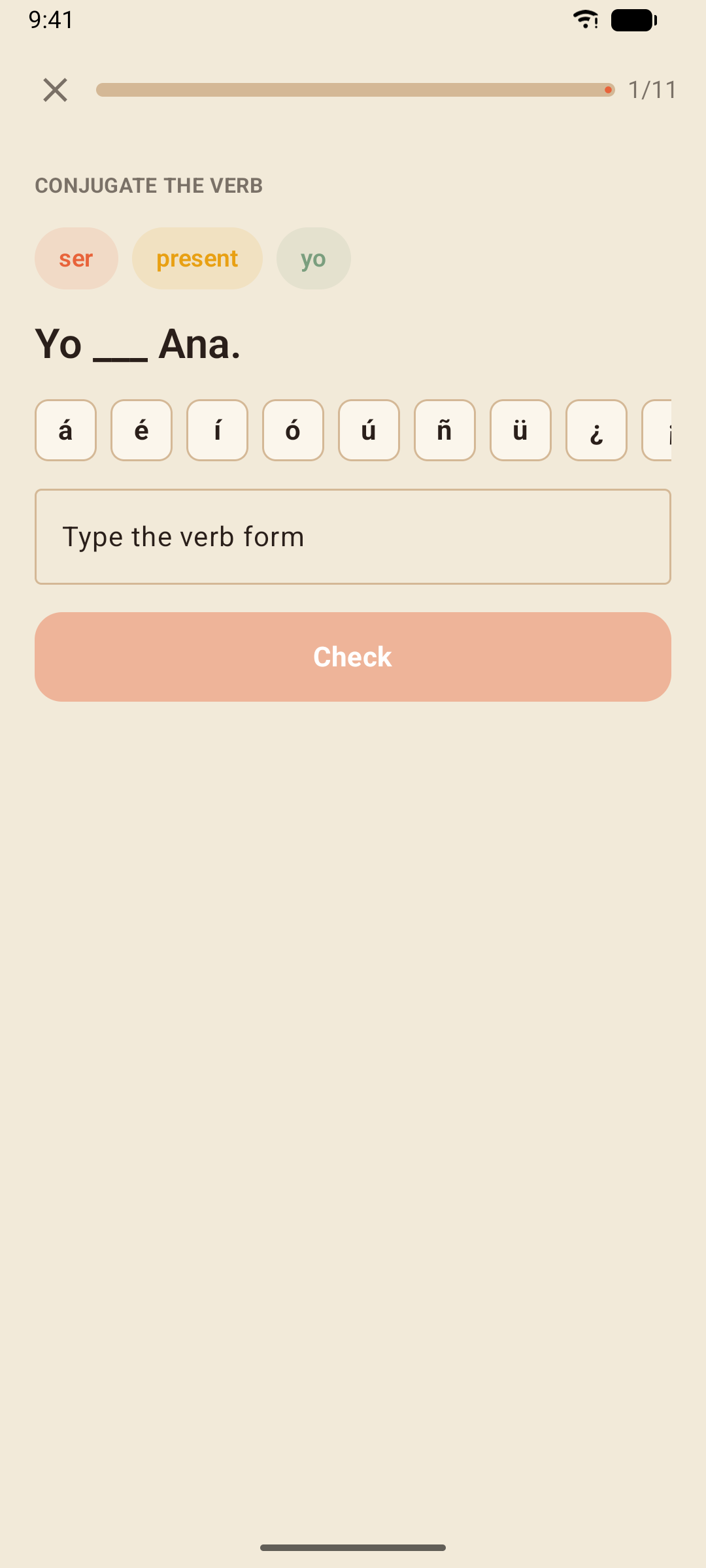
Type the whole sentence yourself — sometimes into Spanish, sometimes into your own language. The accent bar above the keyboard puts á, é, í, ó, ú, ñ, ü, ¿ and ¡ one tap away.
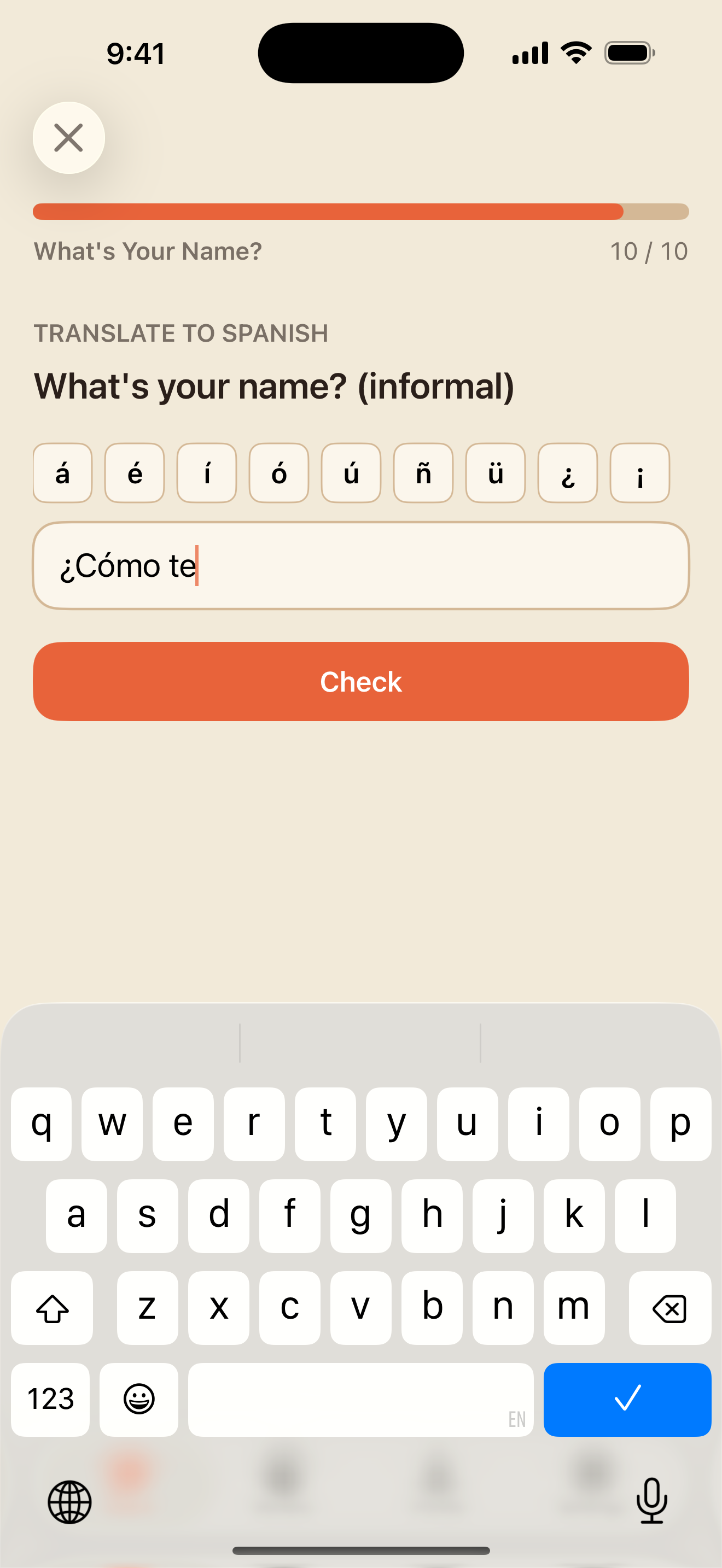
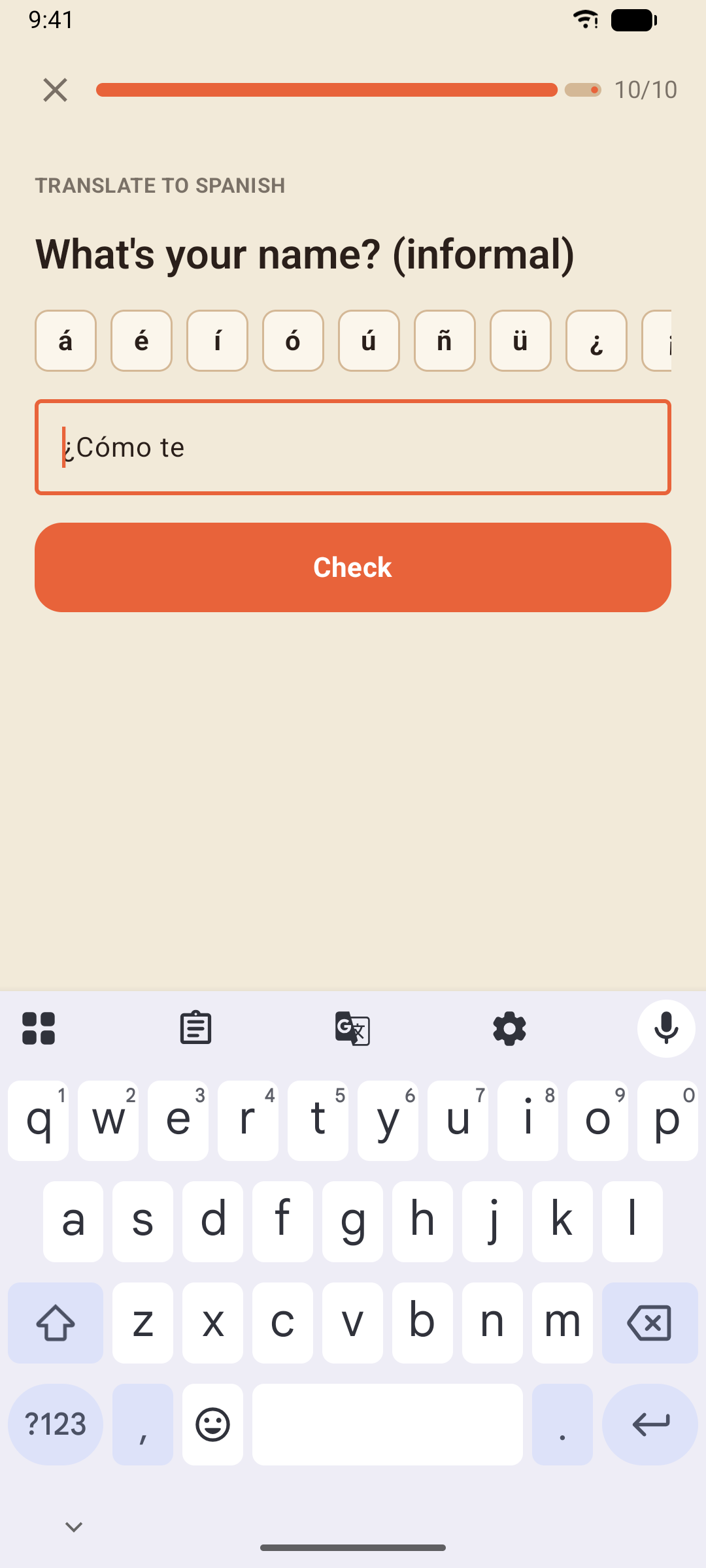
Typed answers ignore capital letters and punctuation, and an answer typed without accents is still accepted — you just get a gentle "Watch the accents" note showing the correct spelling. When you type in your own language, a small slip is forgiven too (two neighbouring letters swapped, or a letter doubled, in a longer word), with a "Watch the spelling" note; in Spanish every letter counts, because one letter is often the whole lesson. Most exercises accept more than one correct phrasing.
Listen
Play the audio (as many times as you like) and type what you hear.
Fill in the blank
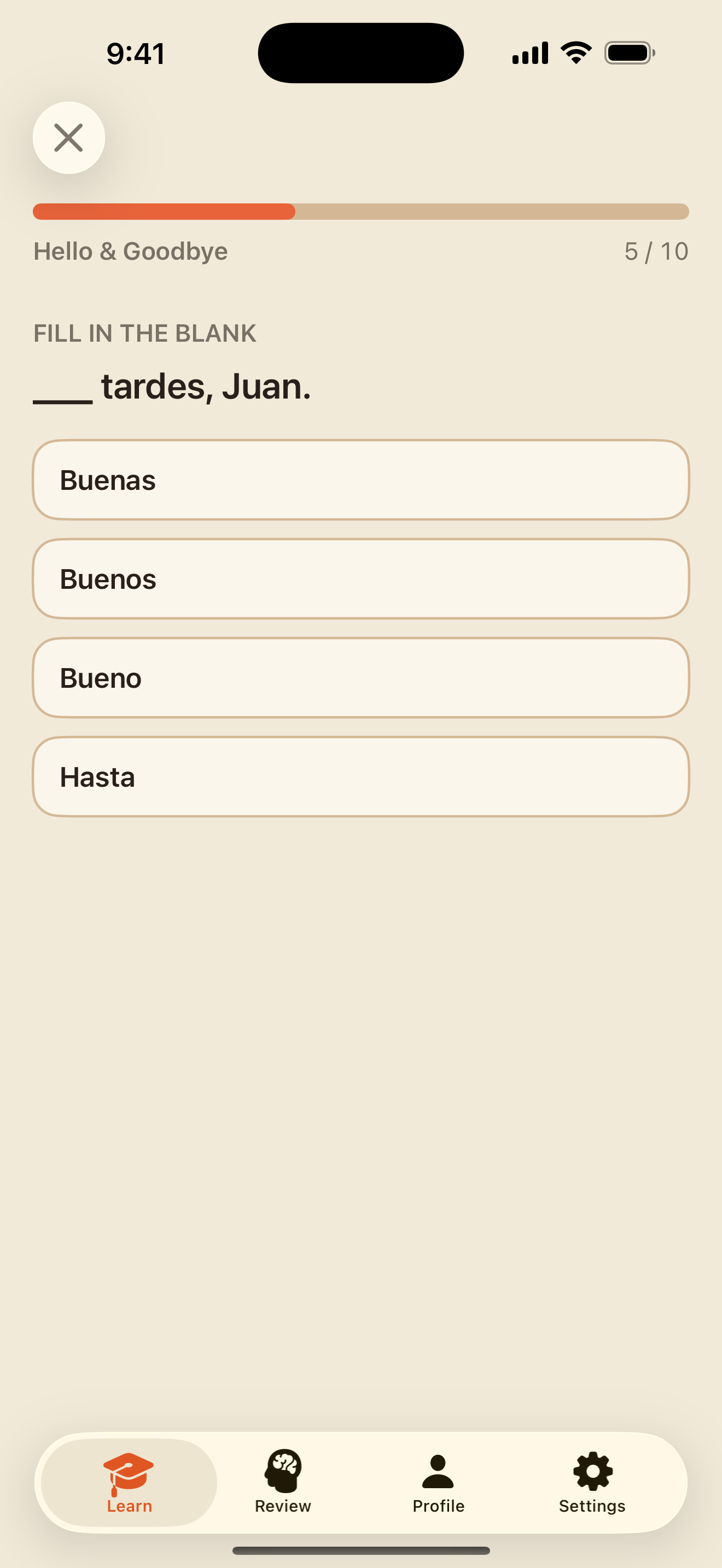
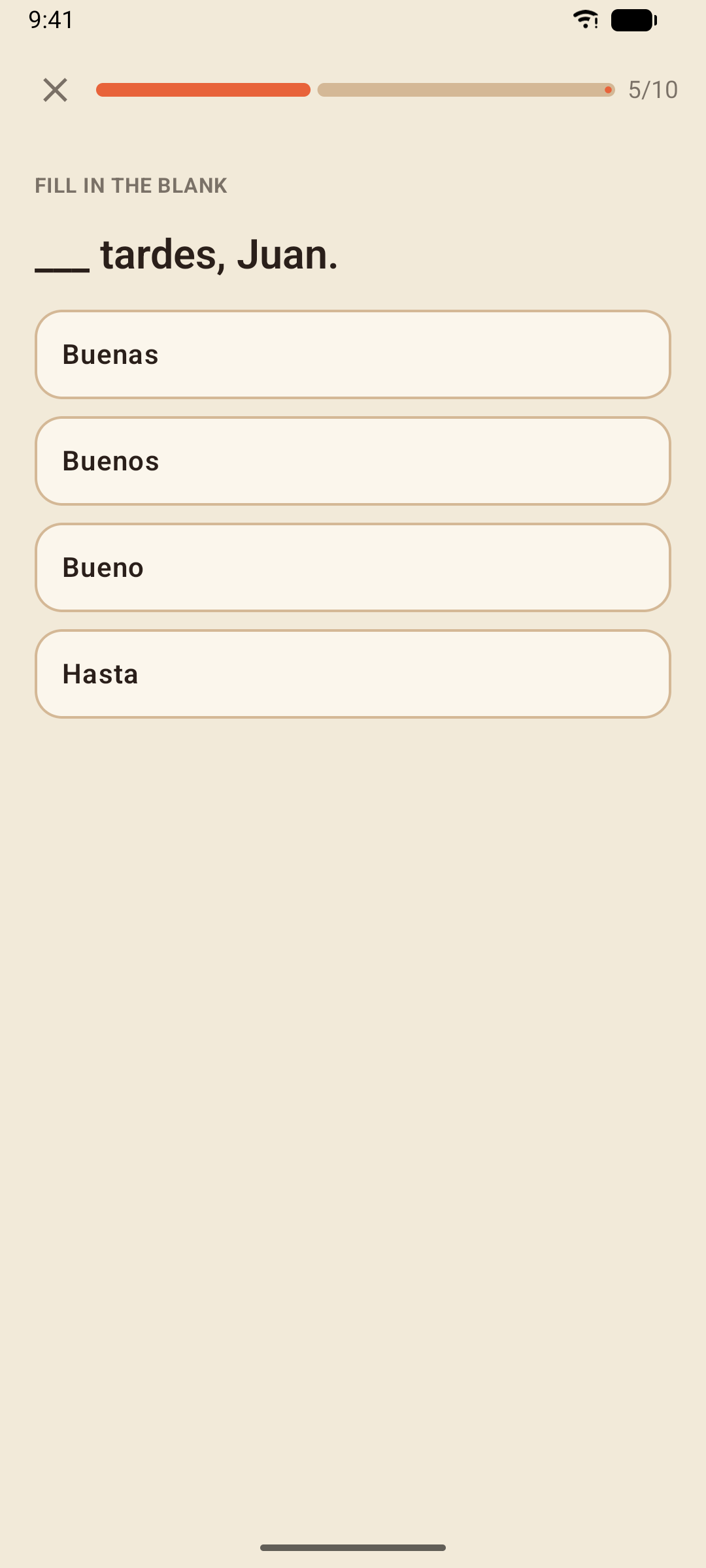
Complete the sentence with the missing word — usually the grammar point of the lesson. The whole sentence's translation is shown under it while you choose, so you know what it has to say.
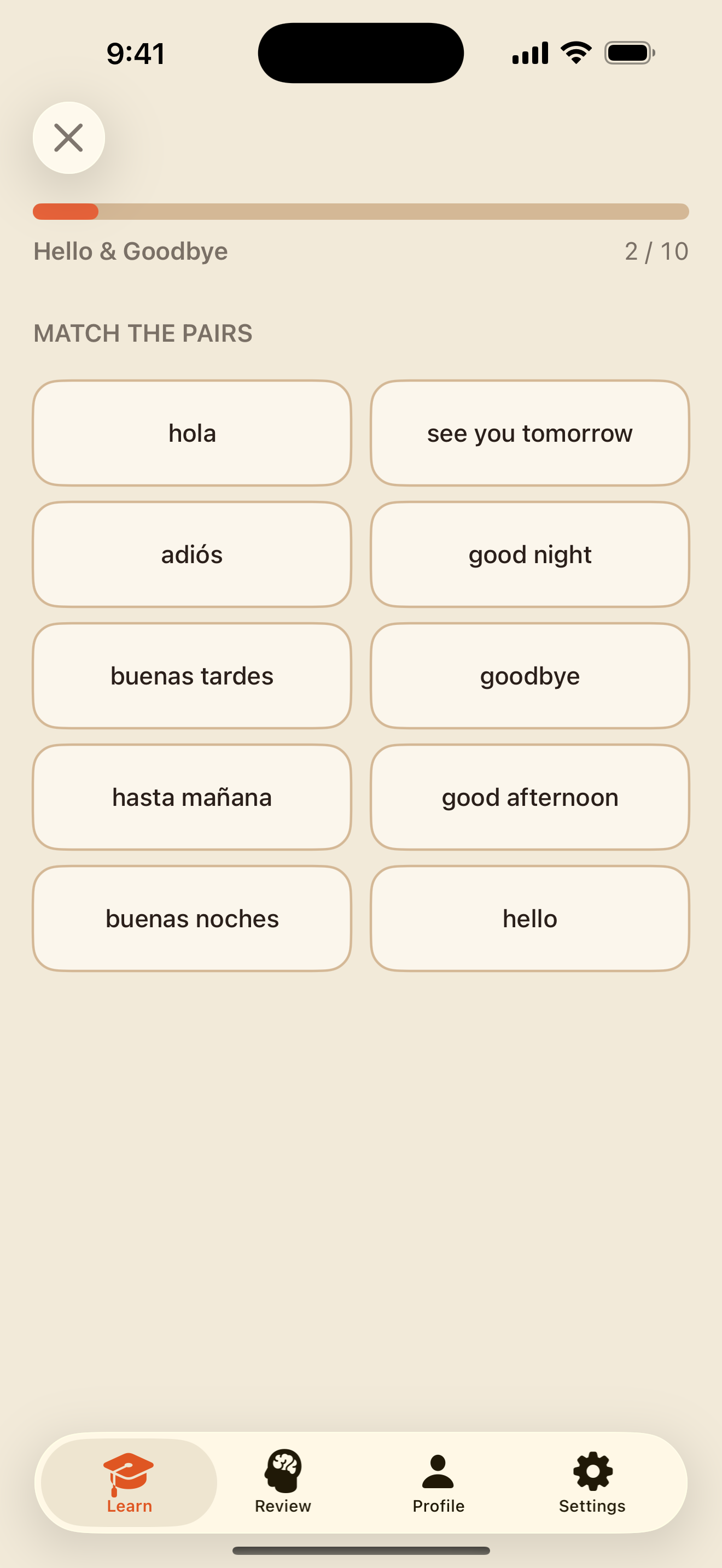
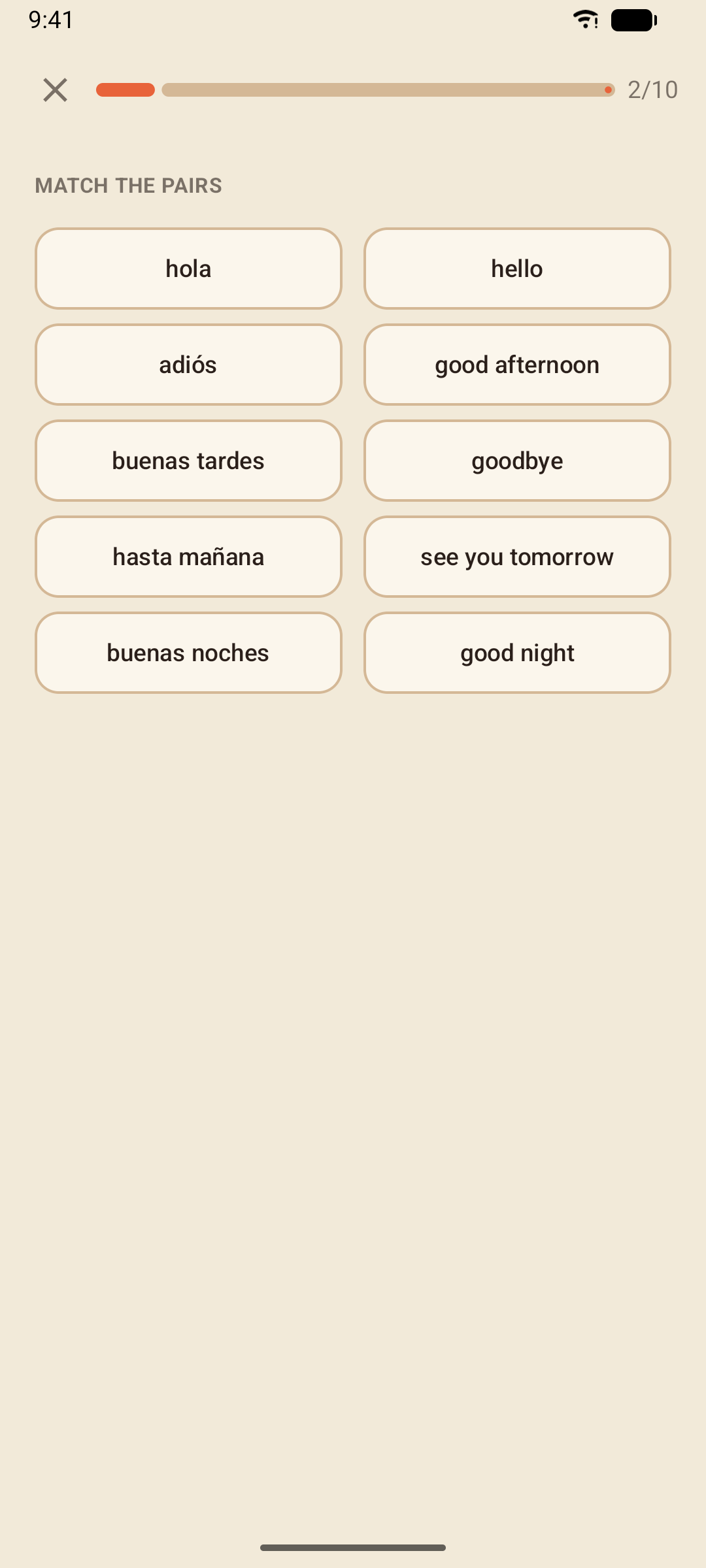
Match the pairs
Tap a Spanish word and then its meaning. Matched pairs turn green and drop out until the board is clear.
Speak
Read the sentence, tap Tap & speak, and say it. The app listens until you pause, compares what it heard with the sentence and shows you both.
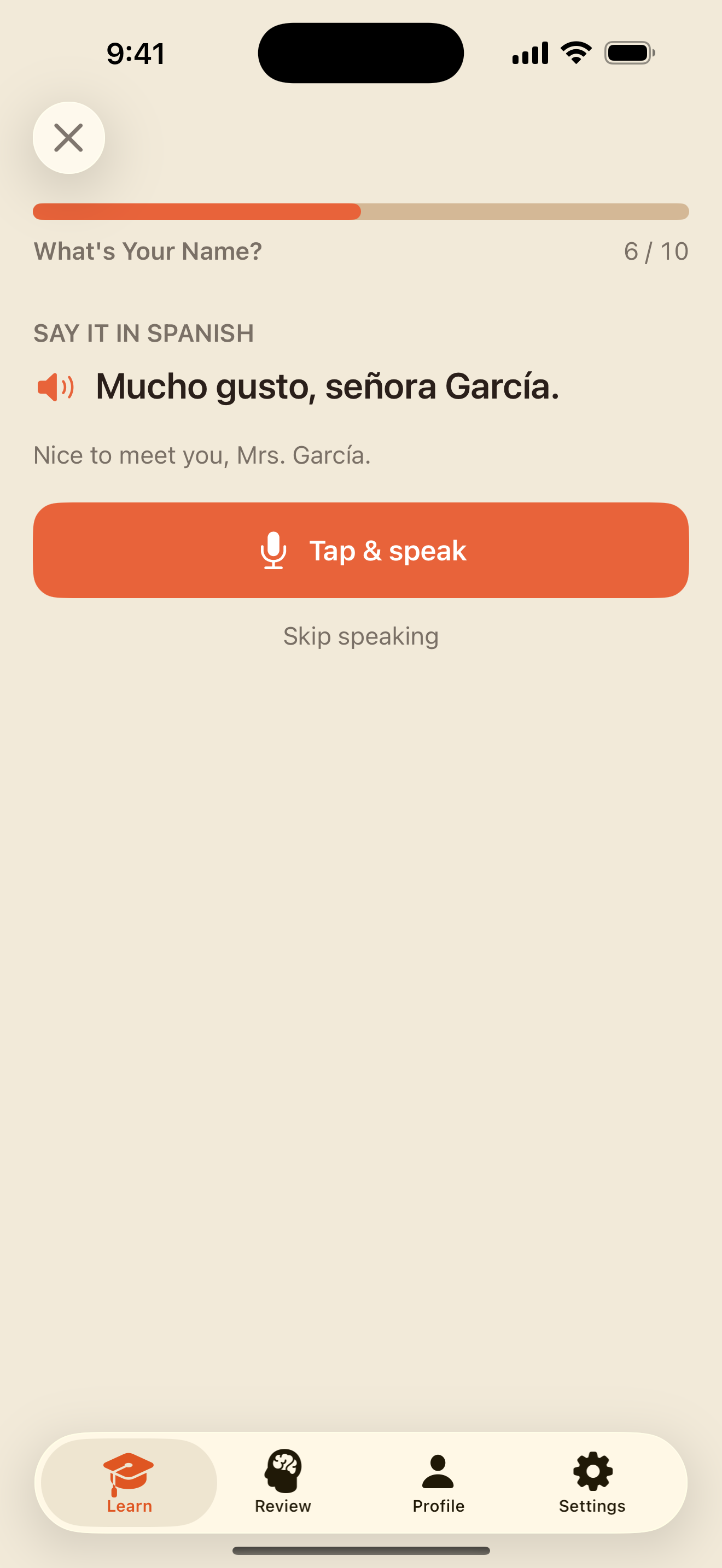
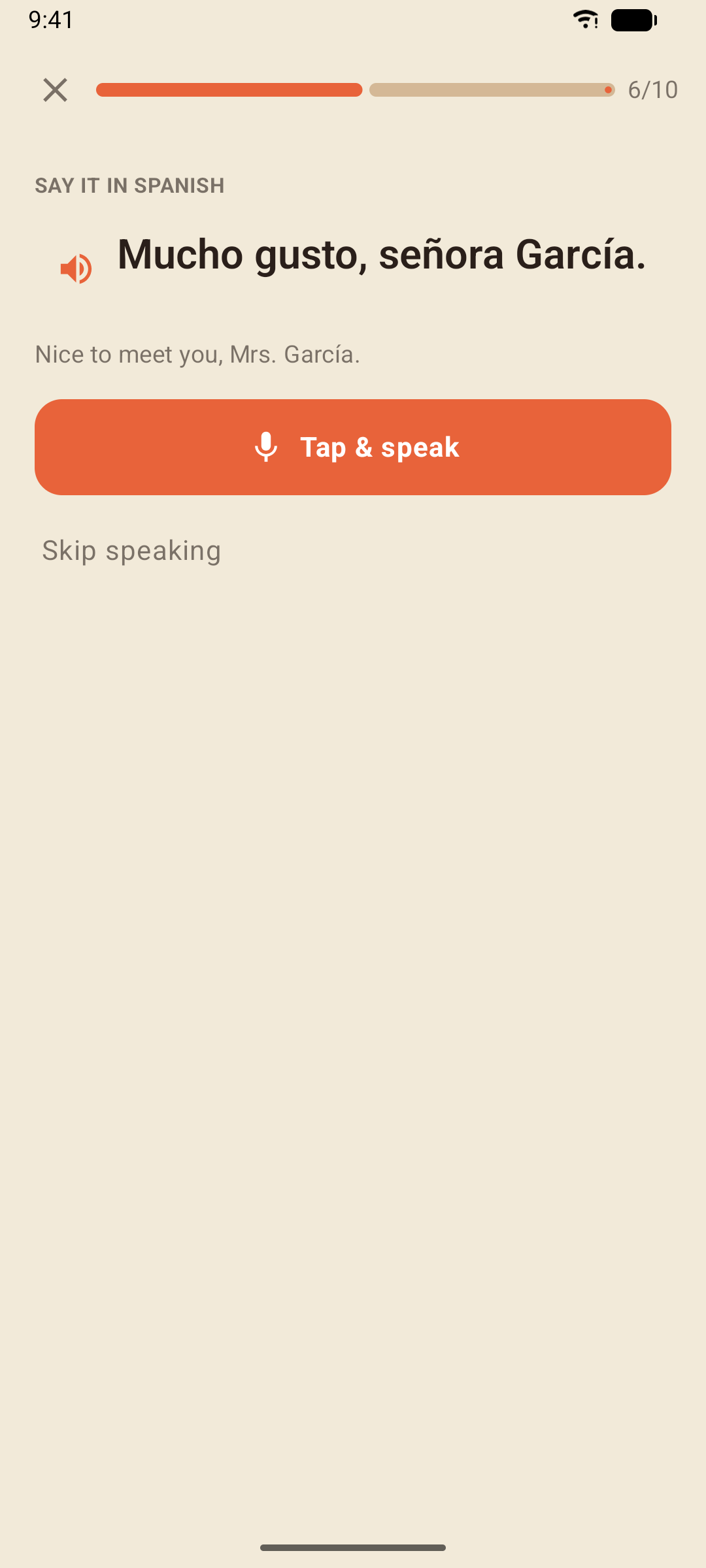
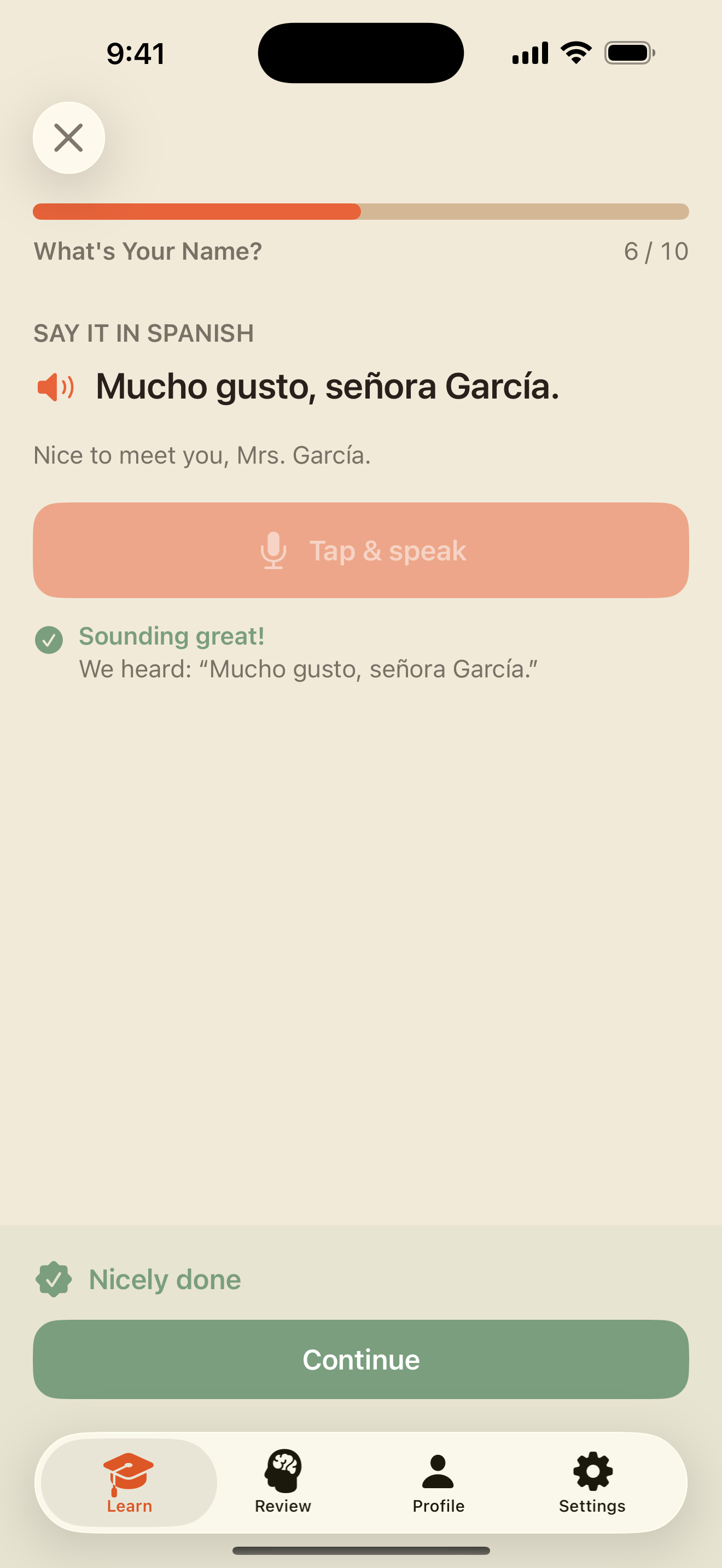
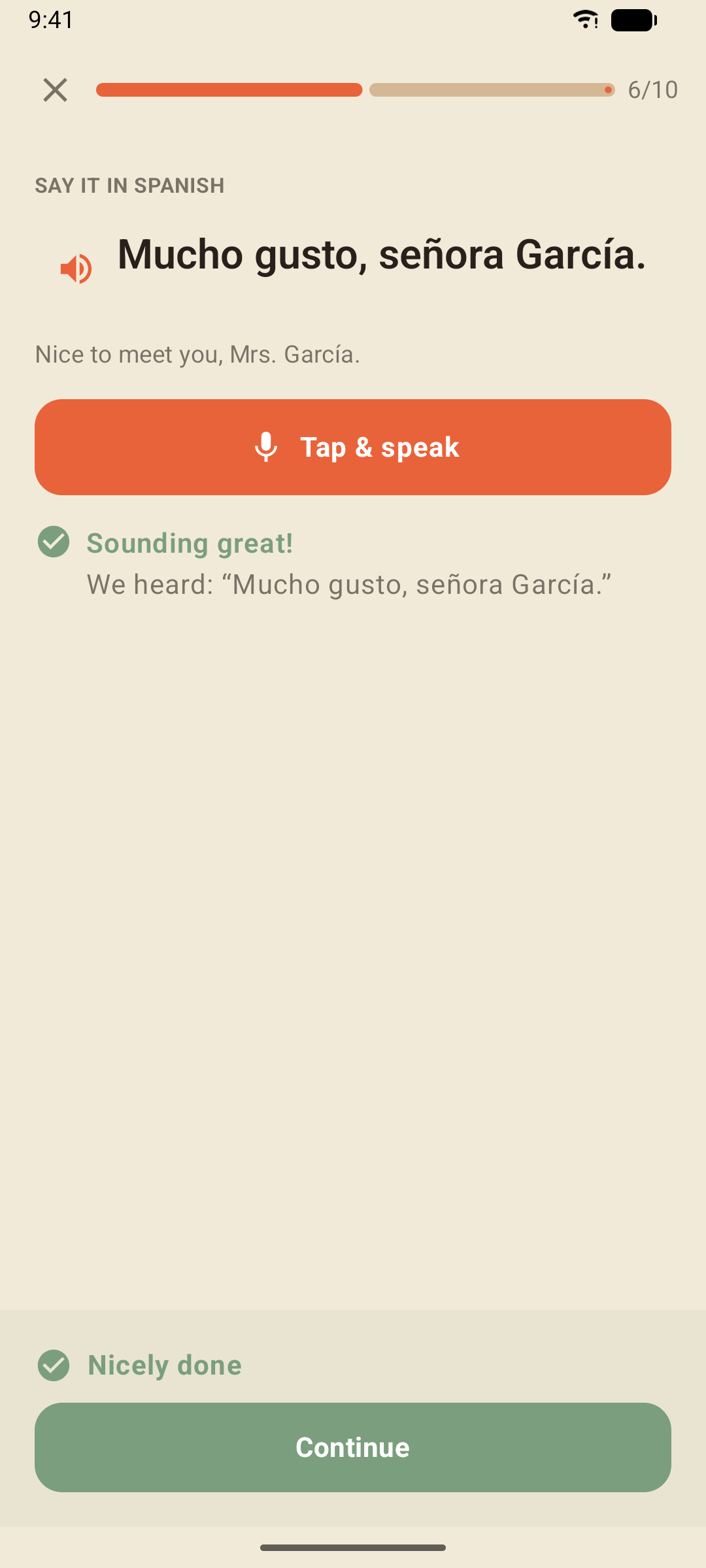
Speaking is always optional: Skip speaking leaves the exercise out of your score altogether, and if you decline the microphone permission the app skips them for you. Nothing you say is recorded or kept.
On iPhone and iPad the recognition runs on your device wherever iOS supports it for Spanish (most recent iPhones do); older devices fall back to Apple's speech service.
On Android the recognition uses your phone's speech service — usually Google's.
Conjugate
The pronoun and the verb are given; type the right form. These start in A1 with ser and estar and follow the course through every tense.
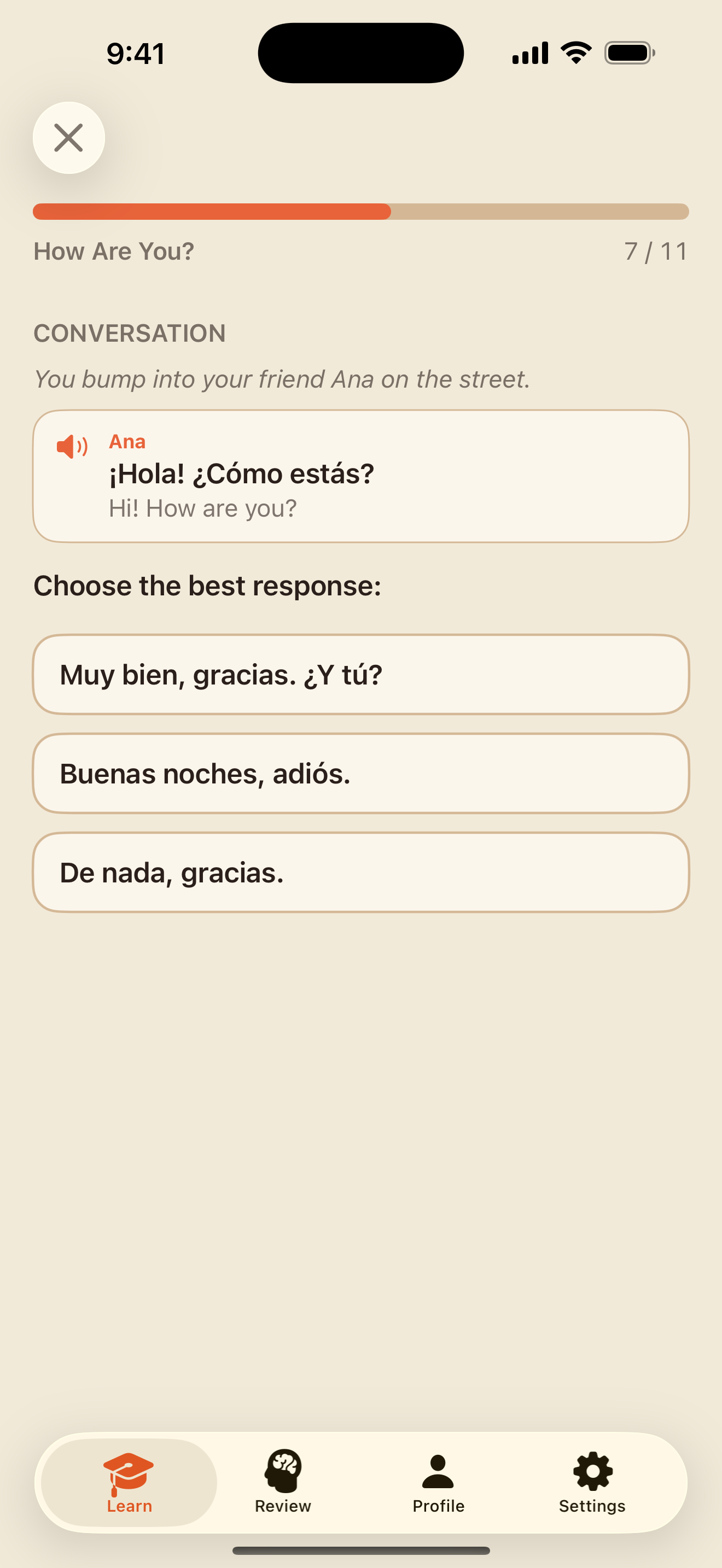
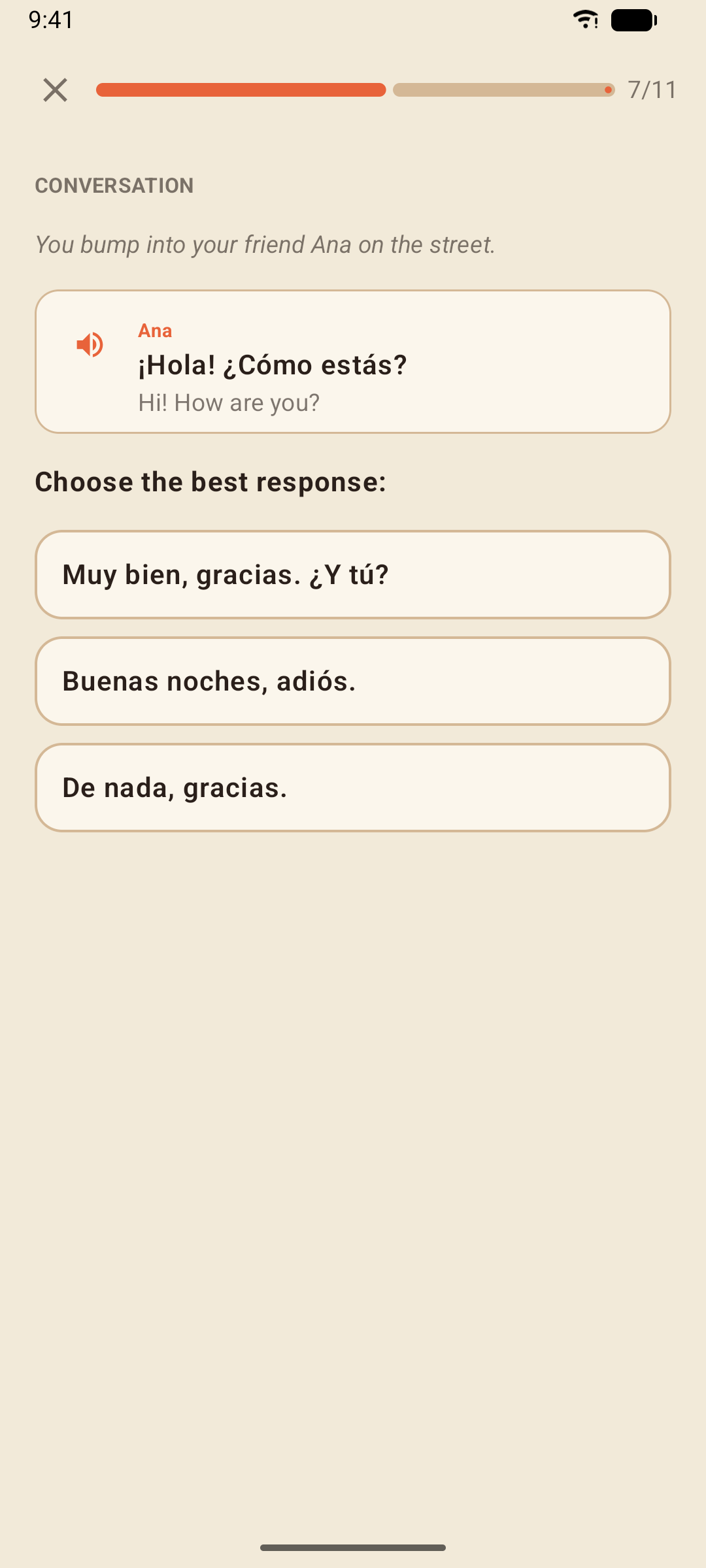
Dialogue
A short exchange with one line missing. Choose the line that fits — the wrong ones explain what would be off about them.
The Daily Workout
The card at the top of the Learn tab builds a three-minute session out of the words that are due in Smart Review and the exercises you got wrong recently, topped up from what you have learned — twelve exercises, once a day. It earns practice XP and keeps your streak alive without touching your course progress.
Smart Review
Every word you learn is scheduled with spaced repetition (the SM-2 algorithm): a word you know well comes back in weeks, a word you keep missing comes back tomorrow. The Review tab shows how many words are in your deck and how many are due right now; tap the card to review them.
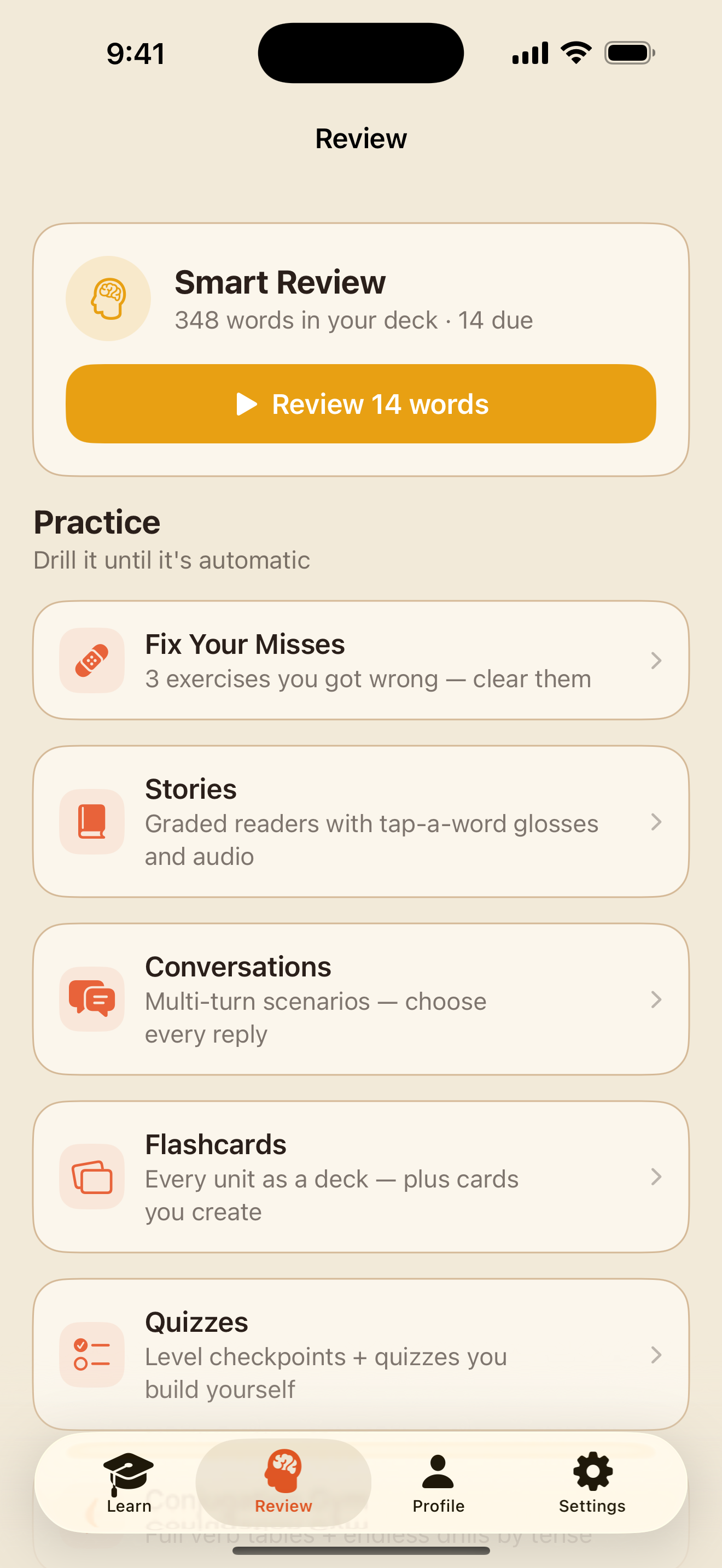
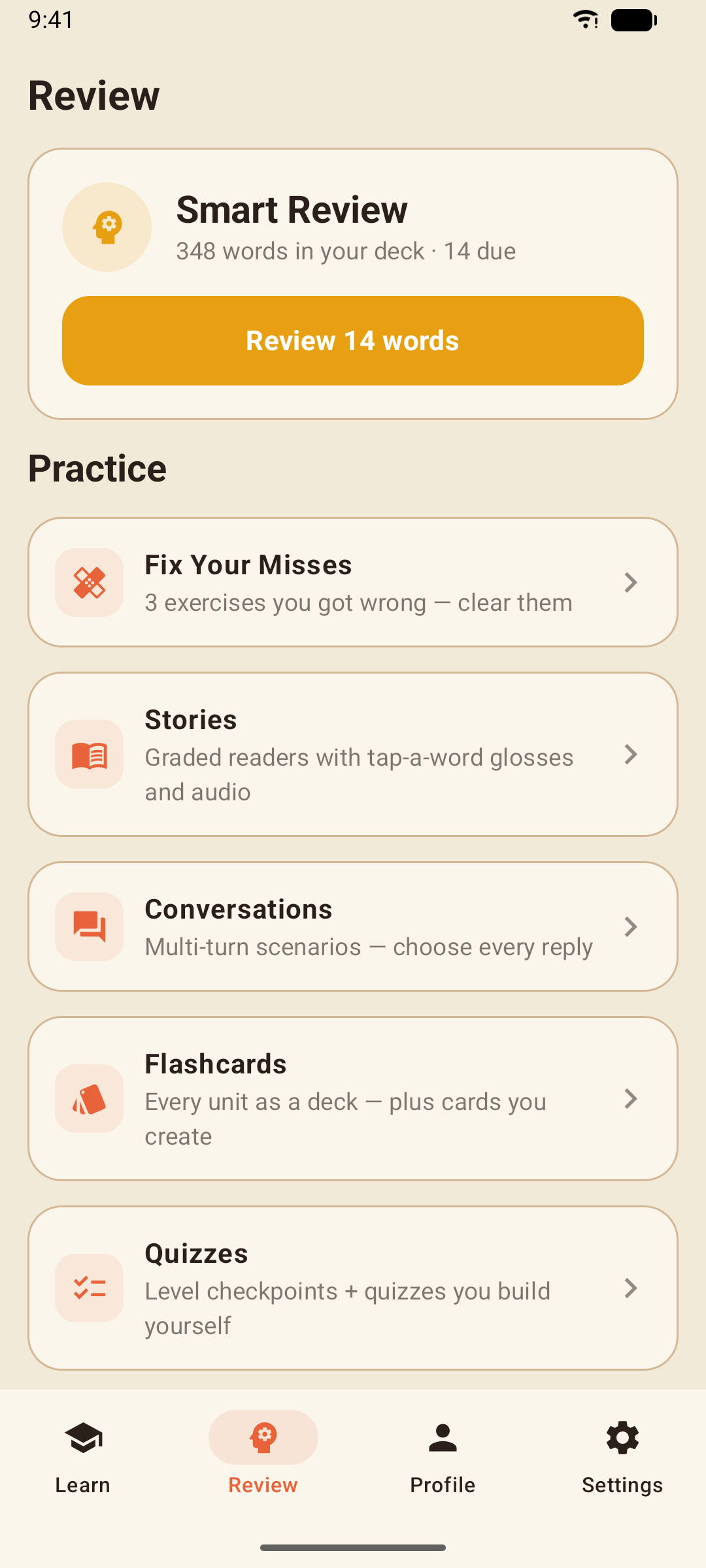
- A review session plays like a lesson, with the exercises built from the due words.
- Getting a word right pushes its next review further out; missing it brings it back soon.
- Sessions earn XP and count toward your streak. They never change your course progress.
- Custom flashcards can join the deck too — see Flashcards & Your Own Cards.
Fix Your Misses
Every exercise you get wrong on the first attempt is remembered. Fix Your Misses plays exactly those exercises again; answer one correctly here (or in a Daily Workout) and it is cleared from the list.
Stories
Twenty-four graded readers, four per level, written for the Spanish you know at that point.
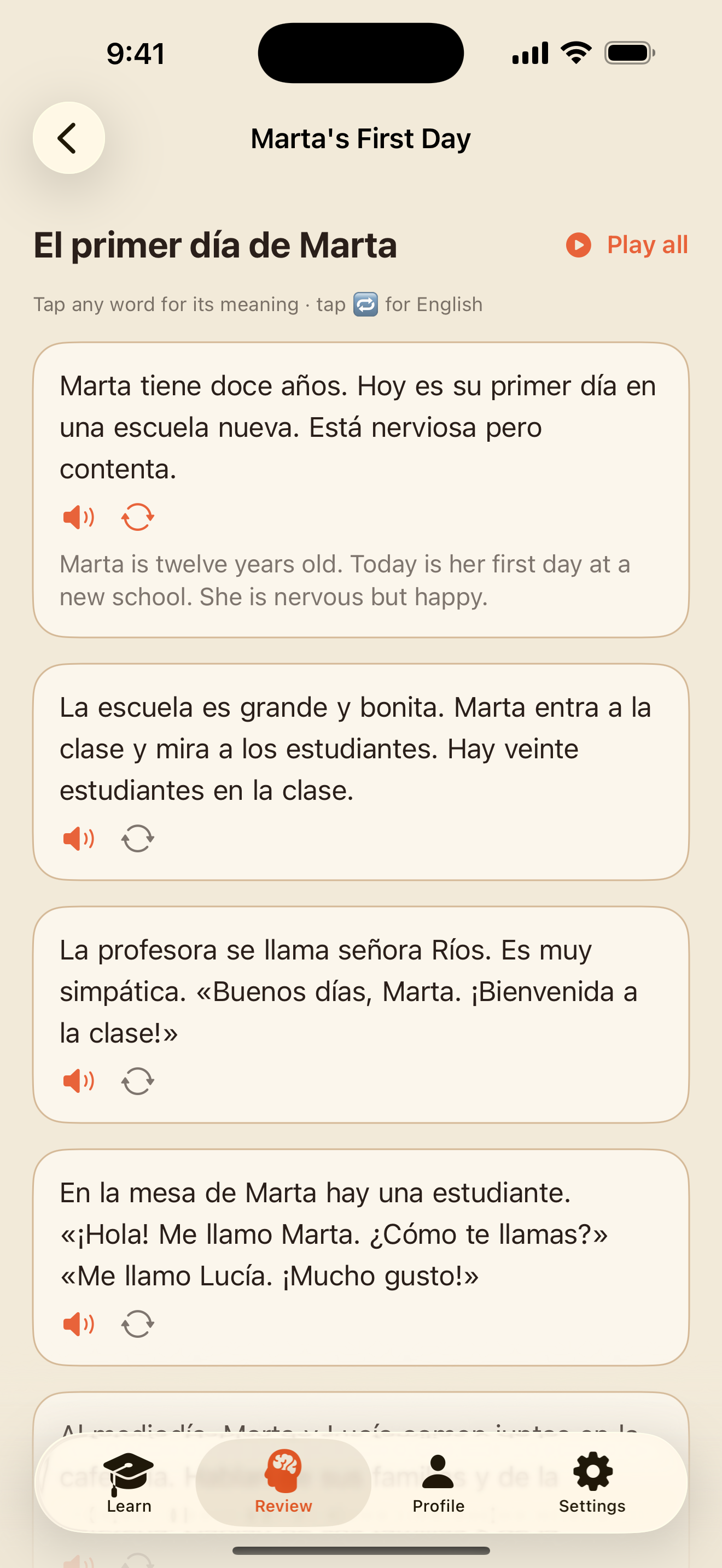
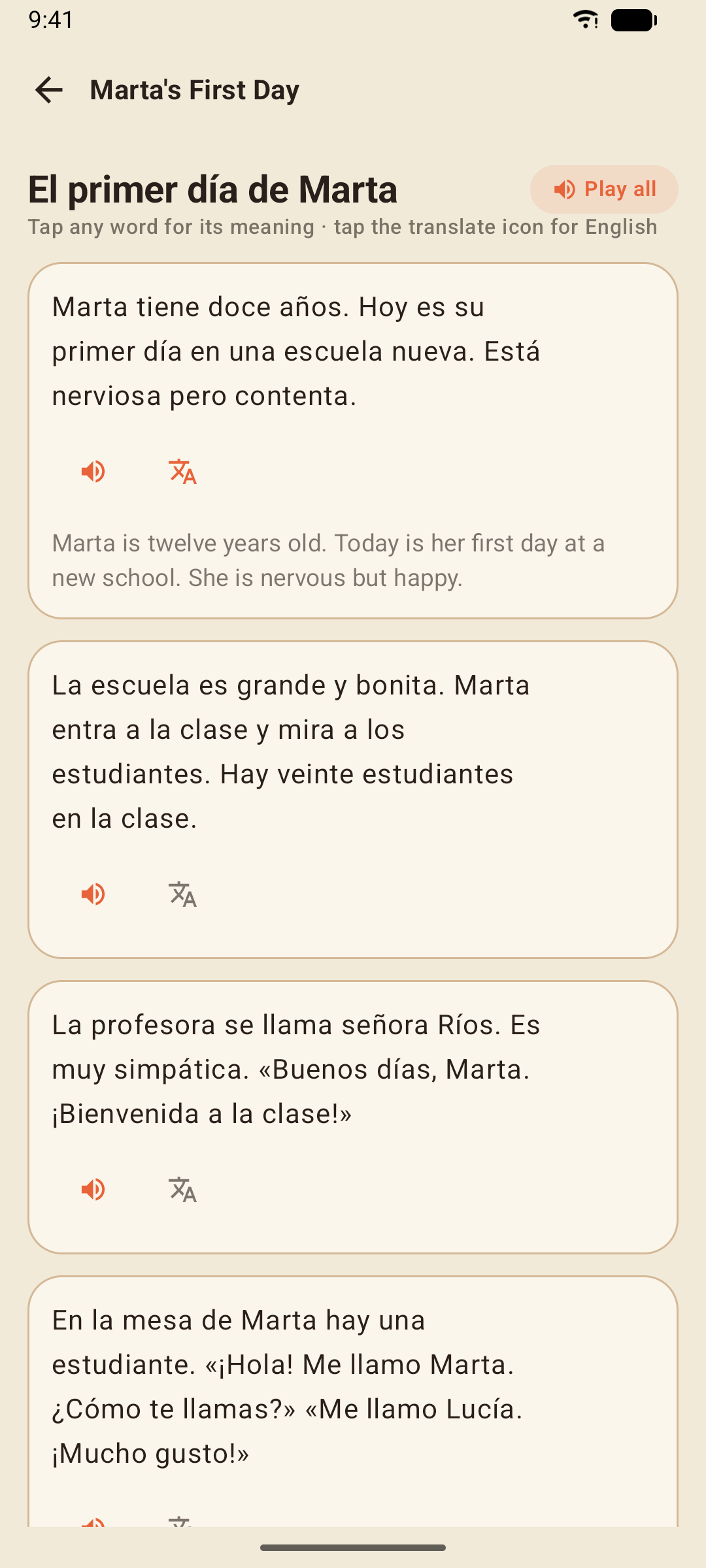
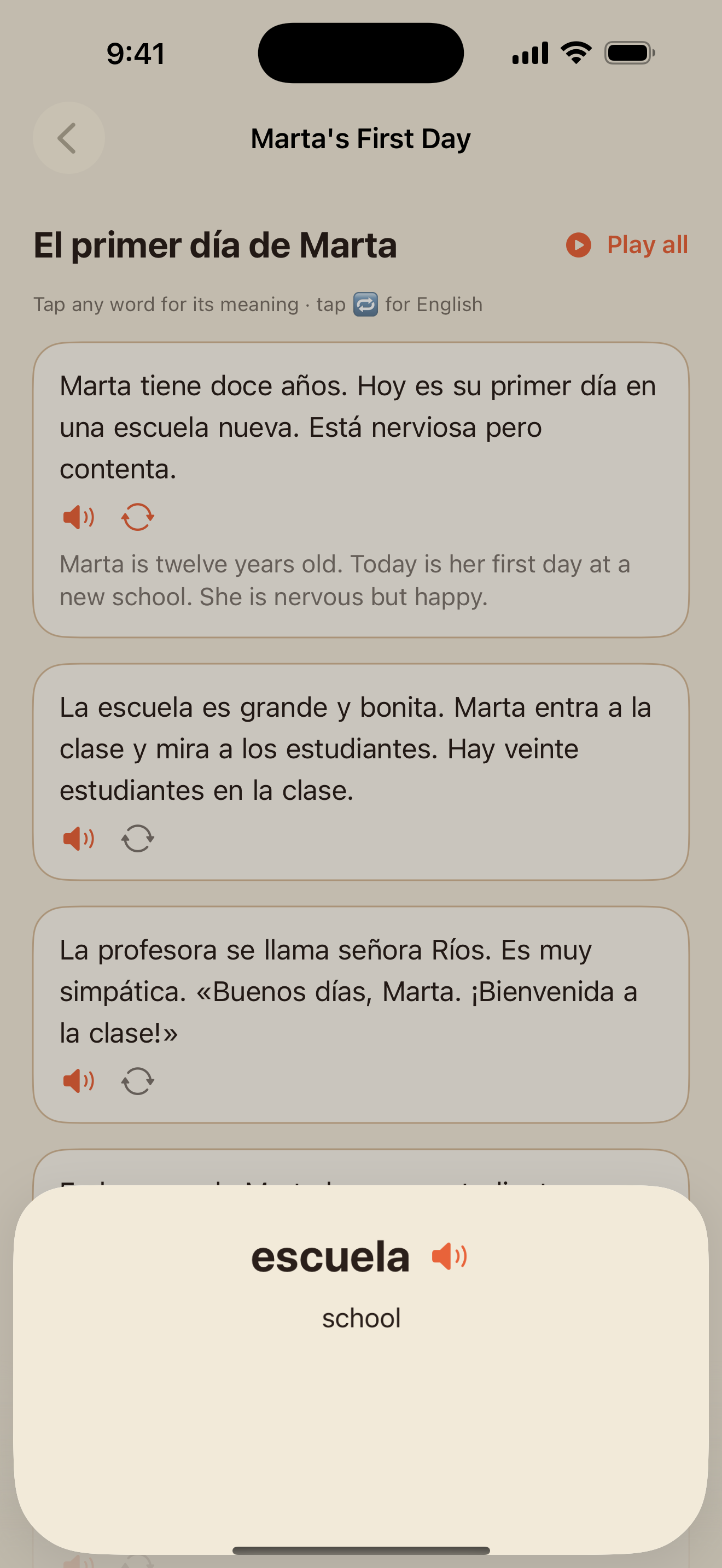
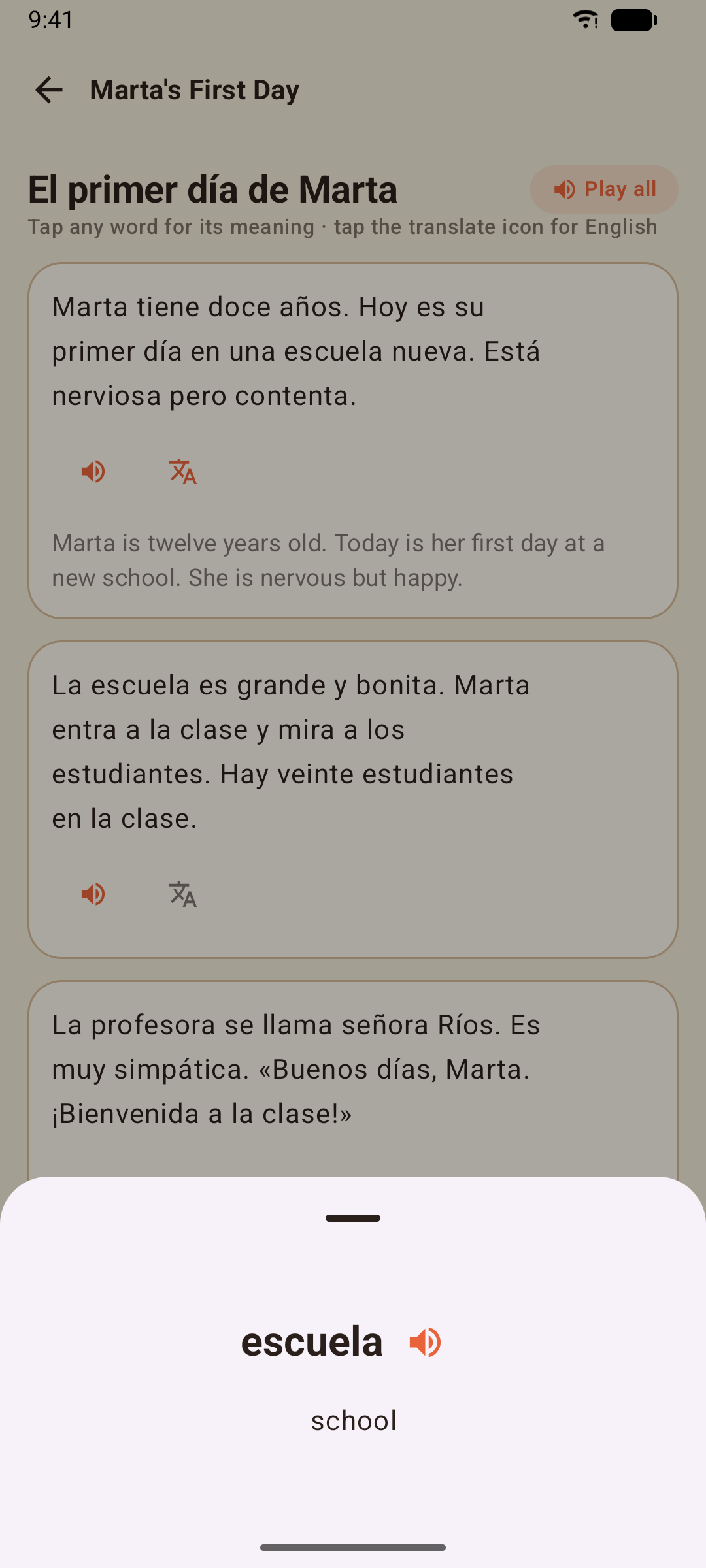
- Tap any word to see its meaning and hear it — the sheet also plays the word aloud.
- Each paragraph has a translation you can reveal when you need it and hide when you don't.
- Play all reads the whole story to you.
- At the end, a few comprehension questions check that you understood. Finishing a story earns practice XP and marks it read.
Conversations
Eighteen scenarios — ordering at a café, checking into a hotel, an argument at C2 — played as a chat. At each turn you choose your reply.
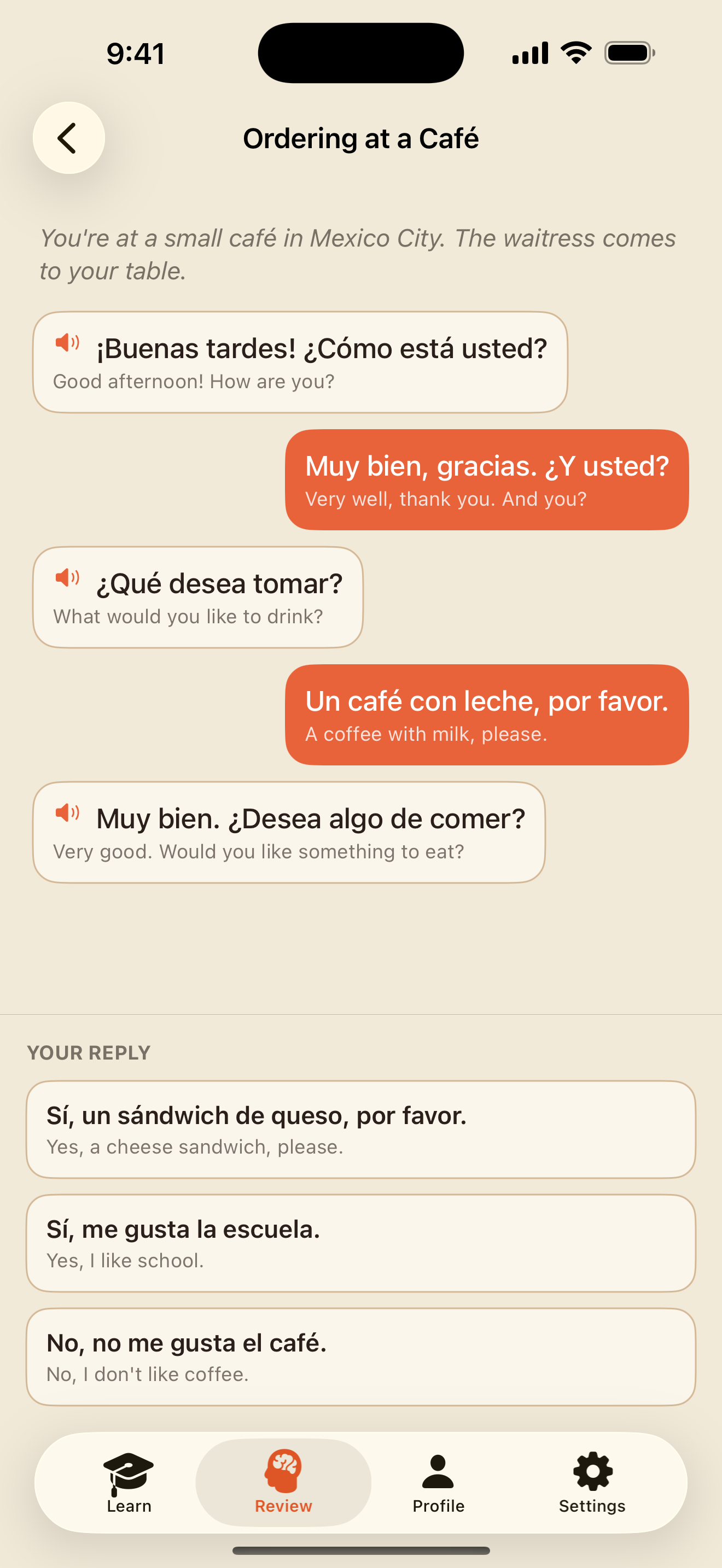
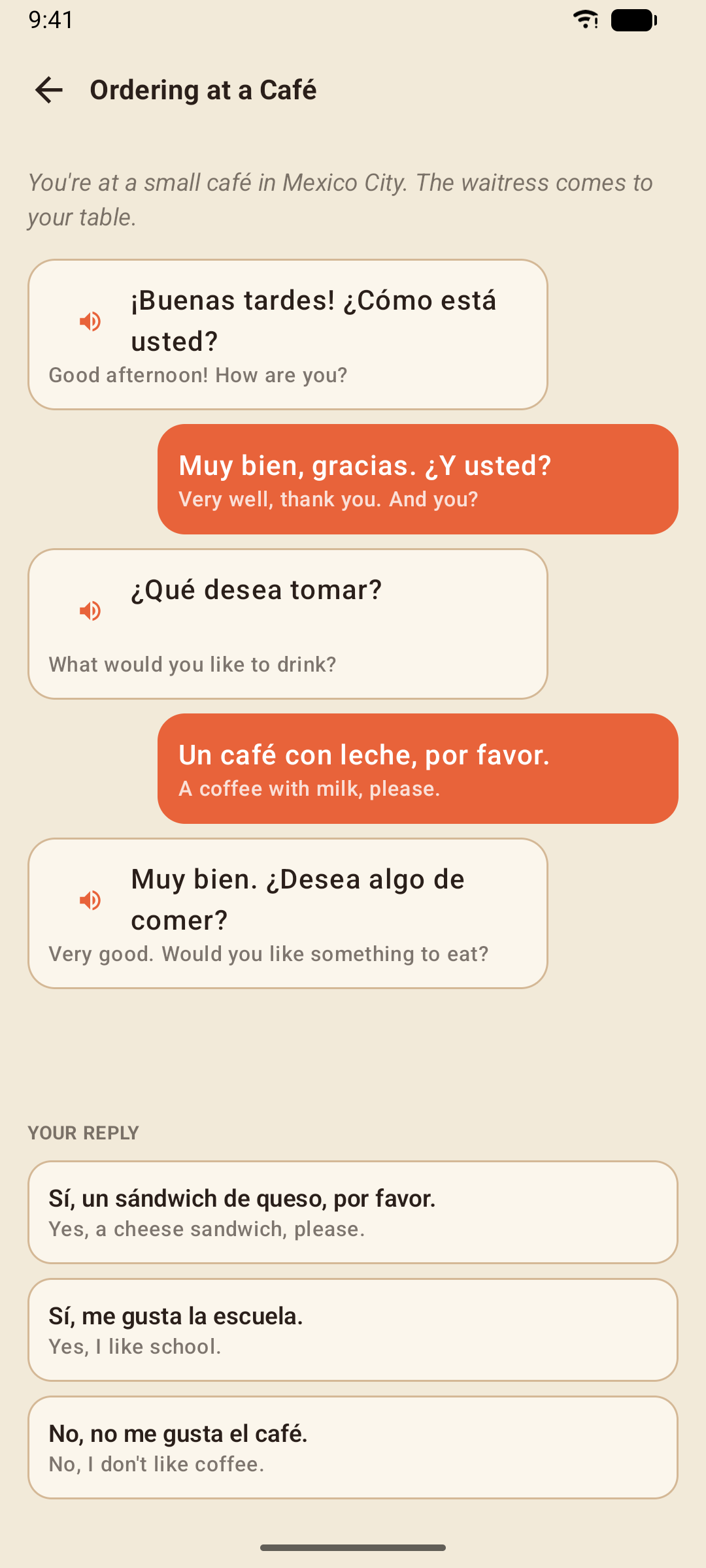
- A wrong reply shows a short teaching note explaining why it doesn't work, then stays disabled while you pick again.
- Your score is the number of replies you got right on the first try.
Flashcards & Your Own Cards
Every unit of the course is a flashcard deck. Tap a deck, tap a card to flip it, then say whether you knew it.
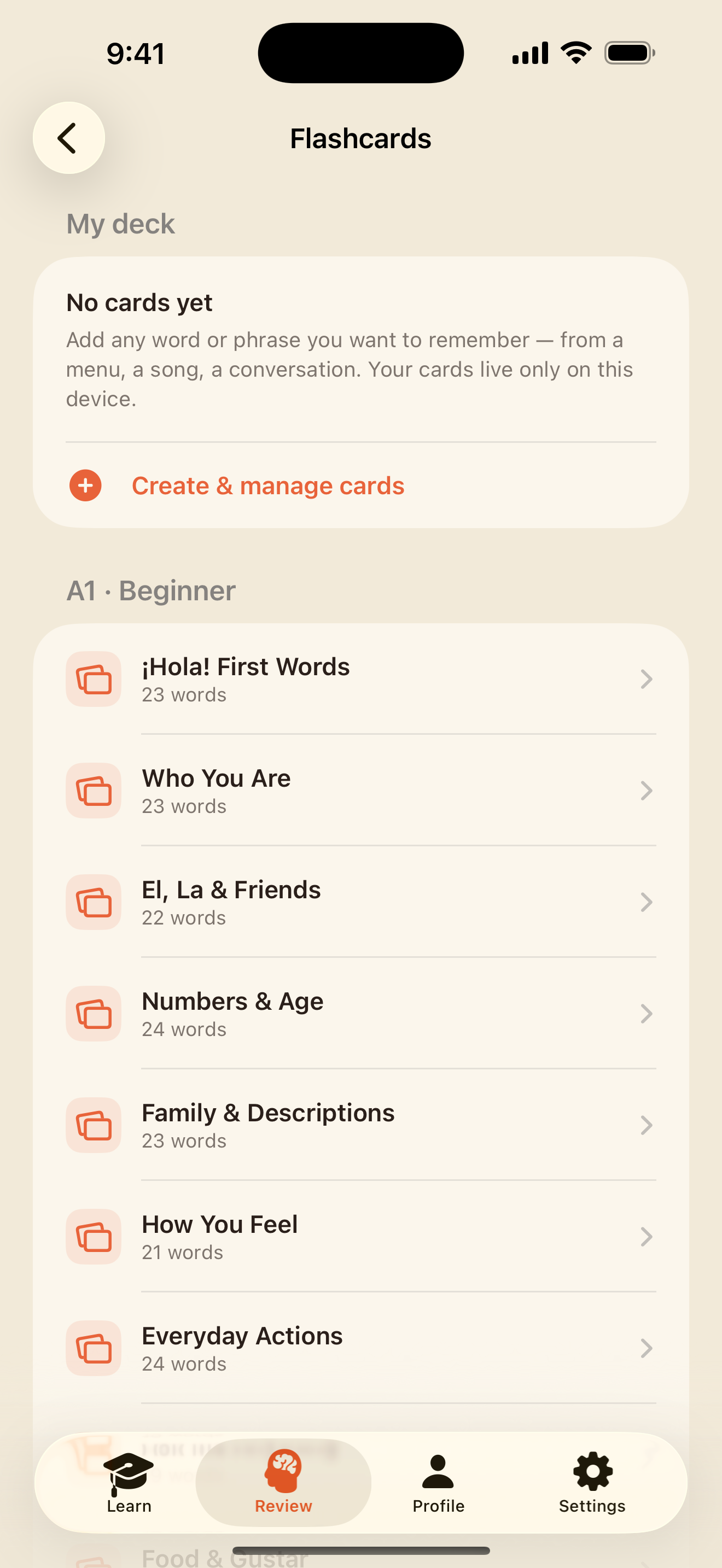
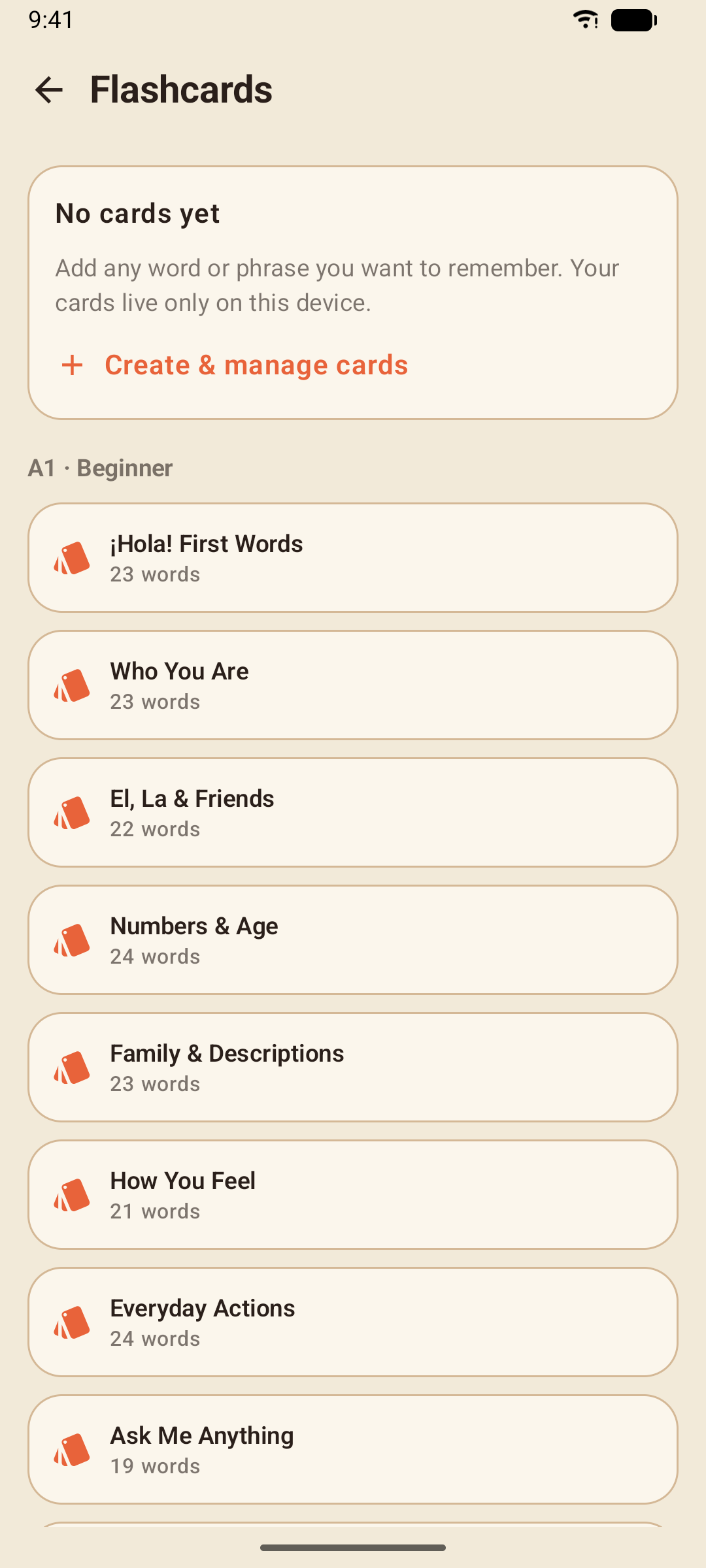
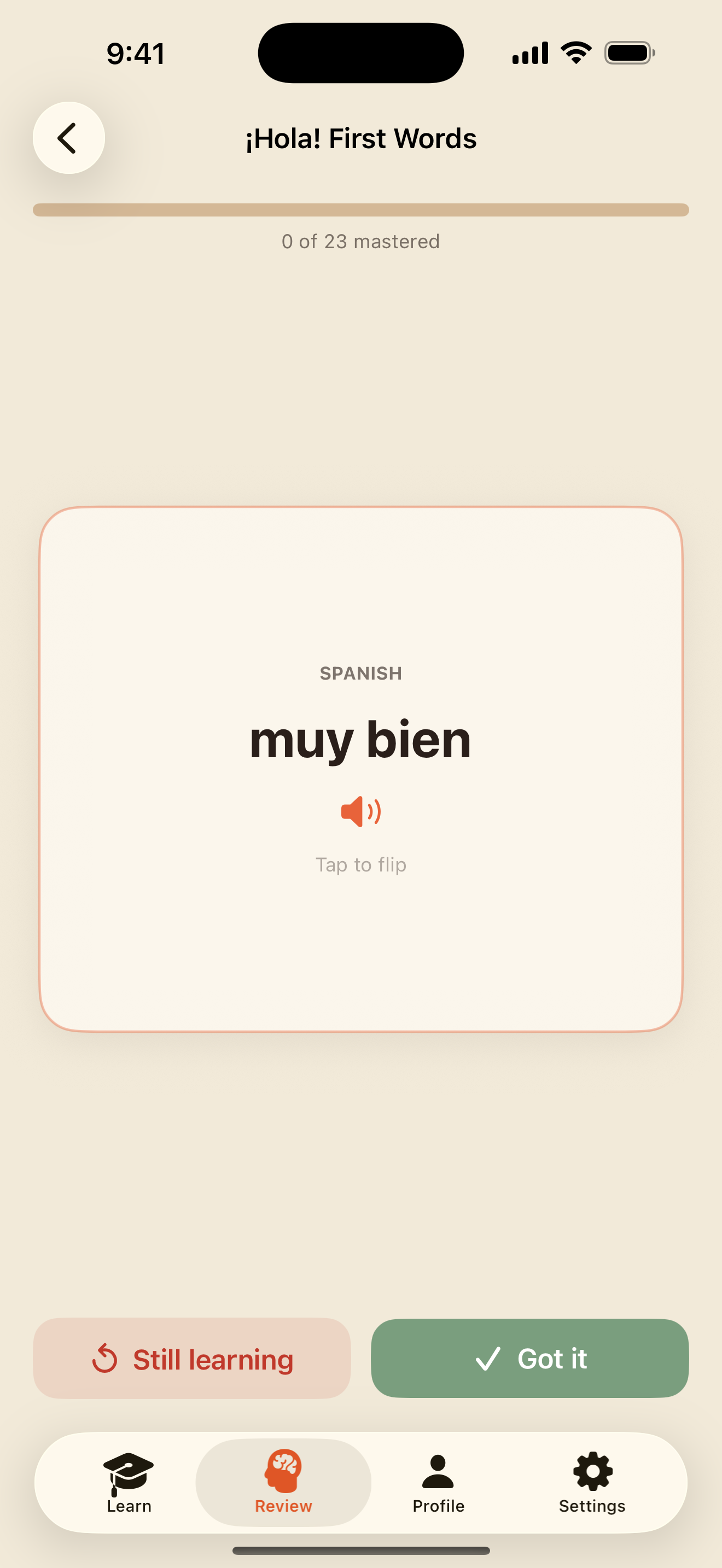
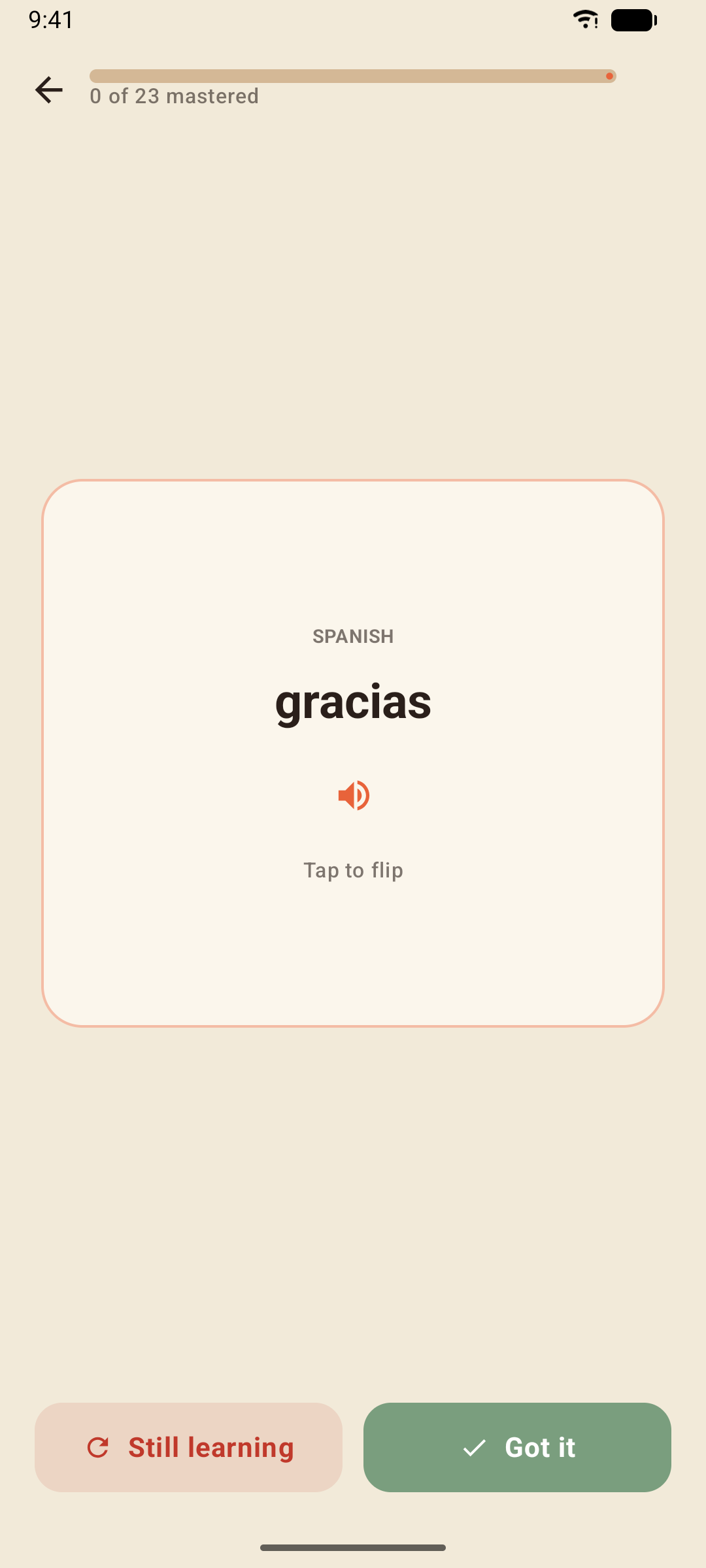
- Got it retires the card for this session; Still learning sends it to the back of the pile, so a run ends only when you know every card.
- My Cards is your personal deck. Tap New card to add a word, a phrase, a meaning and a note of your own — anything the course doesn't cover.
- Turn on Include in Smart Review and your card is scheduled with the same spaced repetition as the course words.
Your cards live only on your device (they are included in a backup — see Backups) and they survive a progress reset.
Quizzes
Two kinds of quiz, both played like a lesson and both earning XP without changing your course progress.
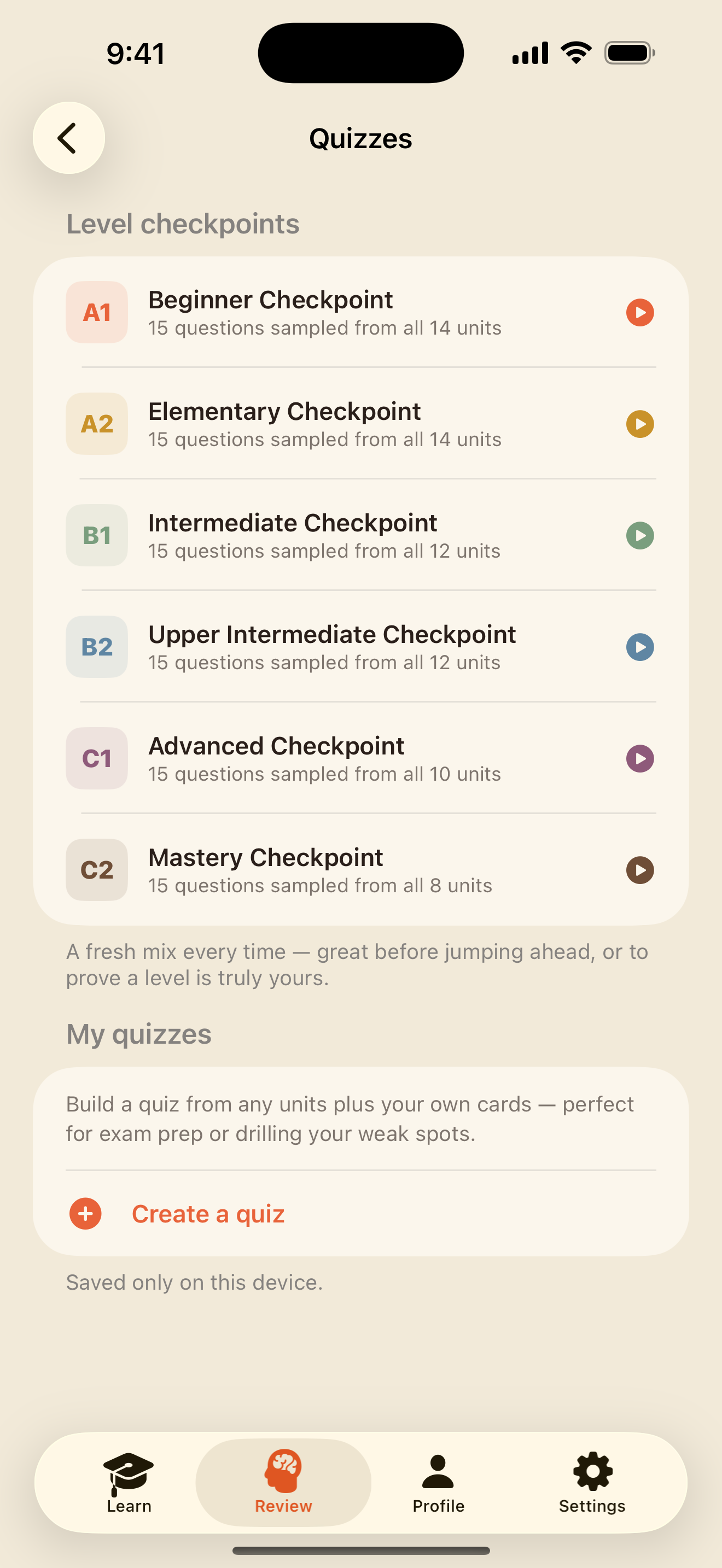
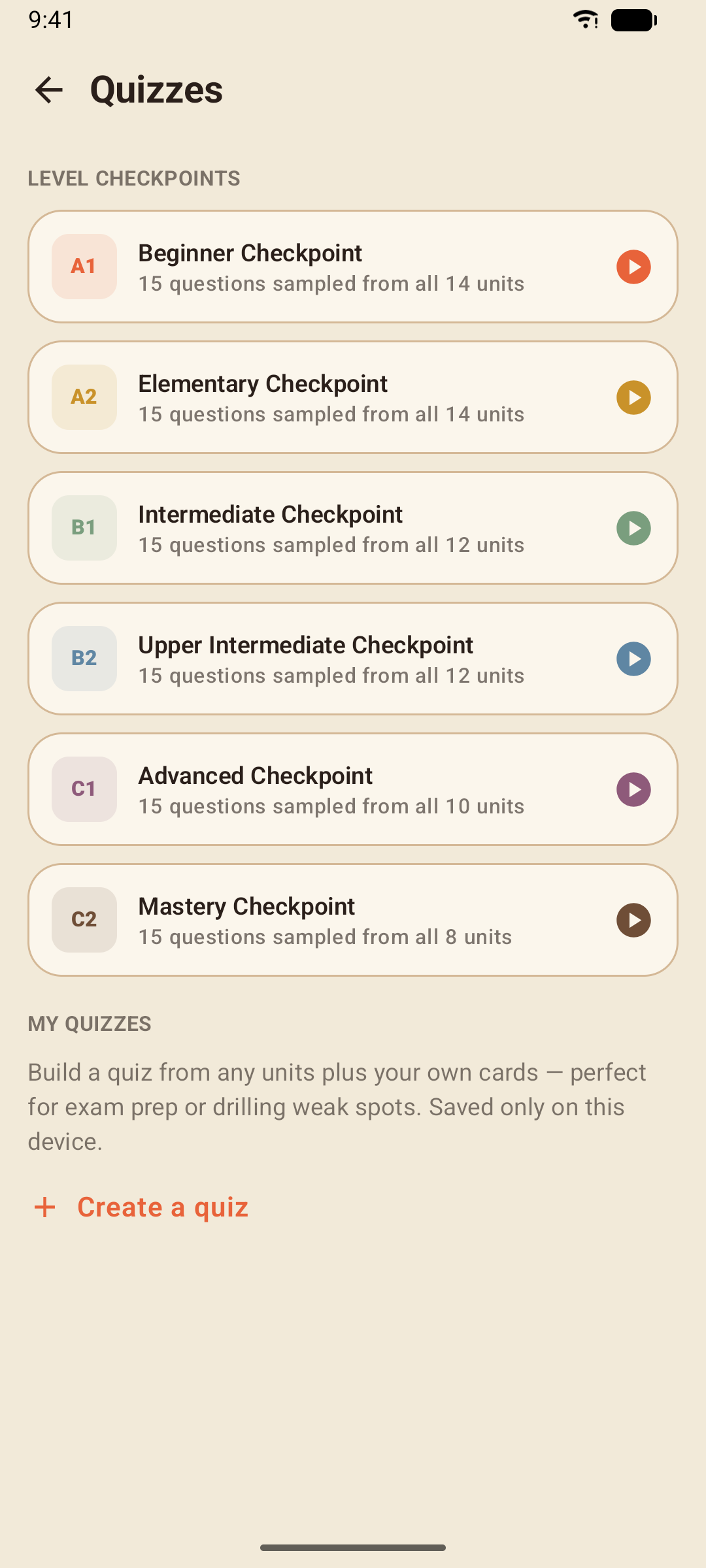
- Level checkpoints — one per level: 15 questions sampled fresh from the whole level every time you take it, so no two checkpoints are the same.
- Your own quizzes — tap New Quiz, give it a name, choose the units it draws from, decide whether to include your own cards, and set the number of questions. Each run generates a new set.
The Conjugation Gym
Full conjugation tables for the 64 verbs the course teaches, quick drills to make them automatic, and the classroom exercise: filling in a whole chart.
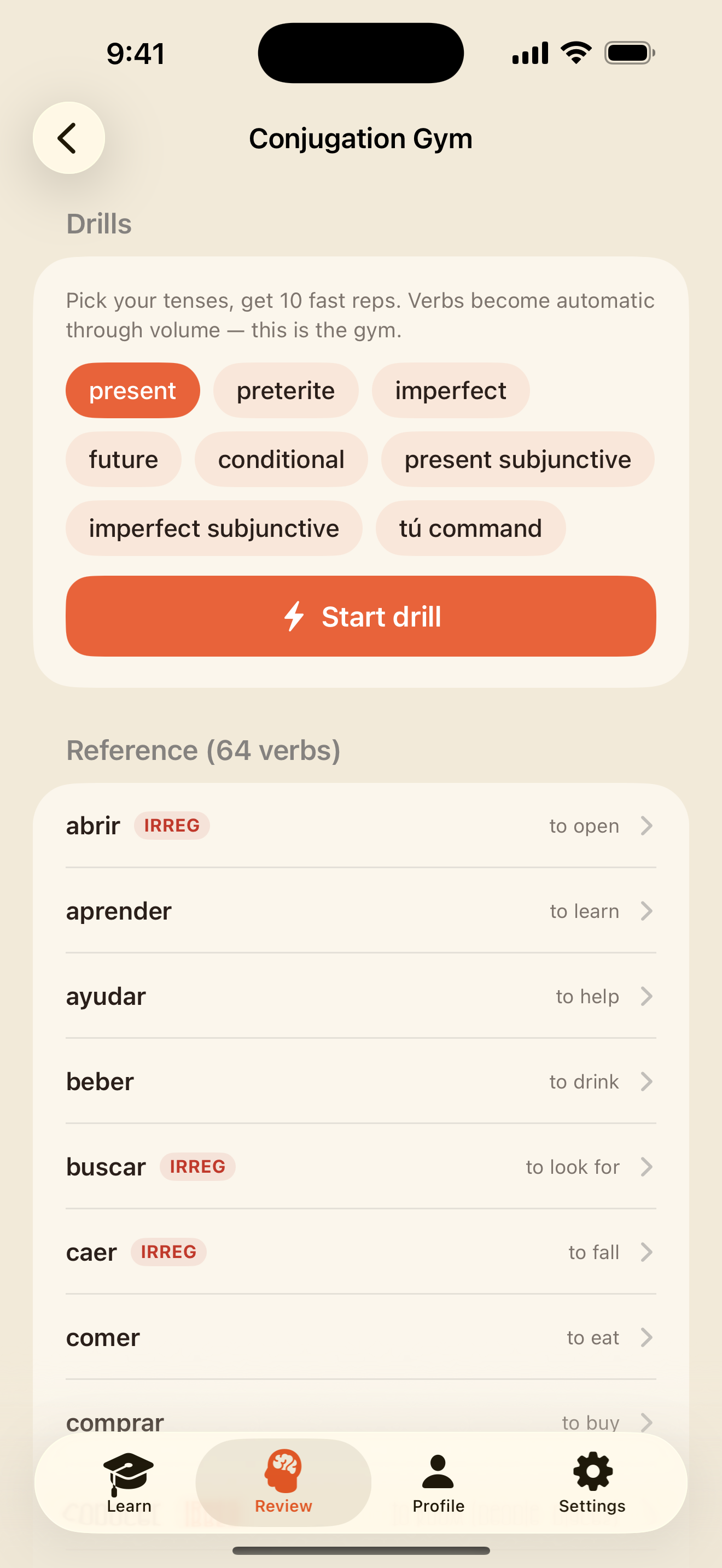
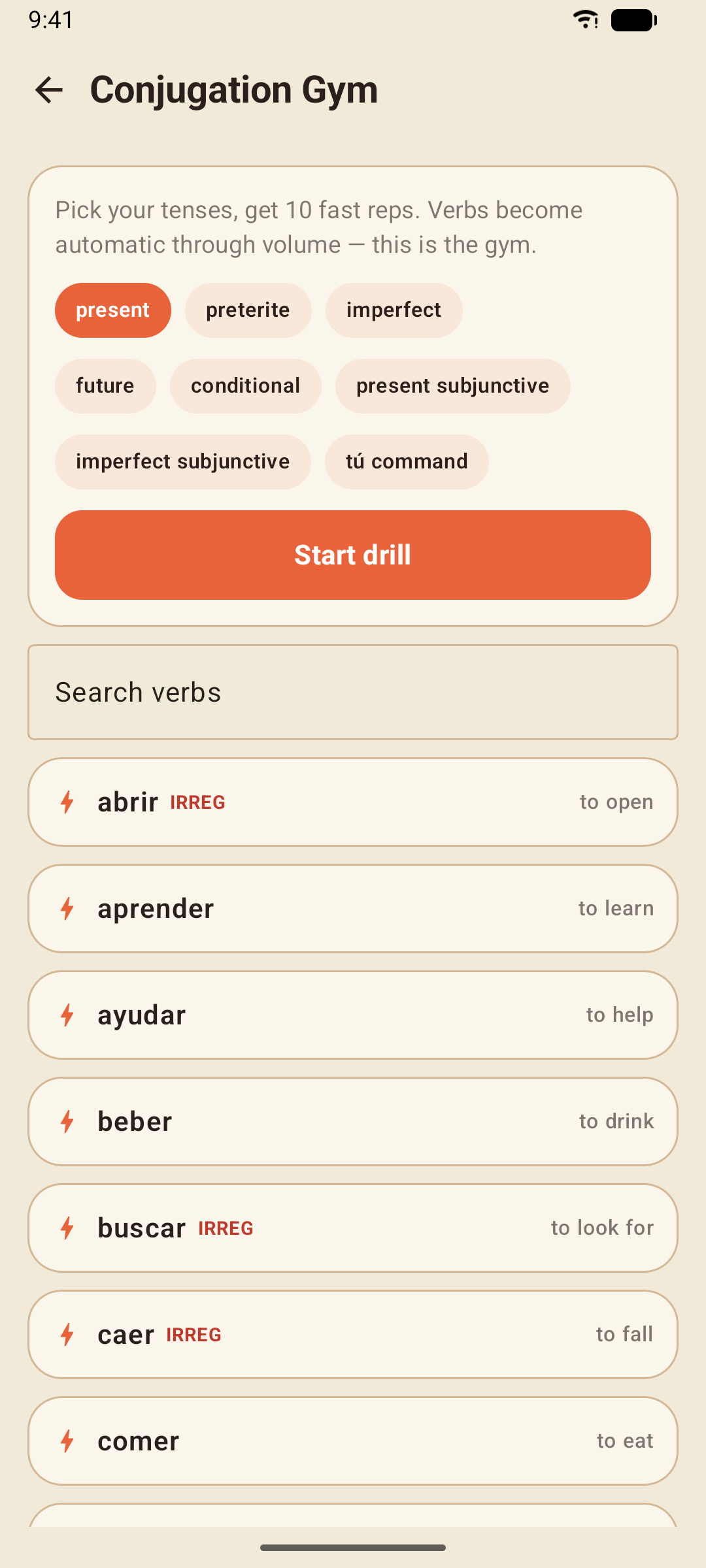
- Search verbs or scroll the list; irregular verbs carry an IRREG badge, and stem-changing verbs show their change (e → ie).
- Tap a verb for its tables — seven tenses plus the tú command, the gerund and the participle — and tap any form to hear it.
- Drills: choose the tenses and a verb group — All verbs, Regular -ar, Regular -er, Regular -ir, Stem-changing or Irregular — and tap Start drill for 10 quick reps.
- Fill the chart: one verb, one tense, every person, the way it's practised in class. Type a form in each box and tap Check: every box is graded at once, and each miss shows the right form under it. The drill card starts three charts, each with a different verb; a verb's table has a Fill the chart button under every tense.
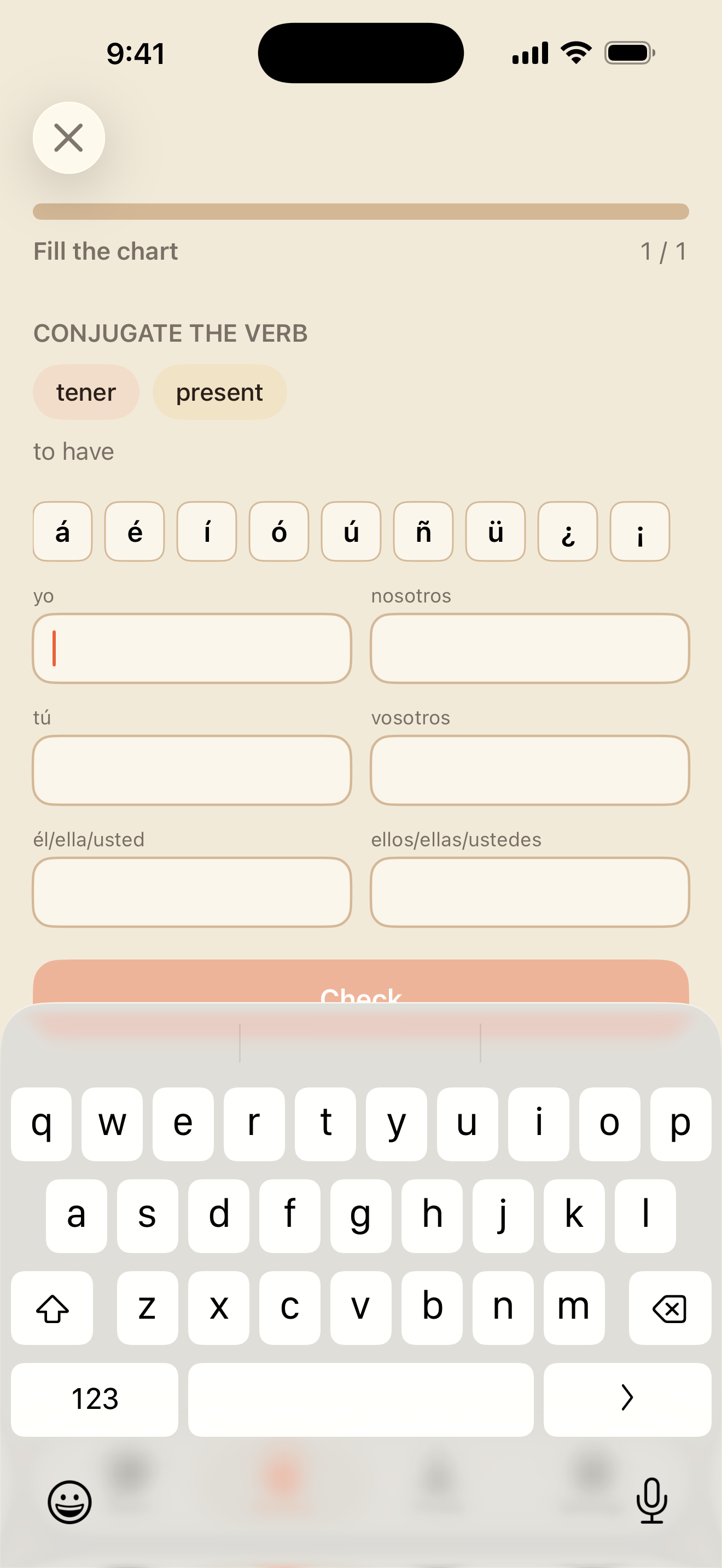
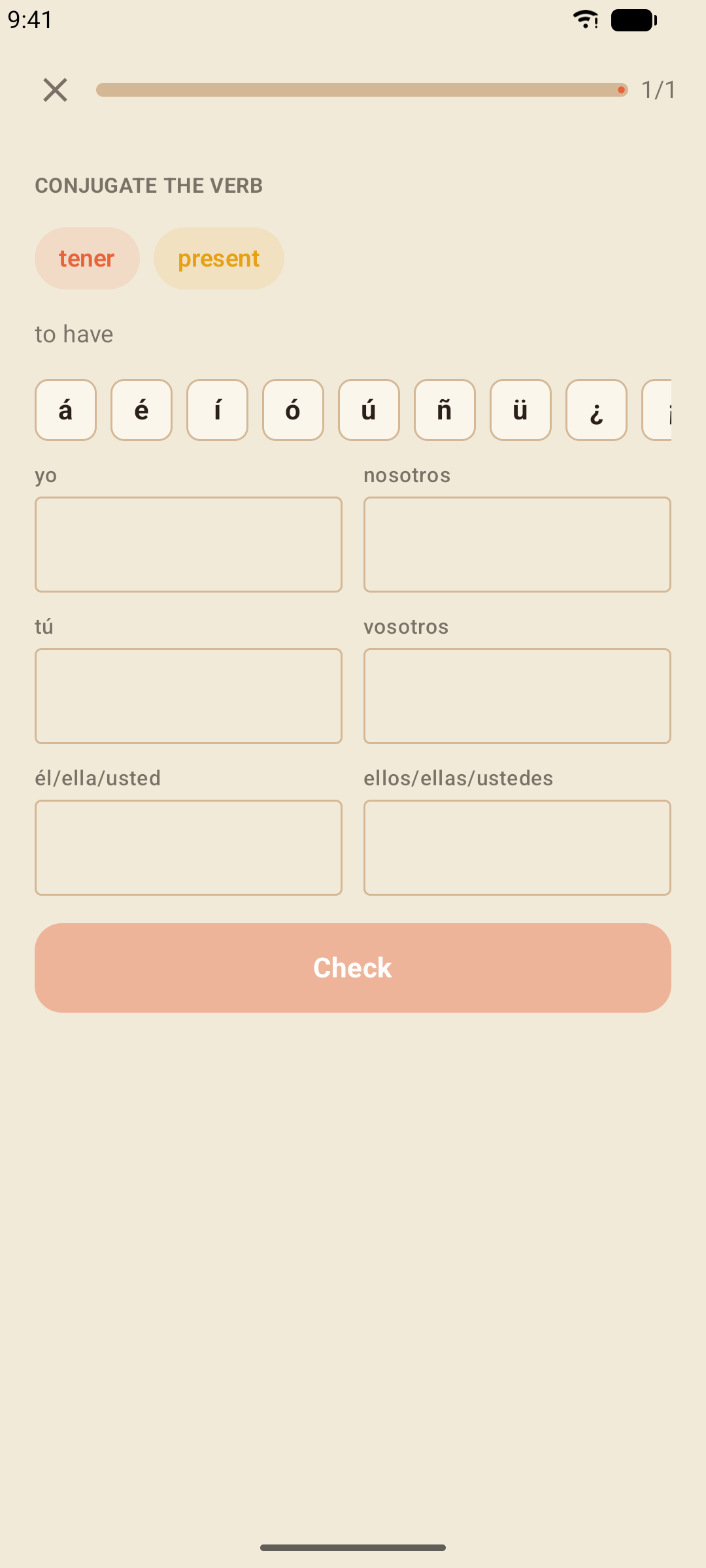
Every table, drill and chart includes vosotros, the "you all" of Spain. To practise only Latin American forms, turn off Include vosotros in Settings.
The Grammar Library
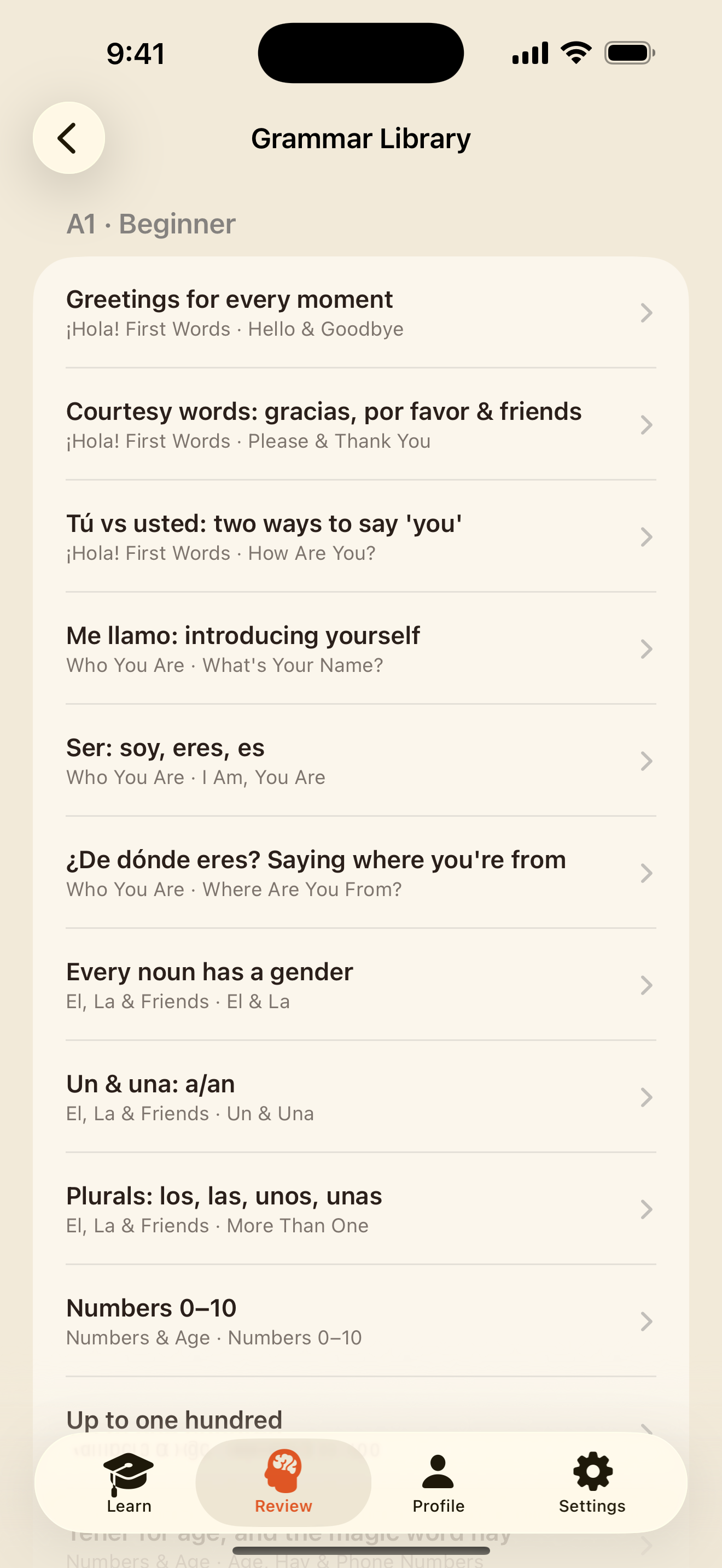
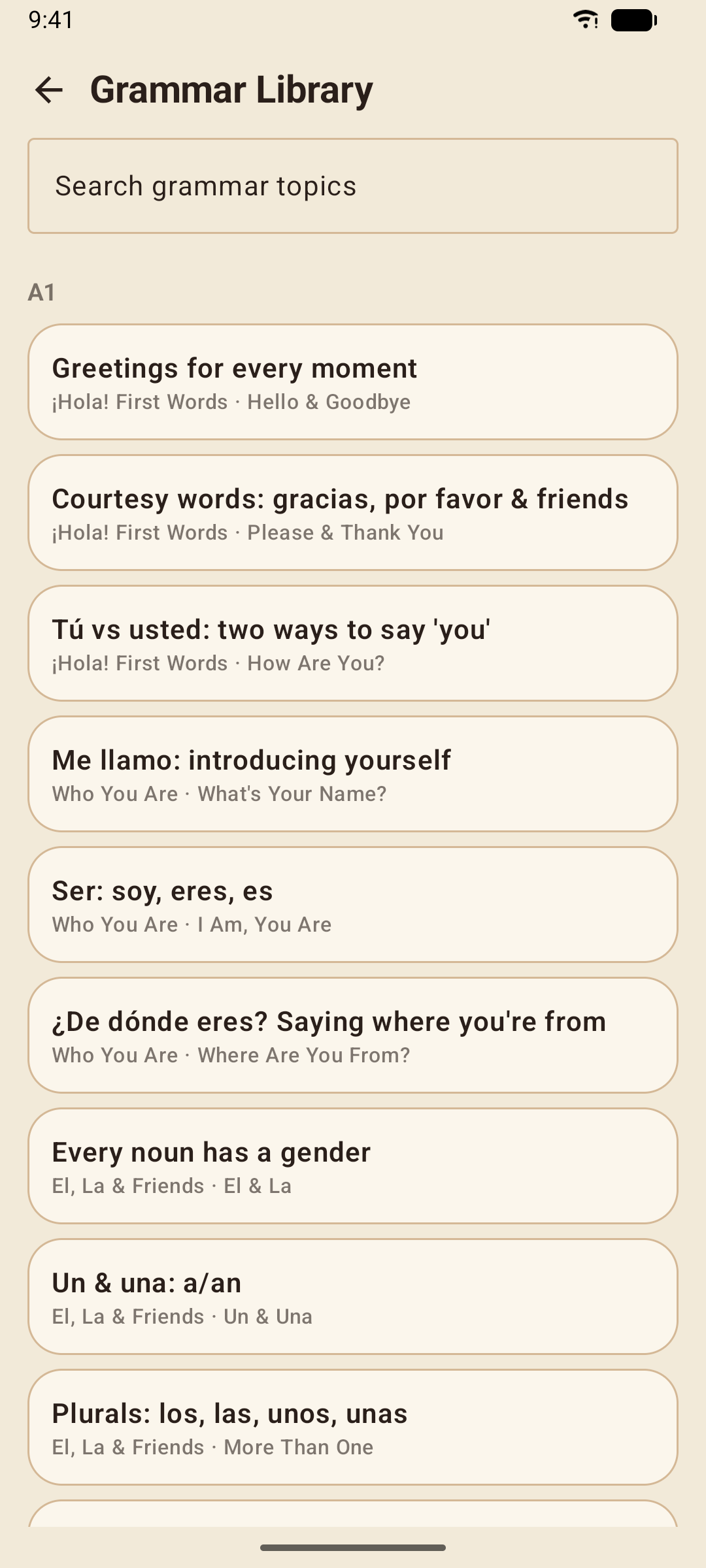
Every grammar note from every lesson in one place, organised by level and unit, with Search grammar topics at the top. It is the fastest way to re-read an explanation without replaying the lesson.
The Phrasebook
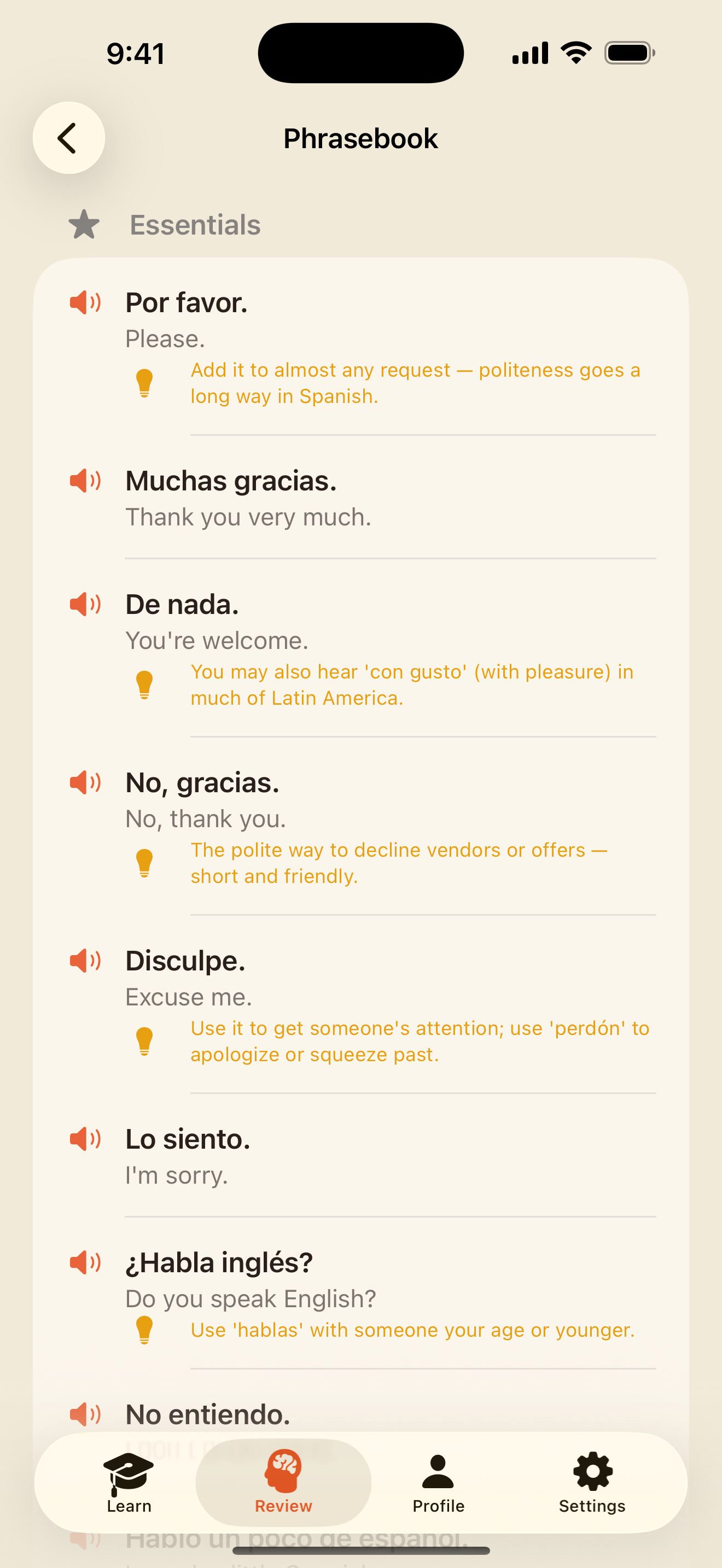
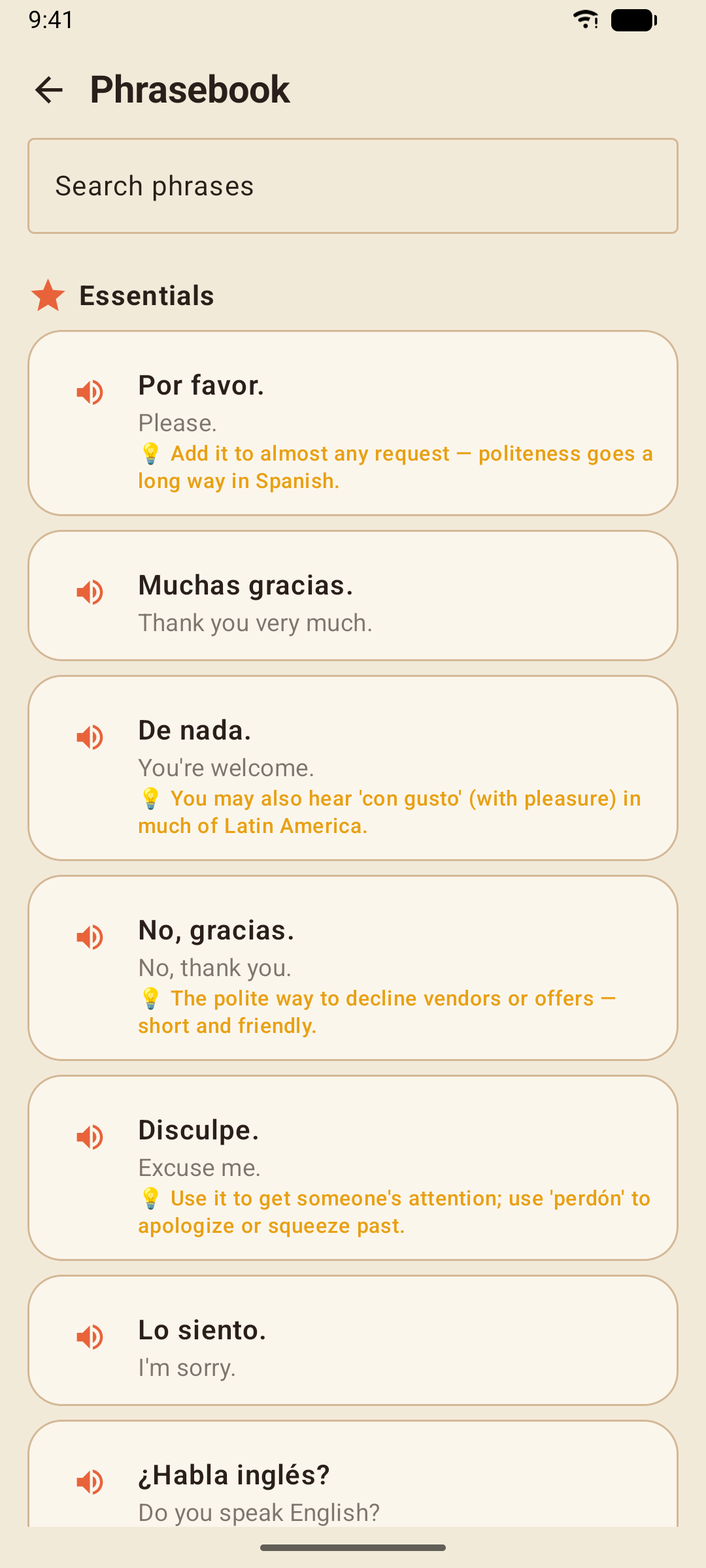
164 everyday phrases in 14 categories — greetings, directions, at the restaurant, emergencies and more — each with its meaning and a speaker button. Search phrases finds one in a second.
Profile, Stats & Achievements
The Profile tab is your record: total XP, current streak, words learned, and a progress ring for every level.
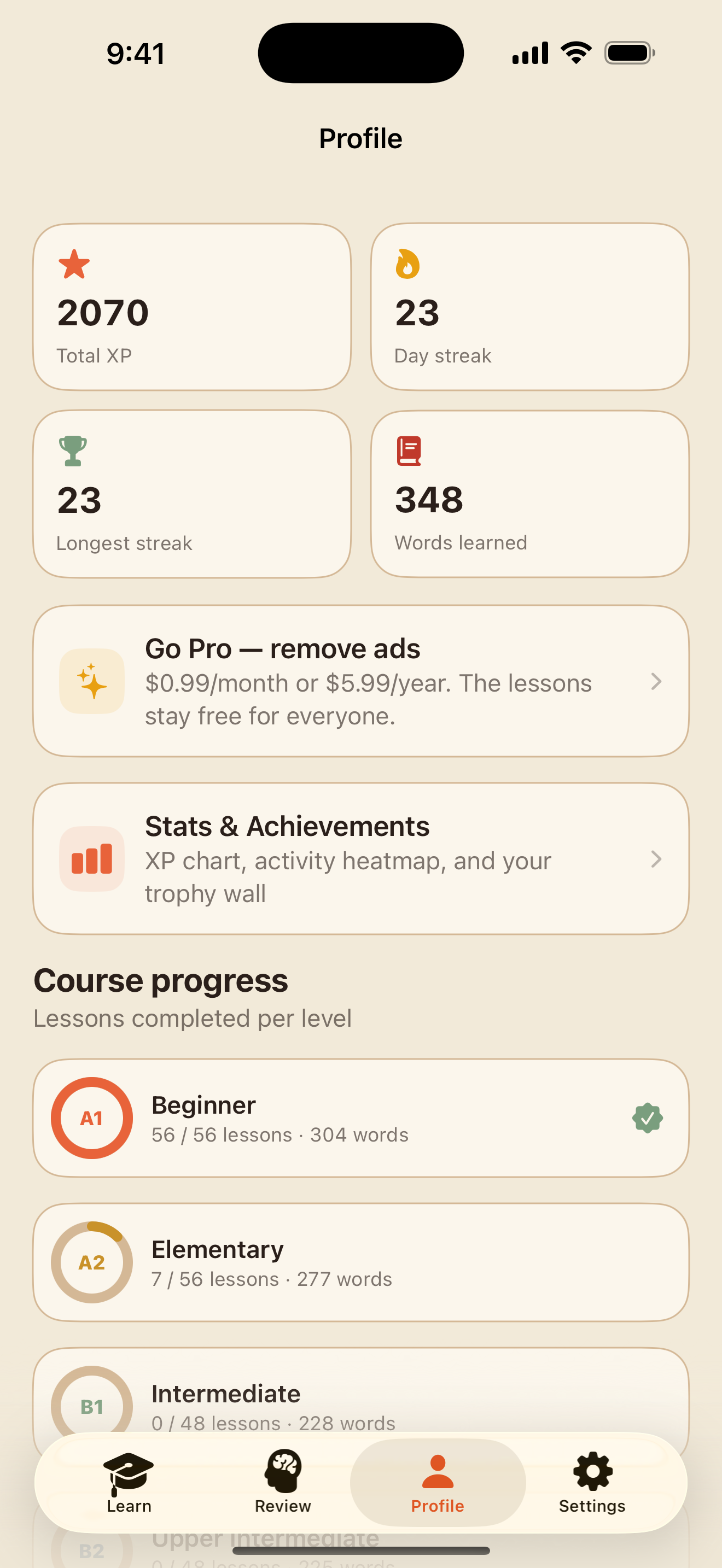
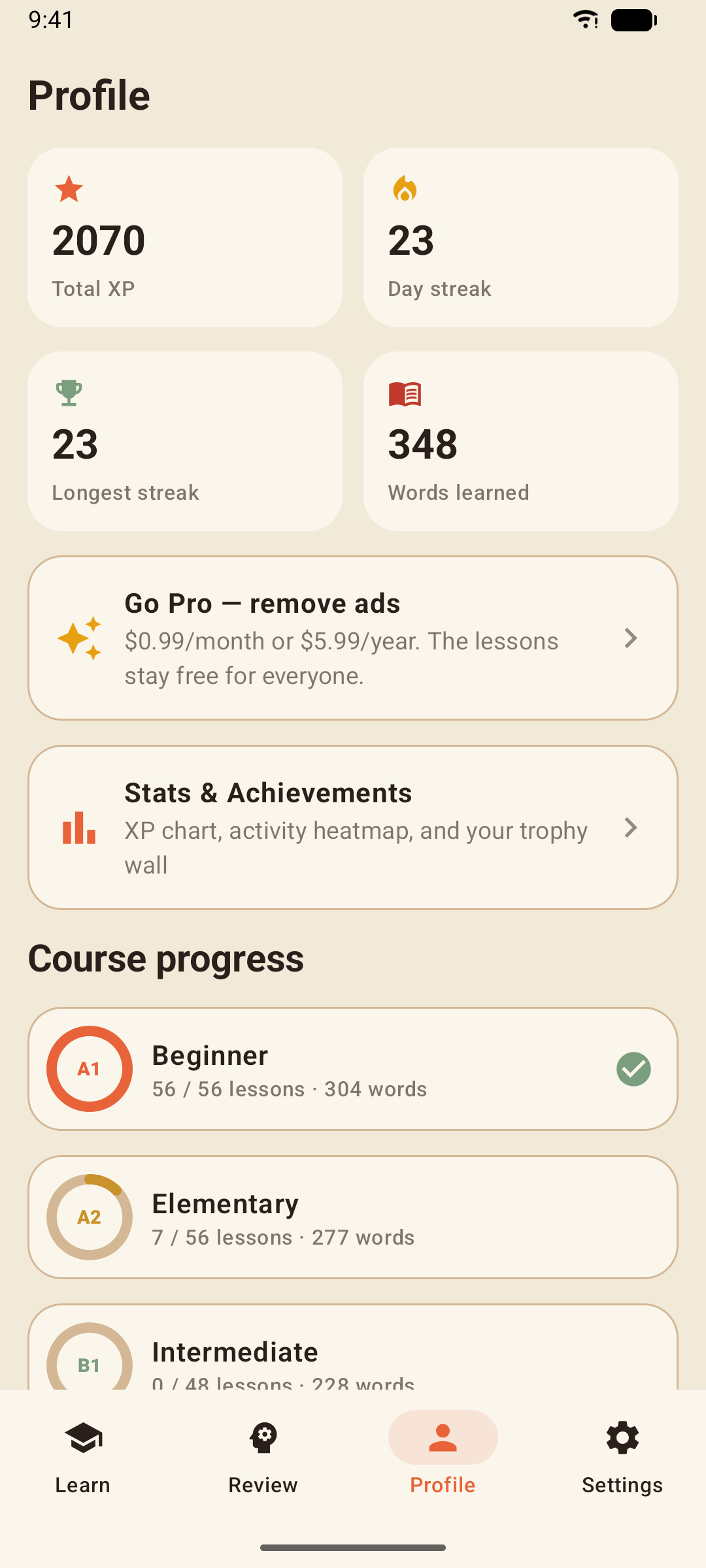
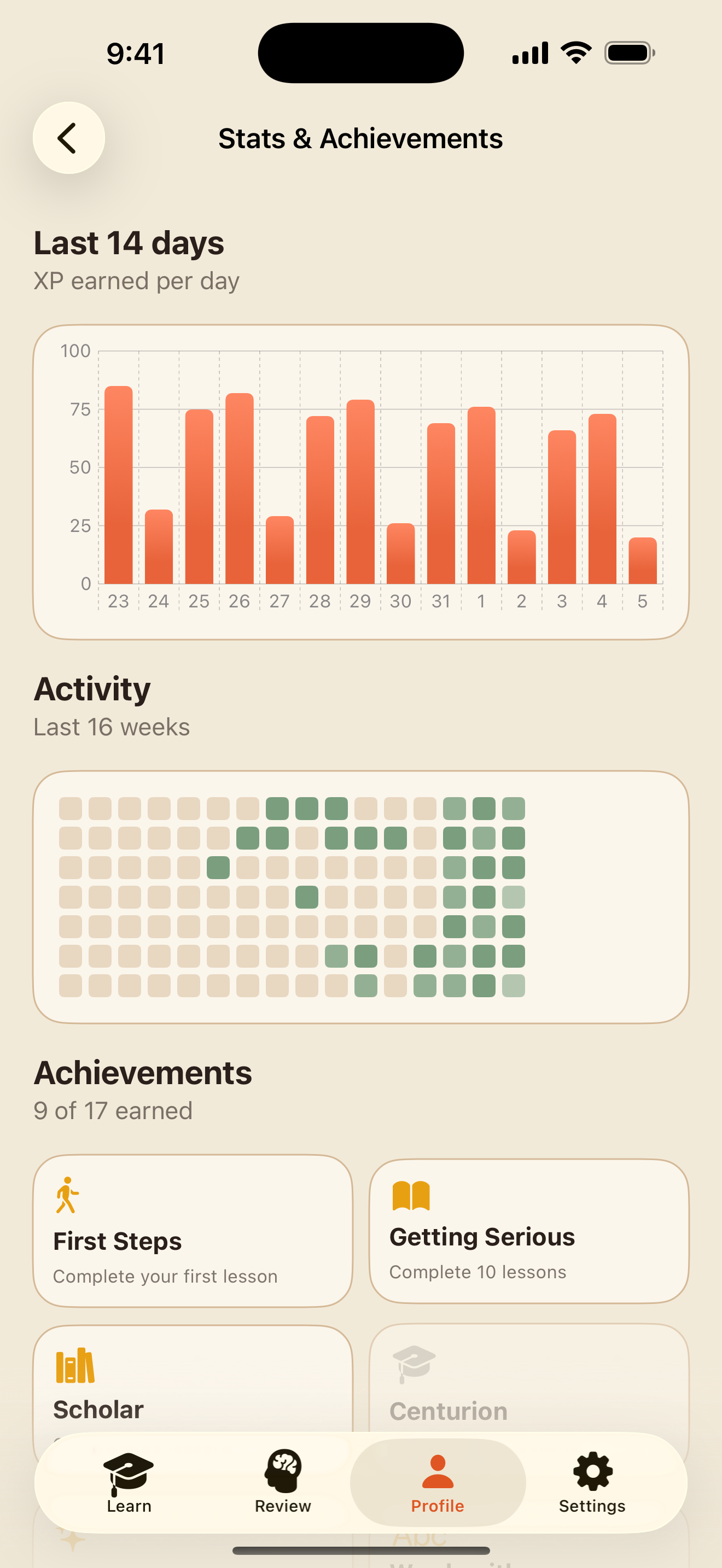
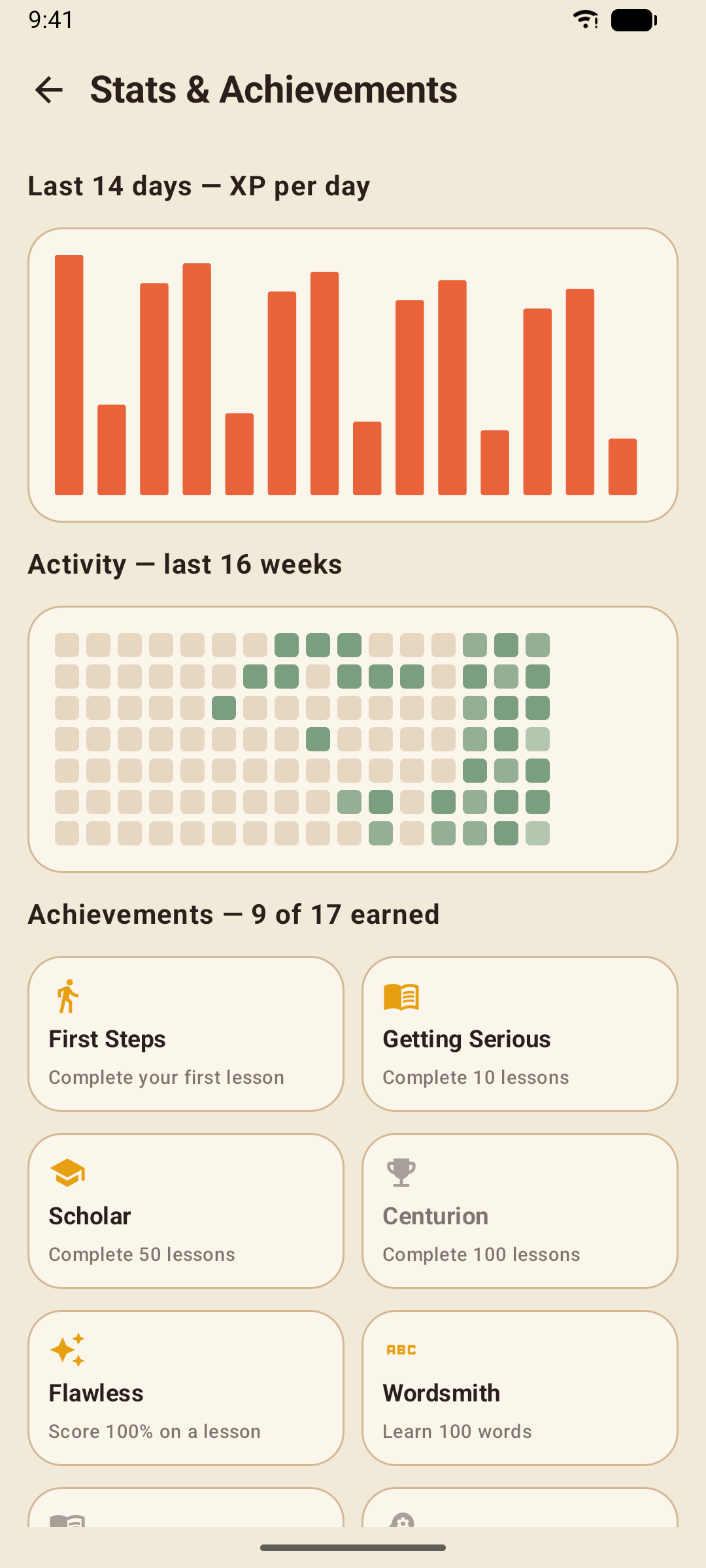
Stats & Achievements opens the detail: XP per day for the last two weeks, a sixteen-week activity heatmap, and the achievement wall — first lesson, 7-, 30- and 100-day streaks, level completions and more.
A streak counts any day you complete a lesson, a review, a workout, a quiz, a story or a conversation. Reminders can help protect it — see Settings.
Settings
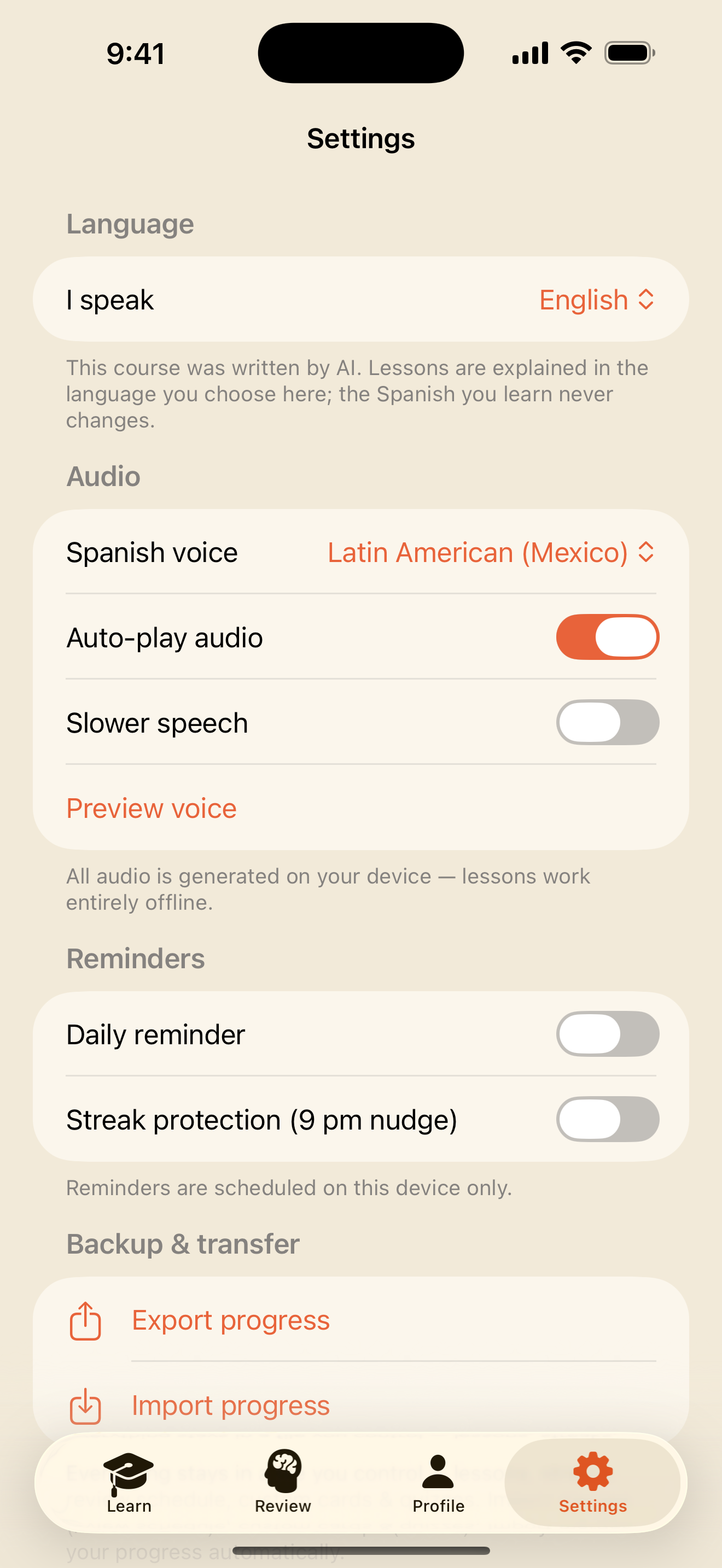
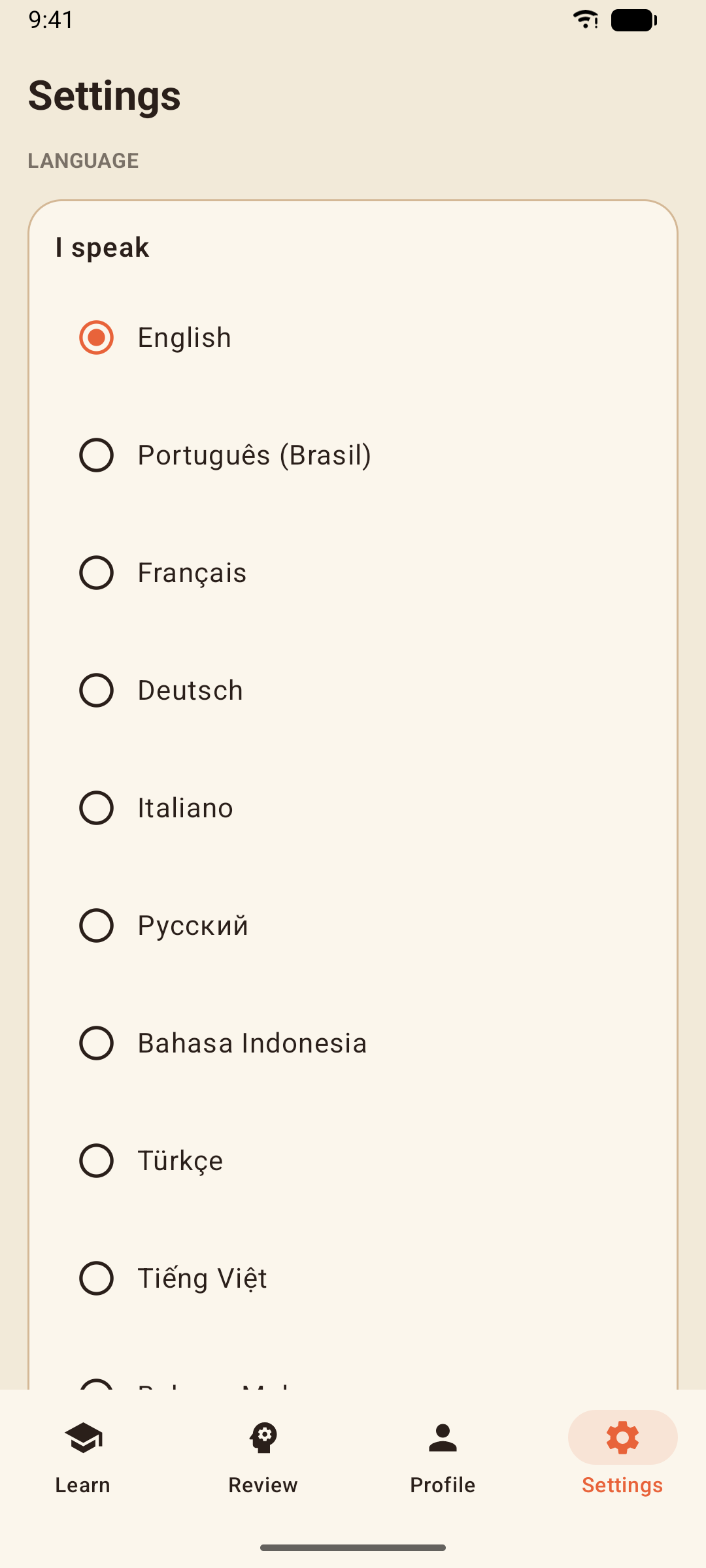
- I speak — the language lessons are explained in. Change it any time; see Understood In in Your Language.
- Spanish voice — pick the voice that reads the course to you and preview it; Slower speech slows every sentence down.
- Include vosotros — shows the vosotros forms in the Conjugation Gym. It is on by default; see The Conjugation Gym.
- Reminders — a Daily reminder at the time you choose and Streak protection (9 pm nudge), a single evening reminder on days you haven't practised yet. Both are optional and live only on your device.
- Backup & transfer — Export progress saves everything (lessons, streaks, your review schedule, custom cards and quizzes) to a single file you control. On a new phone, Import progress merges it in — it never deletes anything. Your normal device backup includes the app's data as well.
- Subscription — Go Pro (remove ads) and Restore purchases; see Understood In Spanish Pro.
- Privacy options appears where consent rules require it and lets you change your advertising choice; Privacy policy opens the policy for the whole family of apps.
- Reset all progress wipes lessons, streaks and your review deck. Your custom cards and quizzes are kept. It cannot be undone, so export first if there is any chance you'll want it back.
The course was written by AI and reviewed for accuracy. Lessons are explained in the language you choose; the translations other than English are machine-generated. The app says so in Settings too.
Understood In in Your Language
Lessons, hints, glosses and the whole interface come in 33 languages, from Portuguese and French to Japanese, Hindi, Thai, Arabic and Hebrew. You choose the language inside the app (Settings → I speak), not in your phone's settings, so you can keep your phone in one language and learn in another.
- The Spanish you learn is identical in every language — only the explanations change.
- When an exercise asks you to translate into your language, your answer is checked with the same tolerance as Spanish: capitals and punctuation are ignored, and small spelling marks are forgiven.
- Arabic and Hebrew run right-to-left throughout, with the Spanish kept readable left-to-right inside them.
Reminders & Widgets
- Reminders are ordinary notifications scheduled on your phone — no server, nothing sent anywhere. Turn them on in Settings; if your phone has notifications off for the app, Settings tells you and links to the system setting.
- Home-screen widgets show your streak and the words due today.
On iPhone there is also a medium widget with a word of the day. Long-press your home screen, tap the add button, and search for Understood In.
On Android, long-press your home screen, choose Widgets, and find Understood In.
Understood In Spanish Pro
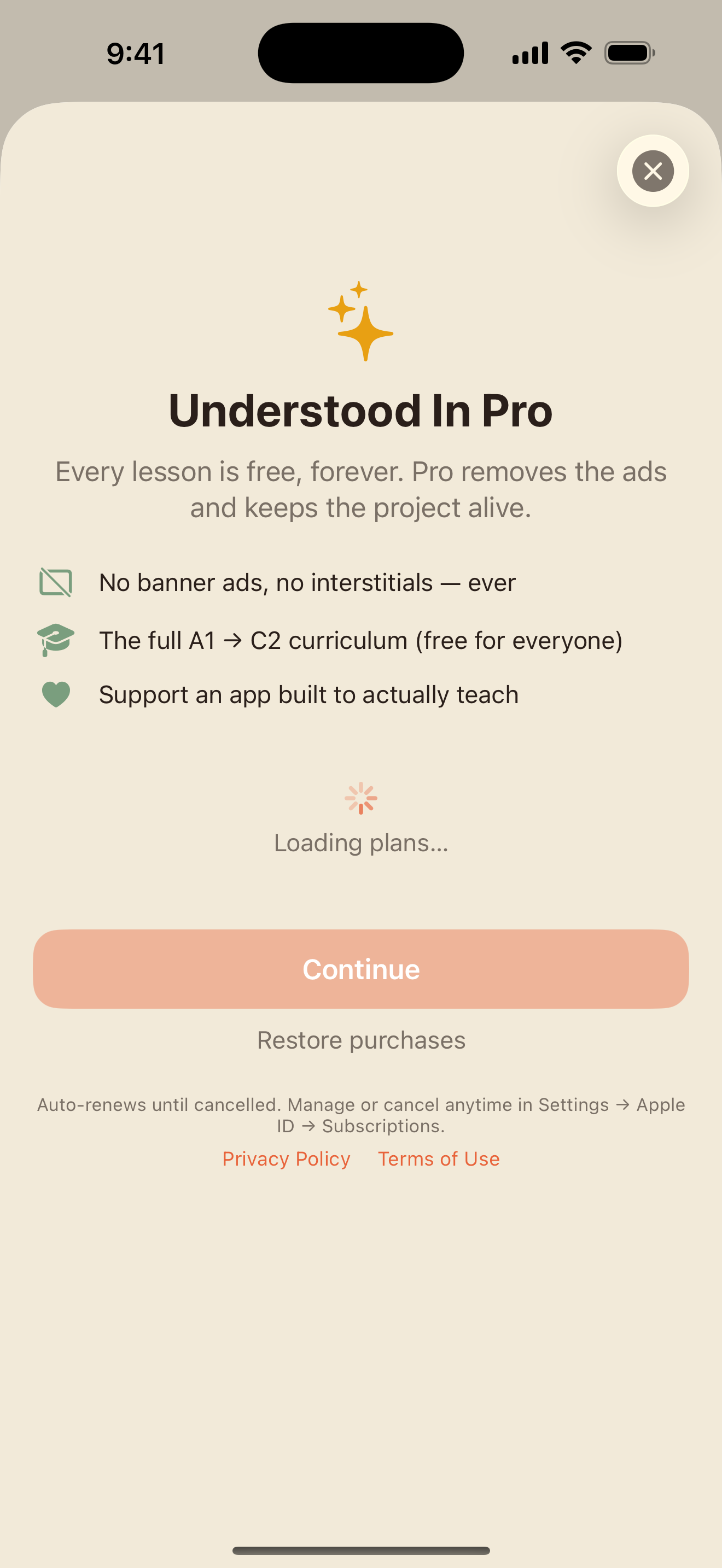
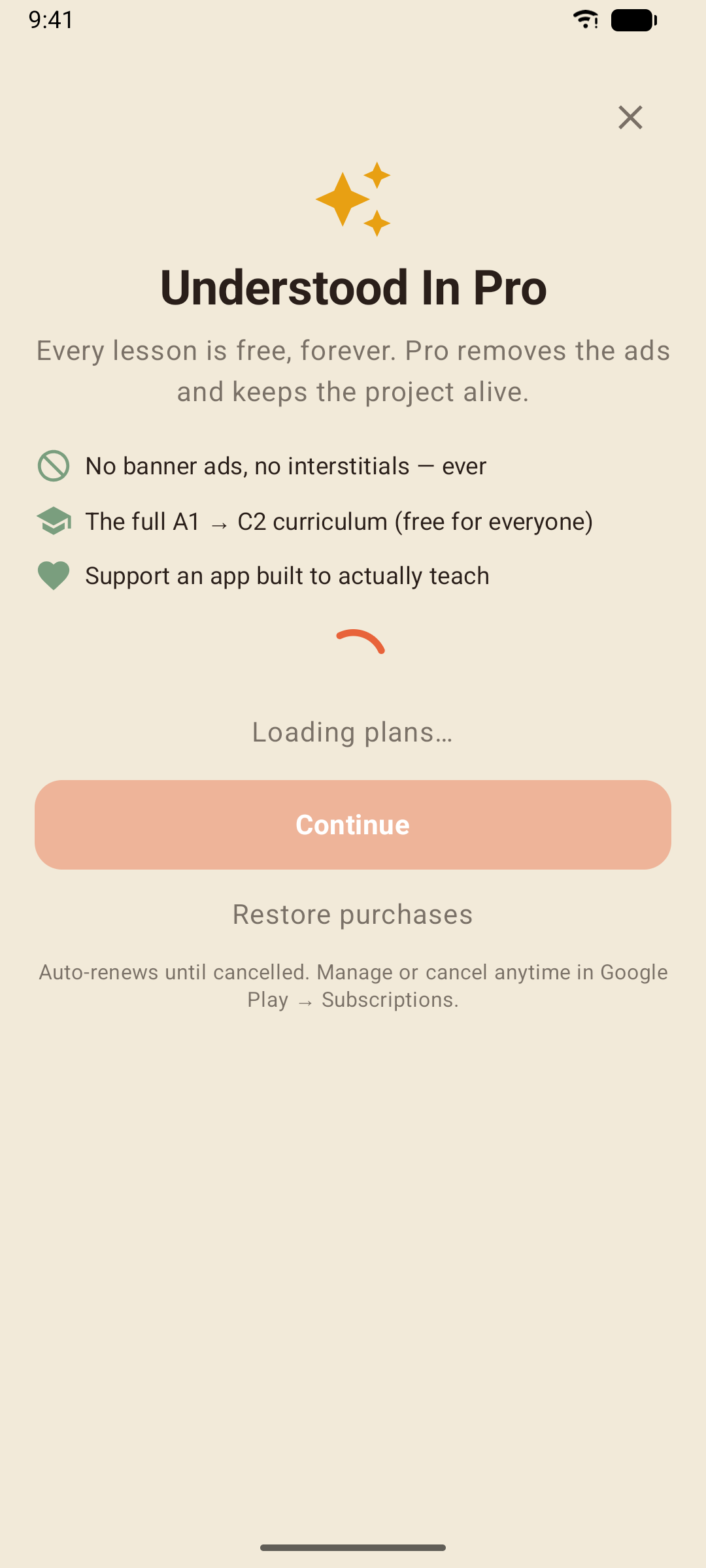
Understood In is free, and the ads are what keep it free: a banner on the Learn and Review tabs, and occasionally a full-screen ad after a result screen — never inside a lesson, a story or a conversation. Pro removes every ad. Nothing else changes, because nothing else is held back.
How to subscribe
- Open Profile → Go Pro — remove ads or Settings → Go Pro (remove ads)
- Choose per month ($0.99) or per year ($5.99)
- Confirm with the App Store or Google Play
Prices are shown in your local currency on the Pro screen before you buy. Each Understood In app is its own subscription.
Restoring and managing
If you reinstall the app or move to a new phone, Settings → Restore purchases turns Pro back on.
On iPhone and iPad, subscriptions are managed by the App Store: open the Settings app, tap your name, then Subscriptions. Cancel any time; ads return when the current period ends.
On Android, subscriptions are managed by Google Play: open the Play Store app, tap your profile picture, then Payments & subscriptions → Subscriptions. Cancel any time; ads return when the current period ends.
Tips & Tricks
- Read the grammar note, then trust the exercises — the note is short on purpose; the practice is where it sticks.
- Say the sentences out loud even when you skip the speaking exercise — the speaker button is on every Spanish line for a reason.
- Type without accents when you're in a hurry — the answer is accepted, and the "Watch the accents" note teaches the spelling anyway.
- Do the Daily Workout first — three minutes of due words and recent misses before a new lesson is the cheapest progress in the app.
- Use Jump in anyway — if a unit is too easy, skip ahead; the checkpoints will tell you if you skipped too far.
- Put your own words in My Cards — the words from your life, with Smart Review on, so the course learns your vocabulary too.
- Take the level checkpoint before moving up — 15 fresh questions from the whole level are the honest test.
- Export a backup before you switch phones — Import merges, so nothing is ever lost.